The first time my Synology vanished, I nearly factory-reset the thing at midnight. Turned out the box was fine. My laptop had switched to the 5GHz guest network, and the NAS lived on the wired LAN, two subnets that could not see each other.
That is the lesson I want you to keep in your head the whole way through: a NAS that is unreachable is almost never broken. Something between your device and the box has quietly changed.
So we are going to work in order, from the cheapest checks to the fussiest, and stop the moment your shares come back.
Step 1: Confirm the NAS is actually powered and online
Walk over to the unit. I mean physically. Look at the front LED and the two little lights on the Ethernet port at the back.
On most boxes (Synology, QNAP, Terramaster) a solid blue or green power light plus a blinking link light means the hardware is up and talking to the switch. If the LAN port is dark, the problem is a dead cable, a dead switch port, or a NAS that never finished booting.
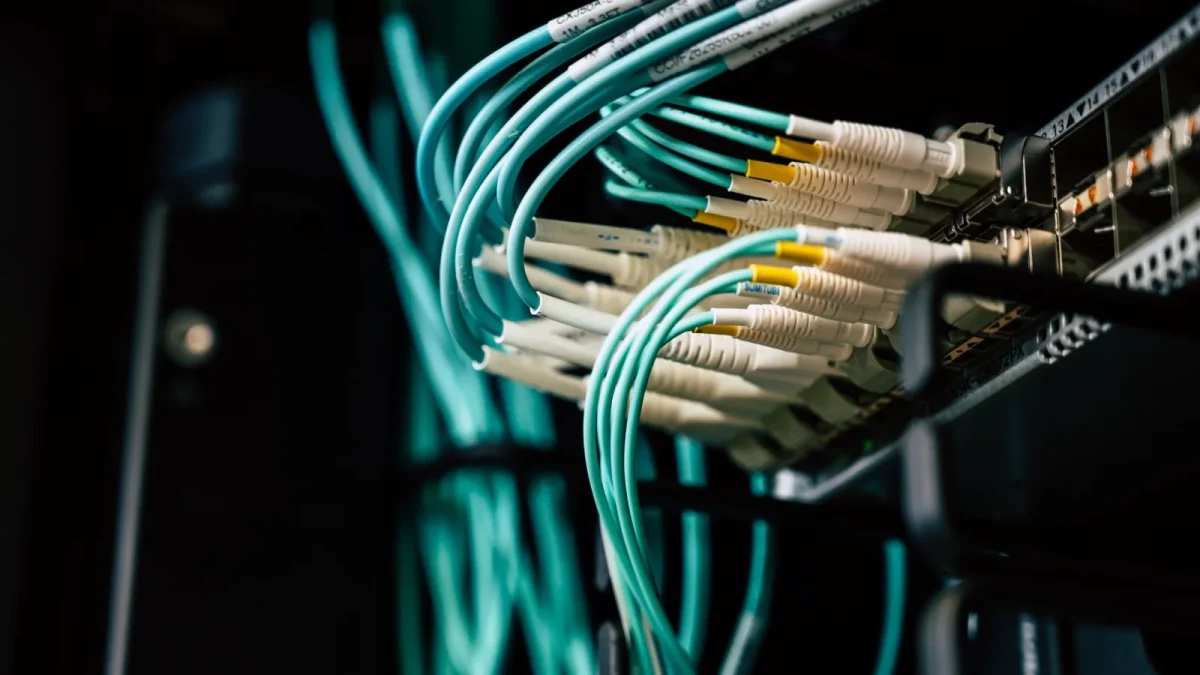
Swap the Ethernet cable for a known-good one and move it to a different port on your router or switch. A $4 cable failing is far more common than people expect, and it is the single fastest thing to rule out.
Give it a full two minutes
A cold-booting NAS with several drives can take 90 seconds to two minutes before its services answer. If you power-cycled it, wait. Refreshing your file manager fifteen times during boot proves nothing.
Step 2: Find the NAS on the network by IP, not name
Names are unreliable. The friendly hostname you type, like DiskStation or DISKSTATION.local, depends on discovery protocols that break constantly. The IP address does not lie.
Open your router's admin page and look at the DHCP client list or connected devices. Your NAS will show up by its model or MAC. Note the IP, something like 192.168.1.42.
Then test it directly. On Windows open Command Prompt, on Mac open Terminal, and run a ping:
- ping 192.168.1.42 replies fast? The NAS is alive on the network and this is a sharing or permission problem, so skip to Step 4.
- Request timed out or Destination host unreachable? The NAS and your device are not on speaking terms yet. Stay in Step 3.
Step 3: Fix the IP and subnet mismatch
This is where most "my NAS disappeared" cases actually live. Your laptop and your NAS have to be on the same subnet to find each other without a router doing extra work.
Check both addresses. On your computer run ipconfig (Windows) or ifconfig (Mac). If your laptop is 192.168.50.10 and the NAS is 192.168.1.42, that third number difference means two separate networks. That is exactly what a guest Wi-Fi network or a mesh node in bridge-versus-router mode does to you.
Get both devices onto the same network. The cleanest test is to plug your laptop into the same switch as the NAS with a cable, or join the main Wi-Fi instead of guest.
Give the NAS a fixed address
Once you can reach it, stop this from happening again. In your router, set a DHCP reservation so the NAS always gets the same IP based on its MAC address. This is better than a static IP set on the NAS itself, because the router stays in charge and you avoid conflicts.
I reserve an address for every always-on device in my house. It takes two minutes and saves the exact panic you are in right now.
Step 4: The NAS answers a ping but shares will not open
Good news: the network layer works. The trouble is up in the file-sharing layer, and the usual culprit is SMB, the protocol Windows and Mac use to mount folders.
Microsoft turned off the old SMB1 protocol by default several years ago for security reasons, and a lot of older or misconfigured NAS shares still expect it. If your box only offers SMB1, modern Windows will refuse to connect and often shows error 0x80070035, the network path was not found.
Fix it on the NAS side, not the PC side. In DSM go to Control Panel, File Services, SMB, Advanced Settings, and set the minimum SMB protocol to SMB2 and the maximum to SMB3. QNAP has the same setting under Control Panel, Network and File Services. You can read Microsoft's reasoning on why SMB1 is disabled in this official SMB configuration guide.
Step 5: Rule out the firewall
Two firewalls can block you: the one on your NAS and the one on your computer. Both stop the same traffic.
SMB uses TCP port 445. If your NAS firewall has a rule that only allows your old subnet, and Step 3 moved you to a new one, the box will ping fine but silently drop your file requests. In DSM, Control Panel, Security, Firewall, either disable the firewall briefly to test or add your current subnet to the allow list.
On Windows, a network set to Public instead of Private blocks file sharing entirely. Open Settings, Network, and switch the active connection to Private, then try the share again.
Step 6: Permissions and the login prompt loop
If you now get a username and password box that rejects you over and over, the network is completely fine. You have an accounts problem.
The account you log in with must exist on the NAS, not on your PC. Your Windows Microsoft account means nothing to the NAS. Create or confirm a user in Control Panel, User and Group, and make sure that user has read/write permission on the specific shared folder.
When you connect, type the username exactly as the NAS knows it. On Windows I use the form 192.168.1.42username in the credential box to force it to authenticate against the NAS rather than a Windows domain.
| Symptom | Most likely cause | Where to fix it |
|---|---|---|
| Ping times out | Subnet or cable | Router and Step 3 |
| Ping works, share fails, error 0x80070035 | SMB version | NAS file services |
| Ping works, no error, just hangs | Firewall on port 445 | NAS or Windows firewall |
| Endless password prompt | Wrong or unauthorized user | NAS user and folder permissions |
Step 7: When only the name is broken
Sometimes the IP works perfectly but typing the hostname does nothing. That is a name-resolution issue, usually mDNS or NetBIOS discovery misbehaving, and it is cosmetic.
Map the share to a drive letter using the IP address instead. In Windows Explorer, right-click This PC, Map network drive, and enter 192.168.1.42yourfolder. Tick reconnect at sign-in. It will mount every boot and you can stop fighting the name entirely.
For a deeper look at how SMB and network shares function, the SMB overview on Wikipedia is a solid primer.
Getting back to normal, and staying there
Nine times out of ten, one of two things was wrong: the two devices drifted onto different subnets, or SMB1 got left behind by a Windows update. Everything else is rarer.
Once your shares mount again, do the boring maintenance that prevents the next 11pm scare. Set that DHCP reservation, confirm SMB2/SMB3 is on, and label the cable so nobody unplugs it "to borrow for a minute."
Your NAS was never the problem. The path to it was, and now you know how to walk that path in order.
Frequently asked questions
Why can I ping my NAS but not open its shared folders?
A successful ping means the network layer works, so the fault is in the file-sharing layer above it. The three usual causes are an SMB version mismatch (often shown as error 0x80070035), a firewall blocking TCP port 445 on the NAS or your PC, or a permissions problem with your user account. Work through those three in that order.
How do I find my NAS IP address if it disappeared from Windows Explorer?
Open your router's admin page and check the DHCP client list or connected devices; the NAS shows up by model name or MAC address. Alternatively, run your brand's discovery tool such as Synology Assistant or QNAP Qfinder, which scan the local network and report the box's real IP even when Explorer cannot see it.
Should I enable SMB1 to get my old NAS share working?
No. SMB1 is the insecure protocol that WannaCry ransomware spread through in 2017, which is why Windows disables it by default. Instead, go into your NAS file-service settings and set the minimum SMB protocol to SMB2 and the maximum to SMB3. Every NAS made in roughly the last decade supports this.
Why does my NAS keep asking for a username and password?
A repeating login prompt means the network is fine but authentication is failing. The account must exist on the NAS itself, not your Windows or Microsoft account, and that user needs read/write permission on the specific folder. Try entering the credentials in the form 192.168.1.42username to force authentication against the NAS.
Could a guest Wi-Fi network be why I cannot see my NAS?
Yes, this is one of the most common causes. Guest networks are deliberately isolated on a separate subnet so devices on them cannot reach your main LAN, where the NAS usually lives. Join your primary Wi-Fi or plug into the same switch as the NAS, and check that both device IP addresses share the same first three numbers.