The first time I set up a Synology DS220+, I stared at the Storage Manager screen for a solid minute wondering why it wanted me to create a pool AND a volume. Weren't those the same thing? I just wanted somewhere to dump my photos.
Turns out they are not the same thing at all, and the difference matters more than the setup wizard lets on.
Get it wrong and you can end up in a spot where you cannot expand your storage without deleting everything and starting over. So let me walk you through what these two words actually mean, using the same explanation I give friends over the phone when their new NAS has them stumped.
The warehouse and the rooms inside it
Here is the mental picture that finally made it click for me. A storage pool is the warehouse. It is the raw physical space made up of your actual hard drives, bundled together and protected by a RAID setup.
A volume is a room inside that warehouse. It is a labelled, usable area where your files actually live and where features like snapshots and shared folders operate.
You build the warehouse first (the pool), then you partition off rooms inside it (the volumes). One warehouse can hold several rooms, or just one big room that fills the whole thing.
What a storage pool actually does
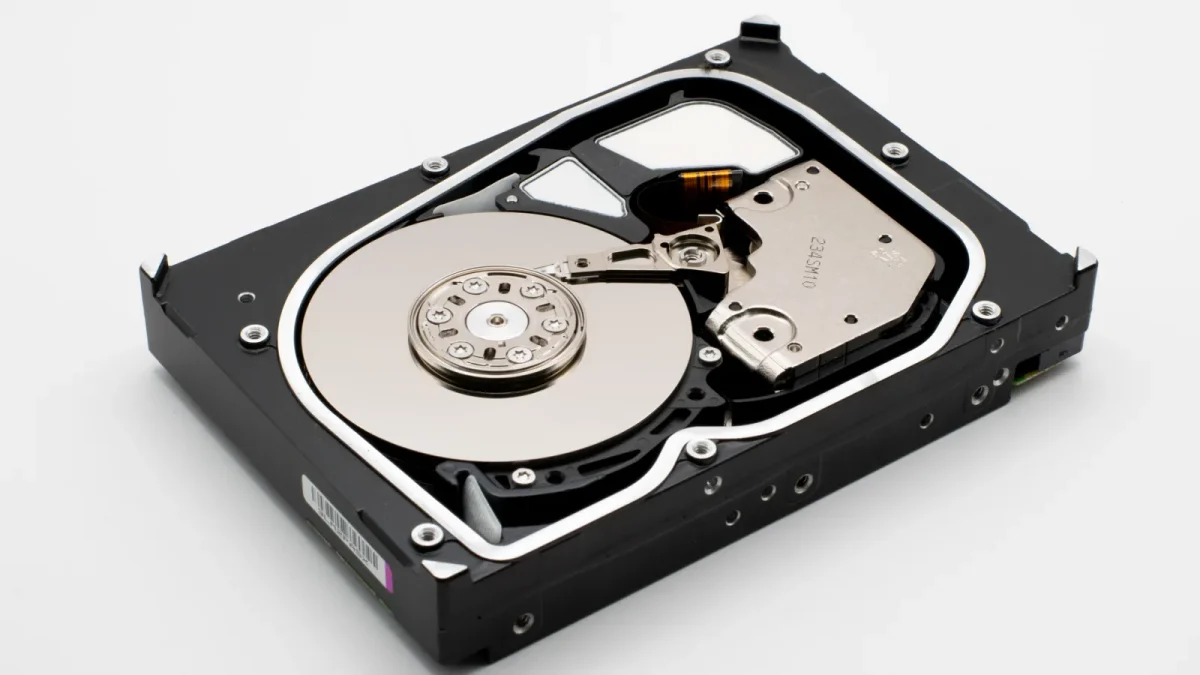
The storage pool is where your drives get grouped and where RAID lives. When you create a pool, the NAS asks how many drives to use and which RAID type to apply, things like SHR, RAID 1, RAID 5, or RAID 6.
This is the layer that handles redundancy. If a drive dies, the pool is what keeps your data alive using the parity or mirroring you chose.
The pool has a total capacity determined by your drives minus whatever RAID overhead eats. Four 4TB drives in SHR-1, for example, give you roughly 12TB of usable pool space, because one drive's worth of capacity is reserved for protection.
A mistake I see constantly: people assume the pool size is what they can fill with files. It is not. You still have to carve a volume out of it before a single byte of yours can land.
What a volume actually does
The volume sits on top of the pool and is the part you genuinely interact with day to day. Shared folders, the Recycle Bin, Btrfs snapshots, and file-level quotas all belong to the volume, not the pool.
A volume has its own filesystem. On modern Synology boxes that is usually Btrfs, which is what enables those handy point-in-time snapshots. On older or budget units it might be ext4, which works fine but skips the snapshot magic.
You can create more than one volume in a single pool if you have a reason to. Say you want a 2TB Btrfs volume for documents you snapshot nightly, plus a separate ext4 volume for surveillance footage you never snapshot. Same pool, two rooms, two filesystems.
For most home users though, one pool with one volume filling it is the right answer. Simpler is better here.
One more thing worth knowing: the volume is also where your NAS reports free space. That used-space bar you glance at in the dashboard is measuring the volume, not the pool. So when someone tells me their NAS says it is full, the volume layer is almost always where we start looking.
Pool vs volume at a glance
| Aspect | Storage Pool | Volume |
|---|---|---|
| What it is | Group of physical drives | Usable space on top of a pool |
| Handles RAID | Yes | No |
| Handles filesystem | No | Yes (Btrfs or ext4) |
| Where shared folders live | No | Yes |
| Snapshots | No | Yes (if Btrfs) |
| You can have several | Rarely needed | Sometimes useful |
Why the difference bites people later
The whole reason this two-layer system exists is expansion. When you want more space, you grow the pool by adding drives, and then you grow the volume to use that new pool space.
Both steps matter. I have talked more than one person through the confusing moment where they added a drive, saw the pool get bigger, but their volume stayed the same size. The pool expanded, the room inside it did not, so their free space never budged until they expanded the volume too.
There is also a trap with allocation. If you create a small volume and leave the rest of the pool unallocated, that leftover space just sits there unused until you either grow the existing volume or make a new one.
I once helped someone who had a 4-bay unit with four 6TB drives, a lovely 18TB pool, but only a 5TB volume they had created years earlier and forgotten about. They had been buying cloud storage for months to hold overflow. Ten minutes of expanding that volume gave them back 13TB they already owned.
On QNAP specifically, watch out for Thick vs Thin volumes. A thick volume reserves its full size up front. A thin volume only uses pool space as files are actually written, which sounds efficient until you overcommit and run the underlying pool dry without realising it.
How to structure it from the start
Here is the approach I recommend to anyone setting up their first box, whether it is a two-bay or a four-bay.
- Create one storage pool using all your drives with SHR (Synology) or RAID 5/RAID 6 (QNAP), matching the redundancy to how many drives you have.
- Create one volume that fills the entire pool, using Btrfs if your model supports it.
- Only split into multiple volumes if you have a concrete reason, like separating snapshotted data from bulk video.
That keeps your setup flexible. Adding a bigger drive later means expanding the pool, then expanding the one volume, and you are done.
Quick sanity checks
If you are ever unsure which layer you are looking at, ask yourself two questions. Does this screen mention RAID, drives, or repair? That is the pool. Does it mention shared folders, snapshots, or a used-space bar for your files? That is the volume.
Synology's own documentation lays this hierarchy out clearly if you want the official version. Their Storage Pool help page walks through creation and expansion step by step. For a refresher on how the RAID underneath actually protects you, Backblaze has a genuinely readable explainer on RAID levels.
The short version to remember
Pool equals drives plus RAID. Volume equals the usable, file-holding space with a filesystem on top. You build the pool first, then the volume, and one pool can carry one or many volumes.
Set it up as a single pool with a single Btrfs volume and you will avoid the vast majority of the headaches I get asked about. The extra flexibility of multiple volumes is there when you truly need it, but most home setups never do.
Get those two words straight now, and future-you doing a 2am drive swap will be grateful.
Frequently asked questions
Can I have more than one volume in a single storage pool?
Yes. A single pool can hold multiple volumes, which is handy if you want different filesystems or separate snapshot policies for different data. That said, most home users are better off with one volume that fills the whole pool for simplicity.
If my pool has 12TB, why does my volume only show less space?
Your volume only uses the pool space you allocated to it. If you created a smaller volume, the rest of the pool sits unallocated until you expand that volume or create another. Check Storage Manager to see how much pool space is still free.
Should I pick Btrfs or ext4 for my volume?
Choose Btrfs if your NAS supports it. It enables snapshots, data self-healing, and better protection against silent corruption. Use ext4 only on older or budget models that lack Btrfs support. You cannot convert between them later without deleting the volume.
What is the difference between a QNAP static volume and a pool-based volume?
A static volume writes directly to the RAID group and skips the storage pool layer, giving slightly better raw performance but no snapshots or flexible allocation. A thick or thin volume sits inside a storage pool and enables snapshots and easier expansion. For most people the pool-based route is the better choice.
Do I need to expand both the pool and the volume when I add a drive?
Usually yes. Adding a drive grows the pool, but your volume stays the same size until you expand it into the new pool space. If your free space did not change after adding a drive, the volume expansion step is what you missed.