My Synology DS220+ sat happily on the shelf for eight months without a hiccup. Then one Tuesday I went to grab a file and the mapped drive threw a plain network path not found error. Nothing on the network browser, nothing in the Synology finder tool, just silence.
The reflex is to assume the drives died. They almost never did.
In my experience nine times out of ten a NAS that vanishes is a network problem, not a storage problem, and you can usually find it in under ten minutes if you check things in the right order. So here is the exact run-through I use, starting with the dumbest, cheapest checks first.
Start at the box itself
Before you touch a single setting, walk over to the physical unit and look at it. This sounds obvious, and it is the step people skip most.
Check the power light. On a Synology it should be a steady blue or green, and on a QNAP the status LED should not be flashing red or amber. A slow blinking power light usually means the unit is mid-boot or stuck in a boot loop, and a totally dark unit means the power brick or outlet failed.
- Power LED off: reseat the power barrel, try a different outlet, and if you have a spare compatible adapter test with that.
- Status LED red or amber: a drive or fan fault, note it and keep going.
- Fan silent and case cold: the unit is off, not just off the network.
Listen, too. A healthy NAS makes a faint fan hum and the drives give a soft click on access. Dead silence from a unit that should be awake tells you something.
Check the cable and the switch port
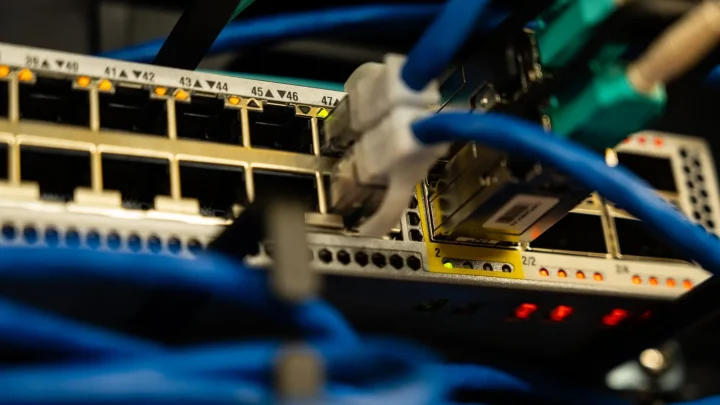
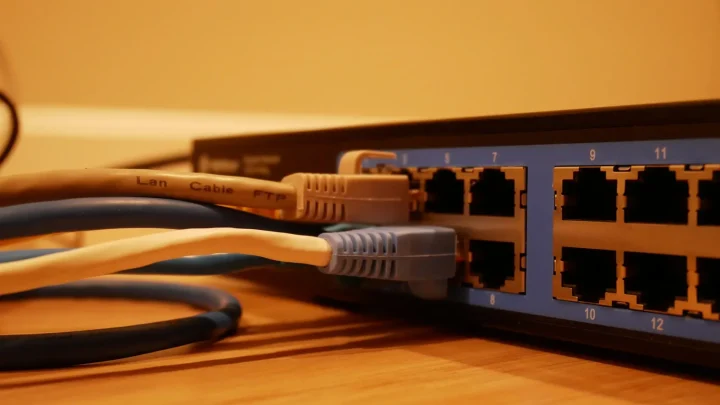
The link light is your best friend here. Look at the ethernet jack on the back of the NAS: there should be a small LED that is lit and usually blinking with traffic.
No link light means no physical connection, full stop. That points at the cable, the port, or the switch.
Swap the ethernet cable for a known-good one. Cheap flat cables and anything that has been stepped on for a year fail silently, and I have chased a phantom NAS outage for twenty minutes that turned out to be a $3 cable with a cracked clip. Move the cable to a different port on your router or switch while you are at it.
Power cycle in the right order
If power and cabling look fine, restart things, but sequence matters. Shut the NAS down cleanly if you can reach a button, wait thirty seconds, then bring it back.
When a switch is involved, reboot the switch or router first, give it a full minute to settle, and then power the NAS back on. Bringing the NAS up before the switch has finished booting sometimes leaves the port in a stuck state.
Give the whole thing two to three minutes. A NAS with four spinning drives can take a surprisingly long time to finish its boot and rejoin the network, and impatience makes you think it failed when it was just slow.
Find the real IP address
Here is where most vanishing acts actually hide. The NAS is usually alive and on the network, it just picked up a new IP address and your saved shortcut is pointing at the old one.
Log into your router and open the DHCP client list or the connected devices page. Look for the NAS by its hostname or its MAC address, which is printed on a sticker on the unit.
| What you see | What it means | Next move |
|---|---|---|
| NAS listed with a new IP | DHCP lease changed | Connect to the new IP, then reserve it |
| NAS not in the list at all | It never got an address | Recheck cabling and DHCP scope |
| NAS listed with old IP but unreachable | Service or firewall issue | Ping it, then check its ports |
Once you spot the address, type it straight into a browser with the management port, for example http://192.168.1.50:5000 for Synology DSM or :8080 for many QNAP units. If the login page loads, your NAS never left. Discovery just broke.
Rule out the discovery services
Say the NAS answers on its IP but still will not appear in Windows File Explorer under Network. That is a name discovery failure, and it is incredibly common on modern Windows.
Microsoft disabled the old SMBv1 protocol by default years ago, and it took a chunk of the classic network browsing with it. So the box is there, Windows just cannot advertise it.
- Map the share by IP instead of name, like 192.168.1.50home, which sidesteps discovery entirely.
- On Windows, confirm the Function Discovery Resource Publication and SSDP Discovery services are set to Automatic and running.
- Set your network profile to Private, not Public, or discovery stays firewalled off.
- On the NAS, make sure SMB and, if you use Apple gear, Bonjour or AFP are actually enabled in the file services panel.
If mapping by IP works but by name does not, you have proven the NAS is healthy. The fix is discovery, not recovery, and that is a much better place to be. Microsoft documents the shift away from SMBv1 and network browsing in detail.
Check for the silent culprits
A few less obvious things knock a NAS off the map, and they are worth a quick scan once the basics check out.
An automatic firmware update that stalled overnight can leave a unit half-booted. VLAN or IoT network settings on a newer mesh router sometimes shove the NAS onto an isolated subnet where your PC cannot see it. And a failing power supply will let a unit boot, run for a few minutes, then drop, which looks like a random disappearance.
- Recent firmware update: let it finish, or power cycle if it is truly hung.
- New router or mesh system: check that the NAS and your PC share the same subnet and VLAN.
- Intermittent drops: suspect the power adapter, especially on units three years or older.
Getting it back and keeping it there
Almost every disappearing NAS I have chased came down to one of these: a dead cable, a changed IP, or Windows discovery quietly failing in the background. The drives were fine the entire time.
Once yours is back, do two things before you walk away. Set a DHCP reservation so its address never wanders again, and save a bookmark to the management page by IP so you are never hunting blind. Ten minutes now saves you the next Tuesday panic.
Frequently asked questions
Why did my NAS suddenly disappear after months of working fine?
The usual reason is a DHCP lease expiring and the NAS grabbing a new IP address after a reboot or power blip. Your saved shortcut still points at the old address, so it looks gone. Check your router's connected devices list and reconnect to the new IP, then set a reservation.
My NAS pings fine but does not show in Windows File Explorer. What is wrong?
That is a name discovery failure, not a NAS failure. Windows disabled SMBv1 and the old network browsing that came with it. Map the share by IP address, like \192.168.1.50home, and make sure your network profile is set to Private and the Function Discovery services are running.
How do I find my NAS IP address if I cannot see the device?
Log into your router and open the DHCP client list or connected devices page. Match the NAS by hostname or by the MAC address printed on a sticker on the unit. Vendor tools like Synology's Web Assistant or QNAP's Qfinder also scan the local network for the device.
Should I pull the drives out to check if they failed?
No, not while troubleshooting an offline unit. A NAS going missing is almost always a network or power issue, and removing drives can disturb the array order, creating a much bigger recovery problem. Confirm the unit is genuinely dead before ever touching the disks.
Could a new mesh router make my NAS disappear?
Yes. Newer mesh systems often place devices on separate VLANs or guest and IoT subnets that cannot see each other. If your PC and NAS landed on different subnets, discovery and even direct connections fail. Put both on the same main network and disable client isolation for that device.