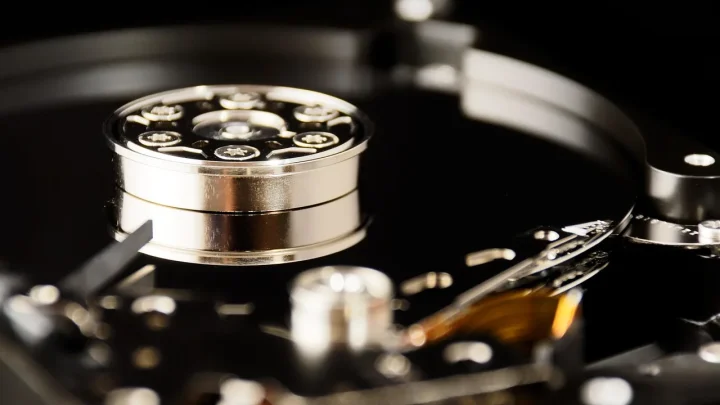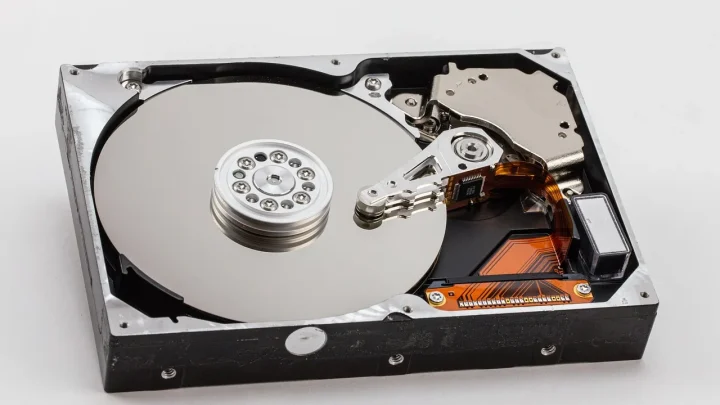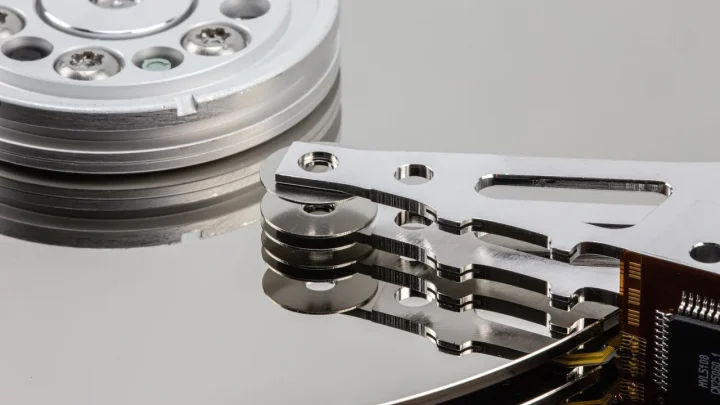
A drive rarely dies in one dramatic moment. It usually clears its throat for weeks first, and most people either miss the signs or assume the noise is normal.
The first time I lost a disk in my own Synology, it was a 4TB WD Red that had been clicking softly for about ten days. I told myself it was fine. It was not.
This is the map of the whole problem. I want you to understand what a failing NAS drive actually looks like, why these disks give out, and what to do at each stage before a bad week turns into a data loss story.
What a failing NAS drive actually looks like
Failure is a slope, not a cliff. Learning to read where you are on that slope is the single most useful skill a home NAS owner can have.
Early on, the drive still works but it starts leaving fingerprints. Your Synology or QNAP dashboard flags a handful of reallocated sectors, or a backup job that normally takes 20 minutes suddenly runs for two hours.
Then come the physical tells. A healthy 3.5 inch drive makes a steady low hum. A dying one adds a rhythmic click, a faint grinding, or a repeated spin-up and spin-down whir every few seconds.
Software symptoms show up too. Files that were there yesterday throw read errors, a shared folder mounts painfully slowly, or the NAS itself reboots on its own at odd hours.
Reading SMART data without a computer science degree
Every modern drive keeps a self-report card called SMART. On a Synology you find it under Storage Manager, HDD/SSD, then Health Info. On a QNAP it lives under Storage and Snapshots, Disks.
You do not need all 30 attributes. Four of them tell you almost everything.
| SMART attribute | What a bad value means | How worried to be |
|---|---|---|
| Reallocated Sectors Count | Bad spots remapped to spares | Any rising number is serious |
| Current Pending Sector | Sectors waiting to be remapped | Above zero, plan replacement |
| Uncorrectable Sector Count | Data the drive could not read back | Treat the drive as failing |
| Reported Uncorrectable Errors | Errors the OS had to handle | Back up immediately |
A raw value that sits still at 4 for a year is usually fine. A value that climbs from 4 to 12 to 40 over three weeks is a drive telling you goodbye.
The trap I watch people fall into is checking one reading, seeing a small number, and relaxing. What matters is the trend, so glance at these values monthly and note whether they are climbing. A disk that gains a bad sector every few days is on a clock, even when today's raw figure still looks harmless.
Why NAS drives die in the first place
Home NAS drives fail for a short list of reasons, and knowing which one you are facing changes your fix.
Plain old wear is the most common. Backblaze publishes a public drive stats report every quarter, and their fleet data shows annualized failure rates creeping up noticeably after the four to five year mark. You can read their hard drive failure data for yourself.
Heat is the second big killer. A drive that runs at 55C day after day ages far faster than one held at 38C, and a NAS crammed into a closet with no airflow bakes its disks slowly.
Then there is the stuff people forget. Cheap or failing power supplies deliver dirty voltage that corrupts writes. A summer brownout with no UPS can wreck a drive mid-write. And vibration from stacking a NAS on a subwoofer or a washing machine wears bearings out early.
One more, and it is a big one: using desktop drives in a NAS. Non-NAS drives lack proper error recovery timing, so in a RAID array they can get kicked out for taking too long to answer, which looks exactly like failure.
I have seen a perfectly healthy WD Blue get dropped from a Synology SHR array three times in a month, purely because it kept taking eight seconds to recover a marginal sector while the NAS gave up after seven. Swapping it for a proper NAS drive with a shorter error timeout made the phantom failures vanish overnight.
The stages, and what to do at each one
Think of a failing drive in three stages. Your job changes at each.
Stage one: early warning
SMART shows a few reallocated sectors or a scheduled test warns you. The drive still reads and writes fine.
Do not panic and do not ignore it. Confirm your backups actually restore, order a replacement drive now, and schedule the swap for a calm evening rather than a stressful 2am.
Stage two: degraded array
One disk has dropped out and your RAID is running degraded. Your data is still online but you have lost your safety margin.
This is the moment to be careful, not fast. Confirm your backup is current, then replace the failed disk and let the array rebuild. On a 4TB drive expect a rebuild of roughly 6 to 12 hours, and during that window a second drive failure means real data loss.
Stage three: dead or dropping data
The drive will not spin up, or it is throwing uncorrectable errors and files are already unreadable.
If you have a good backup, this is a non-event: replace the disk, rebuild, restore, move on. If you do not, power the NAS off and stop touching it. Continued spinning can turn a recoverable drive into a shredded one, and a professional recovery for a home user typically runs 400 to 1500 dollars.
How to prevent the next one
Prevention is cheaper than recovery every single time, and most of it is set-and-forget.
- Use real NAS-rated drives such as WD Red Plus, Seagate IronWolf, or Toshiba N300.
- Keep drive temps under about 45C with decent airflow and a clean dust filter.
- Put the NAS on a small UPS so a power blip does not corrupt a write.
- Follow the 3-2-1 rule: three copies, two types of media, one offsite.
- Run monthly SMART extended tests and turn on email alerts.
- Replace drives proactively once they cross roughly five years of power-on hours.
None of this is exotic. A UPS costs about 60 dollars, and a spare drive on the shelf costs you a weekend of worry instead of a month of it.
Where this leaves you
A NAS drive almost always warns you before it quits. The owners who lose data are not unlucky, they just were not listening.
Set up the alerts, learn those four SMART numbers, keep one backup you have actually tested, and a dead disk becomes a Tuesday chore instead of a disaster. That is the whole game, and now you know how to play it.
Frequently asked questions
How do I know if my NAS hard drive is failing?
Check your NAS dashboard for rising reallocated or pending sector counts in the SMART data, and watch for slow transfers, read errors, or unexpected reboots. Physically, listen for repeated clicking, grinding, or constant spin-up and spin-down noises. Any one of these on its own is worth investigating; two or more together means order a replacement now.
Can I keep using a NAS drive that shows a few bad sectors?
A small, stable reallocated sector count that has not moved in months is usually fine to keep running. The danger sign is a number that climbs over days or weeks, or any pending or uncorrectable sectors at all. If the count is rising, back up immediately and plan to swap the drive within a week or two.
Will I lose my data if one drive in my NAS dies?
If you run a redundant RAID like RAID 1, 5, 6, or SHR, a single drive failure leaves your data online in a degraded state, and replacing the disk lets the array rebuild. If you run a single drive or RAID 0, one failure means total loss. Either way, RAID is not a backup, so you should still keep a separate copy elsewhere.
How long does a NAS RAID rebuild take after replacing a drive?
It depends on drive size and array activity, but a 4TB drive typically rebuilds in about 6 to 12 hours, and larger drives can take a day or more. The array stays usable during the rebuild, though it runs slower. Avoid heavy writes and reboots until it finishes, since a second failure during a rebuild can cause real data loss.
What is the most common cause of NAS drive failure?
Age and wear top the list, with failure rates rising noticeably after four to five years of use. Heat is a close second, since drives running hot for long stretches wear out faster. Dirty power, vibration, and using non-NAS desktop drives that get dropped from the array round out the usual suspects.
Is professional data recovery worth it for a home NAS?
It depends entirely on whether you have a backup. If you do, just replace the disk and restore; recovery is a waste of money. If you do not and the data is irreplaceable, recovery for a home user usually costs between 400 and 1500 dollars, so weigh that against how much the files are worth to you.