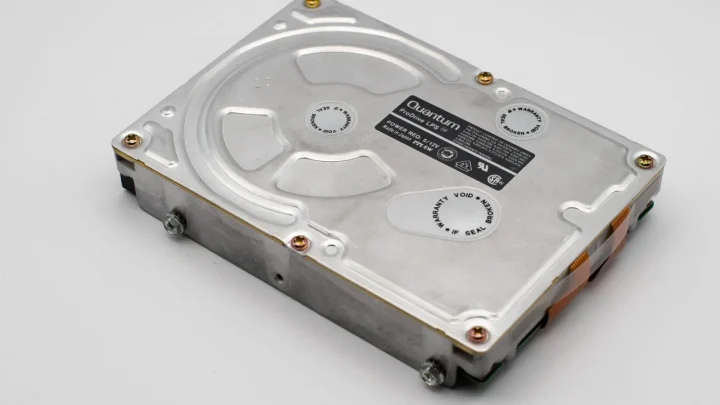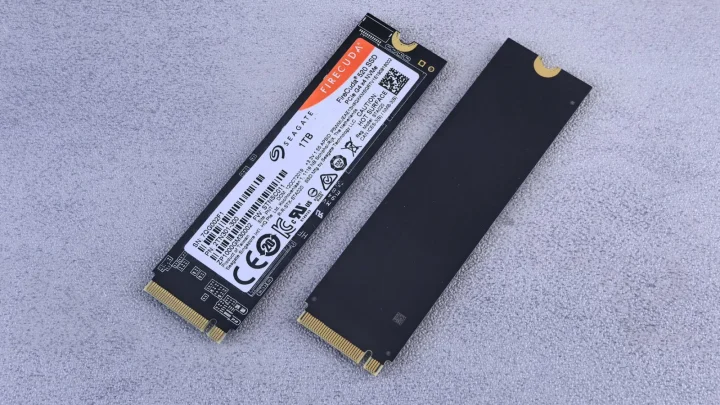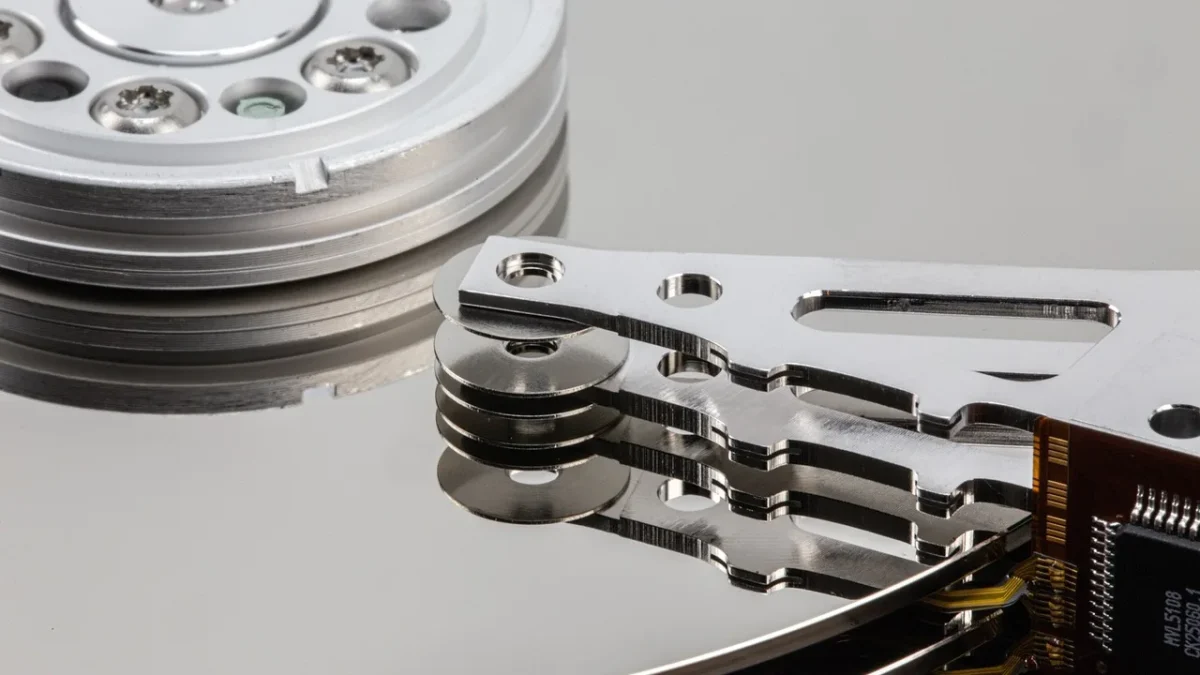
My first stuck rebuild sat at 63 percent for eleven hours on a four-bay Synology, and I was convinced the box had died. It had not. One of the surviving drives had a handful of bad sectors, and every time the rebuild tried to read them, it stalled, retried, and quietly kept going at a snail's pace.
That is the pattern almost every home user runs into. The rebuild is not frozen, it is fighting something. Your job is to figure out what.
Below is the exact order I work through, from the safe checks to the ones that need a steady hand. Follow it top to bottom and do not skip ahead, because the early steps protect the data that the later steps could put at risk.
Step 1: Confirm it is actually stuck, not just slow
People panic too early. A healthy rebuild of a 12 TB drive can genuinely take 12 to 30 hours, and on a busy or older NAS it can stretch past two days. That is normal, not broken.
Watch the percentage over a full hour, not five minutes. On a Synology, open Storage Manager and look at the Storage Pool status. On QNAP, it is under Storage and Snapshots. On TrueNAS, run zpool status from a shell and read the scan line.
If it moved even 1 or 2 percent in an hour, it is not stuck. It is slow, and that is a different problem you will fix in Step 4.
What genuinely stuck looks like
Zero movement over several hours, a percentage that resets to a lower number, or the array dropping out of "rebuilding" back into "degraded" on its own. Those are real stalls. Note the exact percentage where it hangs, because that number is a clue.
Step 2: Read the drive health, not the rebuild bar
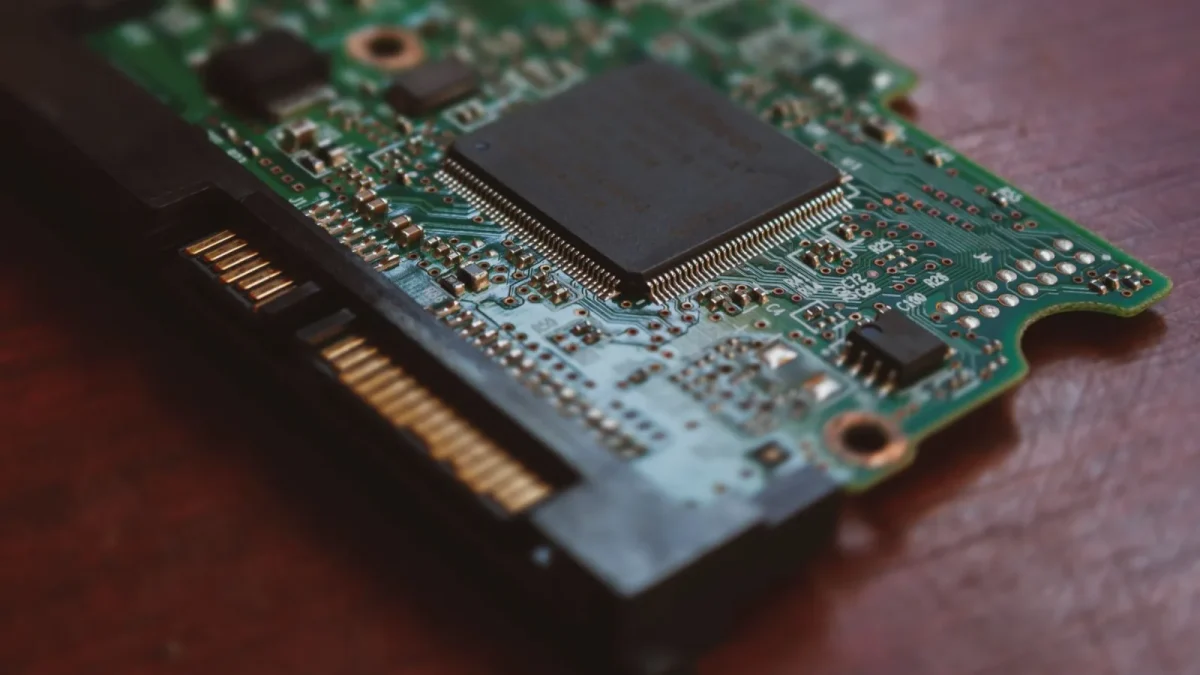
The rebuild bar tells you almost nothing about why. The drive SMART data tells you everything. This is the single most useful thing you can check.
On Synology, go to HDD/SSD, pick each drive, and open the S.M.A.R.T. tab. You are hunting for three attributes: Reallocated Sector Count, Current Pending Sector Count, and Uncorrectable Sector Count. Any drive with pending or uncorrectable sectors above zero is your prime suspect.
A rebuild reads every block on the surviving drives to reconstruct the new one. When it hits a pending sector it cannot read, it retries for up to 30 seconds per sector before moving on. Ten bad sectors clustered together can turn a two-hour phase into a two-day phase.
Step 3: Kill everything competing for the disks
The rebuild shares the same drives as everything else your NAS does. A mistake I see constantly is someone streaming Plex, running a backup job, and syncing photos while wondering why the rebuild crawls.
Turn off the noise. Here is what to pause or stop while a rebuild is running.
- Stop Plex, Emby, or Jellyfin transcoding and library scans.
- Pause any scheduled backup, snapshot, or cloud sync tasks.
- Turn off antivirus and media indexing packages.
- Disconnect active file transfers and torrent clients.
- Hold off on adding or deleting large files until it finishes.
On a modern NAS the rebuild will speed up within minutes once the disks stop being hammered. I have watched a rebuild jump from 4 MB/s to 90 MB/s just by stopping a single Time Machine backup that was pinning the array.
Step 4: Raise the rebuild speed limit
Most NAS operating systems throttle rebuilds on purpose so the box stays responsive. If nothing else is competing for the disks, you can safely lift that ceiling.
On a Linux-based NAS (which includes Synology and most QNAP units), the kernel controls this with two values. You can bump them from an SSH session.
| Setting | Default | Try this |
|---|---|---|
| dev.raid.speed_limit_min | 1000 (KB/s) | 50000 |
| dev.raid.speed_limit_max | 200000 (KB/s) | 500000 |
The command is sysctl -w dev.raid.speed_limit_min=50000 and the same for max. This tells the kernel it is allowed to push the rebuild harder when the disks are otherwise idle. It does not force anything the hardware cannot handle, so it will not damage healthy drives.
Step 5: Deal with the drive that is dragging it down
If Step 2 found a surviving drive full of pending sectors, no speed tweak will save you. The rebuild will keep tripping over the same unreadable blocks.
You have two realistic options. Clone the weak drive to a fresh one with ddrescue and swap it in, then restart the rebuild against the clean copy. Or, if the volume is already backed up, let the rebuild finish however slowly it can, accept a few corrupt files, and replace the weak drive afterward.
For anyone unsure how many failures their setup can survive, the standard RAID levels reference on Wikipedia lays out exactly how much redundancy each level gives you. RAID 5 tolerates one failure, RAID 6 tolerates two, and knowing that changes how much risk you should take with a marginal drive.
Step 6: When a reboot is the right call
Sometimes the rebuild really is wedged: a stuck kernel process, a controller that lost its mind, or a drive stuck in an endless reset loop. A clean reboot can clear it. A modern software RAID resumes the rebuild from where it left off, it does not start over.
Do this only after Steps 1 through 5, and only when the array is not actively making progress. Shut down gracefully through the interface rather than pulling power, because a hard cut during a write can corrupt the array metadata.
If the rebuild does not resume after a reboot and the array is stuck in a fault loop, that is the point to stop improvising. Backblaze publishes solid, plain-language guidance on reading SMART stats and drive failure signals that will help you decide whether a member drive is truly dead.
How long should you actually wait
Here is my rough rule for a home NAS with drives that are otherwise healthy and nothing else running.
| Drive size | Reasonable rebuild time |
|---|---|
| 4 TB | 4-8 hours |
| 8 TB | 8-16 hours |
| 12 TB | 12-30 hours |
| 16 TB and up | 1-2 days |
Double those numbers if the array is in use or the drives are shingled SMR models, which are notoriously slow to rebuild. If you are far past these windows and the percentage is climbing, be patient. If it has flatlined, go back to Step 2.
Knowing when to walk away and restore
There is a point where fighting a rebuild costs you more than a restore would. If you have a second surviving drive throwing errors, or the array keeps dropping out of rebuild, the honest move is to stop, replace the failing hardware, build a fresh array, and restore from backup.
That is not defeat. A rebuild on a wounded array is a gamble, and a clean restore is a sure thing. The whole reason you keep a backup is so that a bad rebuild becomes an inconvenience instead of a disaster.
Work the steps in order, protect your data before you experiment, and let the physics of the disks do their work. Most stuck rebuilds finish on their own once you clear the obstacle they were quietly choking on.
Frequently asked questions
Is it safe to reboot my NAS during a RAID rebuild?
Yes, if you shut down gracefully through the interface rather than pulling the power. Modern software RAID resumes the rebuild from where it left off instead of restarting. Only do it after confirming the rebuild is genuinely stuck and not just slowly progressing.
Why is my RAID rebuild stuck at a specific percentage?
That percentage usually maps to a physical region of a surviving drive that has bad or pending sectors. The rebuild retries each unreadable sector for up to 30 seconds before moving on, which looks like a hang. Check that drive's SMART data for pending and uncorrectable sector counts.
How long is too long for a RAID rebuild?
For healthy drives with nothing else running, expect roughly 4-8 hours for 4 TB and up to two days for 16 TB and larger. Double that if the array is in use or uses SMR drives. If you are far past those windows and the percentage has flatlined, investigate SMART health rather than keep waiting.
Can I use my NAS while it rebuilds?
You can, but it will slow the rebuild significantly and add stress to already degraded drives. For the fastest and safest rebuild, pause media servers, backups, and syncs until it finishes. If you must use it, keep activity light and avoid large file operations.
Will raising the rebuild speed limit damage my drives?
No. The sysctl speed limits only tell the kernel how hard it is allowed to push when disks are idle; they cannot force the hardware beyond its real capability. The main risk is that a busier array feels less responsive, not that drives get harmed.