My friend Marcus texted me a photo of his shiny new two-bay Synology last spring, thrilled that he had snagged it for around 300 dollars. Three weeks later he messaged again, less thrilled, having spent nearly double that once the drives, a battery backup, and a fistful of cables landed on his doorstep.
That gap between the box price and the working-system price catches almost everyone.
The enclosure is genuinely the smallest line item once you add up what makes a NAS safe, quiet, and reliable. So let me walk you through the whole bill the way I wish someone had walked me through mine, with real numbers from the middle of 2026 and honest notes on where you can save and where you absolutely should not.
The enclosure is the appetizer, not the meal
A popular two-bay unit like a Synology DS224+ or a QNAP TS-233 sits somewhere between 200 and 350 dollars depending on sales. A four-bay jumps to the 400 to 600 range. That number is what gets advertised, and it is the number that fools people.
Here is the mental reframe that helps: the box is a small computer with empty slots. Everything that makes it store your data, survive a power blip, and connect to your network is a separate purchase.
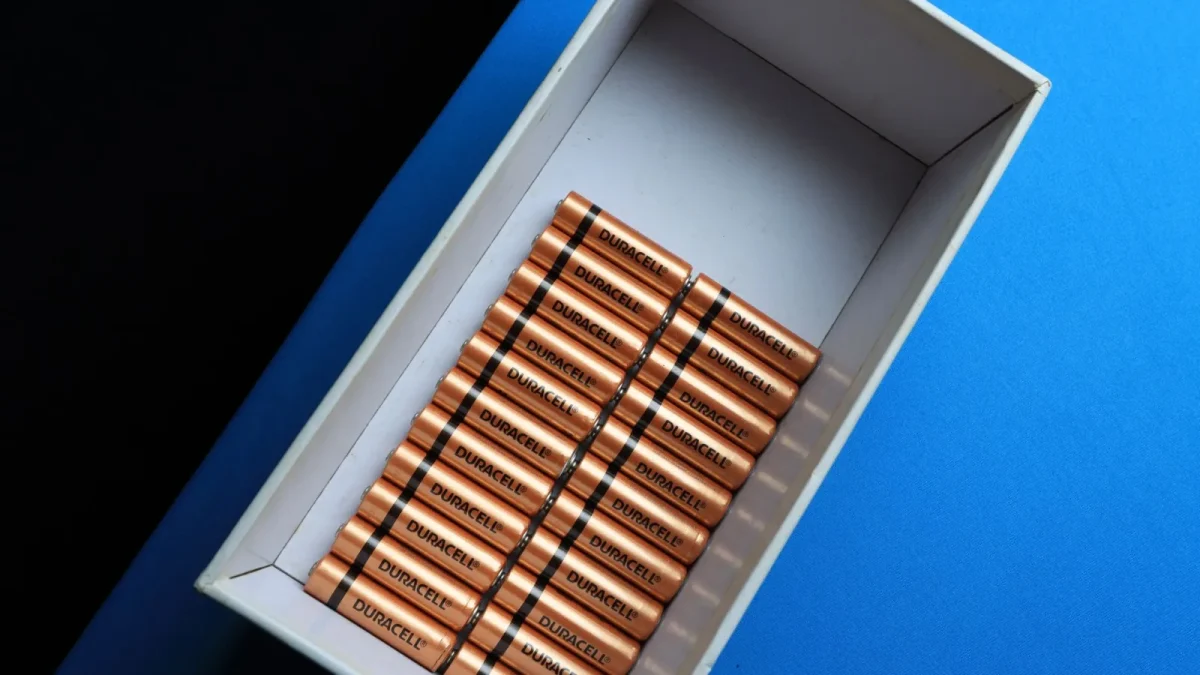
Drives: the line that quietly doubles your bill
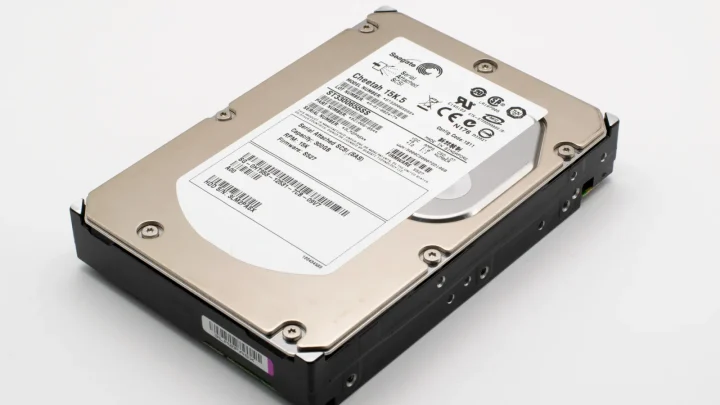
Drives are where most of the money goes, and it is not close. For a home NAS you want NAS-rated mechanical drives, meaning models built for the constant spinning and vibration of a multi-drive box. The Western Digital Red Plus and the Seagate IronWolf are the two names you will see over and over.
As of mid-2026, expect roughly these street prices per drive:
| Capacity | Price per drive | Price per TB |
|---|---|---|
| 4 TB | 110 to 130 dollars | ~30 dollars |
| 8 TB | 170 to 210 dollars | ~24 dollars |
| 12 TB | 230 to 280 dollars | ~21 dollars |
| 16 TB | 300 to 360 dollars | ~21 dollars |
Notice how the price per terabyte drops as the drives get bigger, then flattens. The sweet spot for most home users right now is 8 TB or 12 TB, where you get real capacity without paying the early-adopter tax on the largest models.
Now the part that hurts. You do not buy one drive.
In a two-bay box running a mirror, you buy two identical drives and only get the capacity of one, because the second is a live copy. So a pair of 8 TB drives costs around 380 dollars and gives you roughly 8 TB of usable space. That redundancy is not optional in my book. It is the entire reason you bought a NAS instead of a single external disk.
The UPS: the 90 dollars that saves your whole array
A battery backup, or UPS, is the extra almost everyone skips and later regrets. The first time I watched a filesystem check run for forty minutes after a power cut, I ordered one that afternoon.
A NAS writing data during a sudden blackout can corrupt the file table, and on a bad day that means a rebuild or lost files. A UPS gives the box enough runtime to notice the outage and shut itself down cleanly.
You do not need a huge one. A small unit like an APC Back-UPS BE600 or a CyberPower CP685AVR, in the 80 to 110 dollar range, is plenty for a two-bay or four-bay NAS plus its network switch. Both Synology and QNAP boxes can talk to these over USB and trigger an automatic safe shutdown. Synology documents the supported models and the whole flow in their UPS setup guide, and it takes about five minutes to configure.
Skip this and you are gambling your entire array against your local grid. That is a bad bet.
Cache SSD: usually optional, occasionally worth it
Higher-end enclosures have M.2 slots for cache SSDs, and the marketing makes them sound essential. For most home users, they are not.
A cache SSD speeds up access to frequently used files, which matters if you are running virtual machines, a busy database, or lots of simultaneous users. For streaming movies, storing photos, and backing up laptops, a spinning drive over a gigabit network is already faster than your network can carry.
If you do want one, a 500 GB NVMe SSD runs about 40 to 70 dollars. My honest advice: leave the slots empty at first. Add cache only if you measure a real bottleneck later, and understand that read-write cache should be a mirrored pair for safety, which doubles the cost.
Cabling and the small stuff that adds up
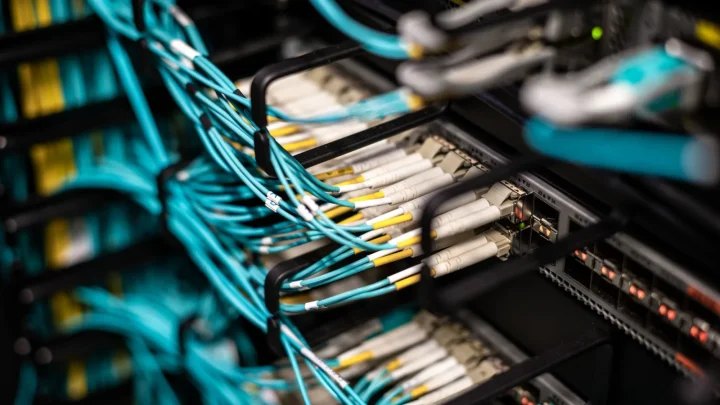
The little pile of accessories is where budgets quietly leak. Individually cheap, collectively annoying.
- Ethernet cable: the one in the box is often short and low grade. A 15-foot Cat 6 runs 8 to 12 dollars, and you will probably want two.
- A network switch: if your router is out of ports, a five-port gigabit switch is 20 to 30 dollars. A 2.5-gigabit switch, if your NAS supports the faster speed, is 60 to 100 dollars.
- A surge strip: even with a UPS, keep the NAS off the same outlet as a space heater or vacuum. Ten dollars.
- Drive screws and a small screwdriver: usually included, but check. Some tool-less bays are not actually tool-less for 3.5-inch drives.
Call the accessory pile 40 to 100 dollars depending on whether you need a switch. It is not glamorous, but it is real money.
Putting the whole bill together
Let me total two honest builds so you can see the shape of it. These are what I would actually spend, not a stripped floor price.
| Item | Modest 2-bay | Roomier 4-bay |
|---|---|---|
| Enclosure | 280 dollars | 520 dollars |
| Drives | 2 x 8 TB (380) | 4 x 12 TB (1000) |
| UPS | 90 dollars | 110 dollars |
| Cache SSD | skip | 2 x 500 GB (120) |
| Cabling and extras | 50 dollars | 80 dollars |
| Total | ~800 dollars | ~1,830 dollars |
The two-bay build lands near 800 dollars, well over double the sticker price Marcus first quoted me. The four-bay creeps toward two thousand once you fill it with capacity.
Neither of those numbers should scare you off. They should just arrive before you click buy, not after.
Where to save and where to hold firm
Save on the cache SSD by skipping it. Save on cabling by buying generic Cat 6 instead of fancy branded cable, since the electrons do not care about the logo. Save by choosing 8 TB drives over 16 TB if your library is modest, and adding capacity in a year or two when prices have fallen further.
Do not save on the drives themselves by buying shucked external disks or bargain desktop drives to run around the clock. Do not save by running a single drive with no redundancy. And please do not save by skipping the UPS.
Those three are the load-bearing walls of a NAS that you can actually trust with your family photos. Everything else is negotiable.
A budget you can live with
If you take one thing from all these numbers, let it be this: shop for the finished system, not the empty box. Add up drives, a UPS, and cables before you fall in love with a sale price on the enclosure, because that sale price is roughly a third of the story.
Do that math up front and the only surprise waiting for you is how much you enjoy having your own storage that answers to nobody but you.
Frequently asked questions
How much does a NAS really cost once it is fully set up?
For a modest two-bay home NAS with a mirrored pair of 8 TB drives, a small UPS, and cabling, plan for around 800 dollars in mid-2026. A four-bay build filled with 12 TB drives and cache SSDs can approach 1,800 to 2,000 dollars. The advertised enclosure price is typically only about a third of the finished total.
Do I really need a UPS for my NAS?
Yes, if you care about the data. A sudden power cut while the NAS is writing can corrupt the filesystem and force a long rebuild or cost you files. An 80 to 110 dollar unit gives the box time to shut down cleanly, and both Synology and QNAP support automatic safe shutdown over USB.
Should I buy a cache SSD when I set up my NAS?
Usually not at first. Cache SSDs help with virtual machines, databases, or many simultaneous users, but for streaming, photos, and backups a mechanical drive over gigabit is already fast enough. Leave the M.2 slots empty and add cache later only if you measure a genuine slowdown.
What size drives give the best value for a home NAS?
In mid-2026 the sweet spot is 8 TB or 12 TB drives. Smaller 4 TB drives cost more per terabyte, while the largest 16 TB and up carry an early-adopter premium. Choose NAS-rated models like WD Red Plus or Seagate IronWolf rather than desktop or external drives.
Why do I have to buy two drives for a two-bay NAS?
A two-bay NAS running a mirror keeps a live copy of your data on the second drive, so you get the usable capacity of only one. That redundancy is the whole point: if one drive dies, your files survive on the other. Buying a single drive with no copy defeats the reason to own a NAS.
Can I save money by using external or shucked drives?
It is risky for a NAS that runs continuously. External and desktop drives are not rated for the constant vibration and duty cycle of a multi-drive enclosure, and some ignore the array's power management. The small savings are rarely worth a shorter lifespan and a higher failure rate.