A friend called me last winter in a mild panic because his four-bay Synology had thrown a red light and he was convinced everything was gone. It wasn't. He had set the thing up two years earlier, clicked whatever the wizard suggested, and never once thought about what would happen when a drive failed.
That is the whole reason this topic matters. RAID is not a magic backup, and it is not one setting. It is a small set of choices about how your drives share your data, and each choice trades capacity for safety in a different way.
Let me walk you through the ones a home user actually meets, in plain language, so you can decide with confidence instead of clicking the default.
What RAID actually does (and does not do)
RAID stands for Redundant Array of Independent Disks. The short version: it glues several physical drives into one pool so that either your data is spread for speed, or copied for safety, or both.
The part people get wrong is thinking it replaces a backup. It does not. RAID protects you from a drive dying, not from a deleted folder, a ransomware hit, or your NAS falling off a shelf.
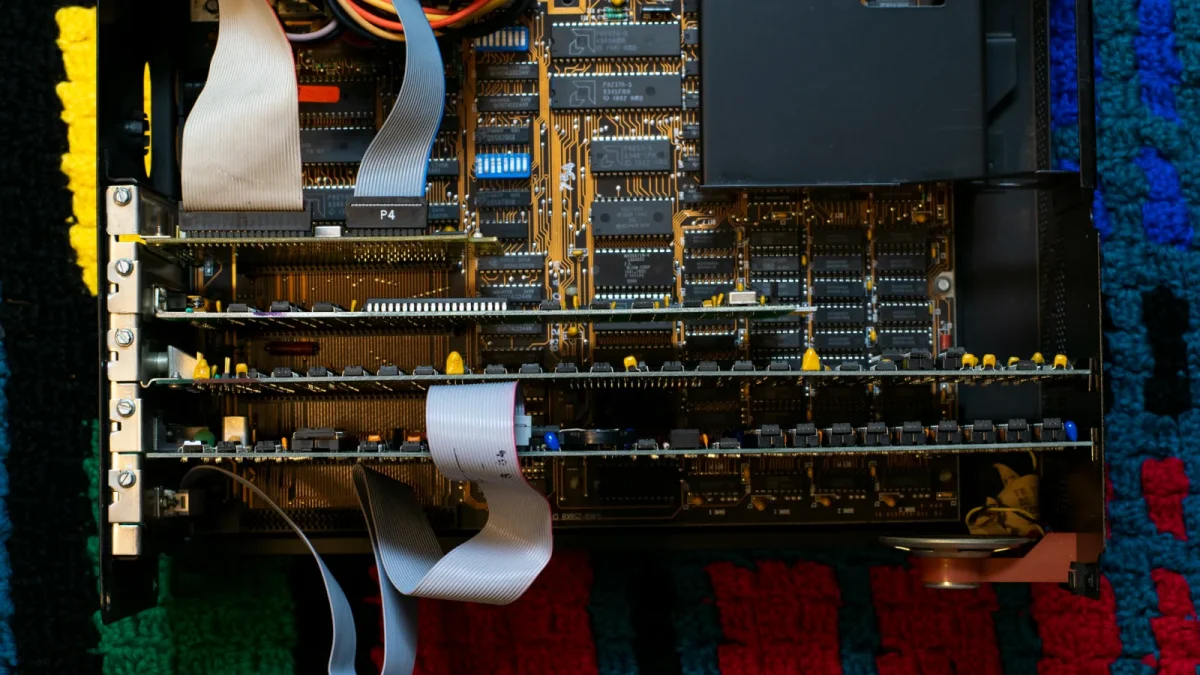
RAID 0: speed, zero safety
RAID 0 splits every file across all your drives (this is called striping). Two 4TB drives give you a single 8TB volume, and reads and writes get faster because both disks work at once.
Here is the catch that surprises people. If either drive dies, the whole volume is gone, not half of it. You have actually doubled your chance of total loss.
The first time I saw someone use RAID 0 on a NAS it was for a video scratch pad where nothing was precious. That is about the only home use I would sign off on.
RAID 1: the simple mirror
RAID 1 writes the same data to two drives at the same time. Buy two 4TB drives and you get 4TB of usable space, because the second drive is an exact copy of the first.
Lose one drive and you keep running. Slot in a fresh disk, let it rebuild, and you are back to full protection, often within a few hours for a half-full 4TB mirror.
For a two-bay box holding family photos and documents, this is the one I recommend most often. It is boring, and boring is exactly what you want from storage.
RAID 5: one drive of insurance across many
Once you have three or more bays, RAID 5 gets interesting. It stripes data for speed like RAID 0, but sets aside the equivalent of one drive's worth of space for parity, which is math that can rebuild any single missing drive.
Four 4TB drives in RAID 5 give you 12TB usable, and you can survive one drive failing. That is a much better capacity story than mirroring everything.
RAID 6: two-drive insurance for bigger arrays
RAID 6 is RAID 5 with a second parity drive, so it can survive two failures at once. On a five-bay unit with 4TB drives you would get 12TB usable and real breathing room during a scary rebuild.
I start recommending RAID 6 once people run four or more large drives (say 12TB and up each), because rebuild windows on huge disks are long enough that a second failure stops being a freak event.
You pay for that safety with two drives of capacity and slightly slower writes. For most home users with big drives, it is money well spent.
RAID 10: speed and safety together
RAID 10 combines mirroring and striping. You pair drives into mirrors, then stripe across those pairs, so you get fast performance and can lose a drive from each pair.
Four 4TB drives in RAID 10 give you 8TB usable, the same as a plain mirror pair, but noticeably faster. It needs at least four drives and eats half your raw capacity.
Honestly, most home users do not need this. It shines when you are running busy databases or lots of simultaneous video streams, not when you are storing a photo library.
SHR: Synology's easier answer
If you own a Synology, you have likely seen Synology Hybrid RAID, or SHR. It is Synology's layer on top of standard RAID that solves two annoyances at once.
First, it lets you mix drive sizes without wasting as much space. Classic RAID treats a 6TB drive as if it were the size of your smallest disk, but SHR reclaims a good chunk of that difference.
Second, it lets you grow the pool by swapping in bigger drives one at a time. SHR (one-drive protection) behaves like RAID 5, and SHR-2 behaves like RAID 6 with two-drive protection.
A side-by-side comparison
Numbers assume four identical 4TB drives so you can compare apples to apples.
| Level | Usable space | Drives you can lose | Best for |
|---|---|---|---|
| RAID 0 | 16TB | 0 | Scratch data you can lose |
| RAID 1 | 4TB (two drives) | 1 | Two-bay photo and file backup |
| RAID 5 / SHR | 12TB | 1 | General home NAS, good balance |
| RAID 6 / SHR-2 | 8TB | 2 | Large drives, extra safety |
| RAID 10 | 8TB | 1 per mirror pair | Speed-heavy workloads |
How to actually choose
Start with how many bays you have. Two bays realistically means RAID 1 or SHR, and there is nothing wrong with that.
Four or more bays with regular-sized drives points to RAID 5 or SHR for the best mix of capacity and protection. Move up to RAID 6 or SHR-2 if your drives are large, because bigger disks mean longer, riskier rebuilds.
- Two bays: RAID 1 or SHR, simple and safe.
- Four bays, normal drives: RAID 5 or SHR.
- Four-plus bays, large drives: RAID 6 or SHR-2.
- Need raw speed: RAID 10.
- Nothing precious: RAID 0, and even then think twice.
Whatever you land on, add a real backup on top. RAID keeps you online through a dead drive, but the backup is what saves you the day something worse happens.
Where to point your effort next
Pick the level that matches your bays and drive sizes, set it up, and then spend your remaining energy on the backup, not on second-guessing the RAID choice.
My friend's NAS, by the way, was on SHR. He swapped the failed 4TB drive for a spare, walked away, and by dinner the next day the light was green again. That is exactly how this is supposed to feel: a bad day, not a disaster.
Frequently asked questions
Is RAID a backup?
No. RAID keeps your NAS running when a physical drive dies, but it does nothing if you delete a file, get hit by ransomware, or the whole unit is damaged or stolen. You still need a separate backup, ideally with one copy stored off the NAS or offsite.
Which RAID level is best for a two-bay home NAS?
RAID 1 (or SHR on a Synology) is the practical choice with two drives. You get an exact mirror, so one drive can fail and you keep working. You lose half your raw capacity, but the simplicity and safety are worth it for family files.
What is the difference between SHR and RAID 5?
SHR gives you the same one-drive protection as RAID 5, but it also lets you mix different drive sizes with less wasted space and grow the pool by swapping in bigger drives one at a time. SHR is a Synology-only feature, while RAID 5 is a universal standard.
Should I use RAID 5 or RAID 6?
Use RAID 5 for a good capacity-to-safety balance on four bays with normal-sized drives. Move to RAID 6 once your drives are large, roughly 12TB and up, because rebuilds take a day or more and a second drive can fail during that window. RAID 6 survives two failures at once.
Does RAID 0 offer any protection?
None at all. RAID 0 stripes data across drives for speed and capacity, but if any single drive fails the entire volume is lost. It actually raises your risk of total data loss, so keep it only for temporary data you can afford to lose.
How long does a RAID rebuild take?
It depends on drive size and how full the array is, but expect several hours for a small mirror and a full day or more for large multi-terabyte drives in RAID 5 or 6. The array is vulnerable during a rebuild, which is one reason larger drives benefit from RAID 6 or SHR-2.