A drive in my Synology died on a Tuesday, and I did not notice for four days. The array kept serving files, the little light blinked amber in a closet, and life went on. That is the sneaky part about home servers: they hide problems so well that you only find out something is wrong when the second thing breaks.
So let me walk you through how a backup plan actually fits together, from nothing to something that would survive a fire, a theft, or a ransomware note on your desktop.
Your NAS is not a backup, and this is why
The most expensive lesson in this whole hobby is realizing that a RAID array protects against exactly one thing: a single disk failing. That is it. It does nothing about the mistakes that actually delete your files.
RAID does not help when you delete a folder by accident and empty the recycle bin. It does not help when a sync app propagates a bad change to every device. It certainly does not help when someone walks off with the whole box.
A backup is a separate copy that a mistake on the main system cannot reach. If deleting a file on your NAS also deletes it from the copy, that copy is a mirror, not a backup. Keep that distinction in your head and most of the confusing decisions get simple.
The 3-2-1 rule, in plain terms
Every backup guide points at the same idea, and it has survived because it works. The rule is: keep 3 copies of anything you care about, on 2 different types of media, with 1 copy offsite. Backblaze has a good write-up of the 3-2-1 approach if you want the origin story.
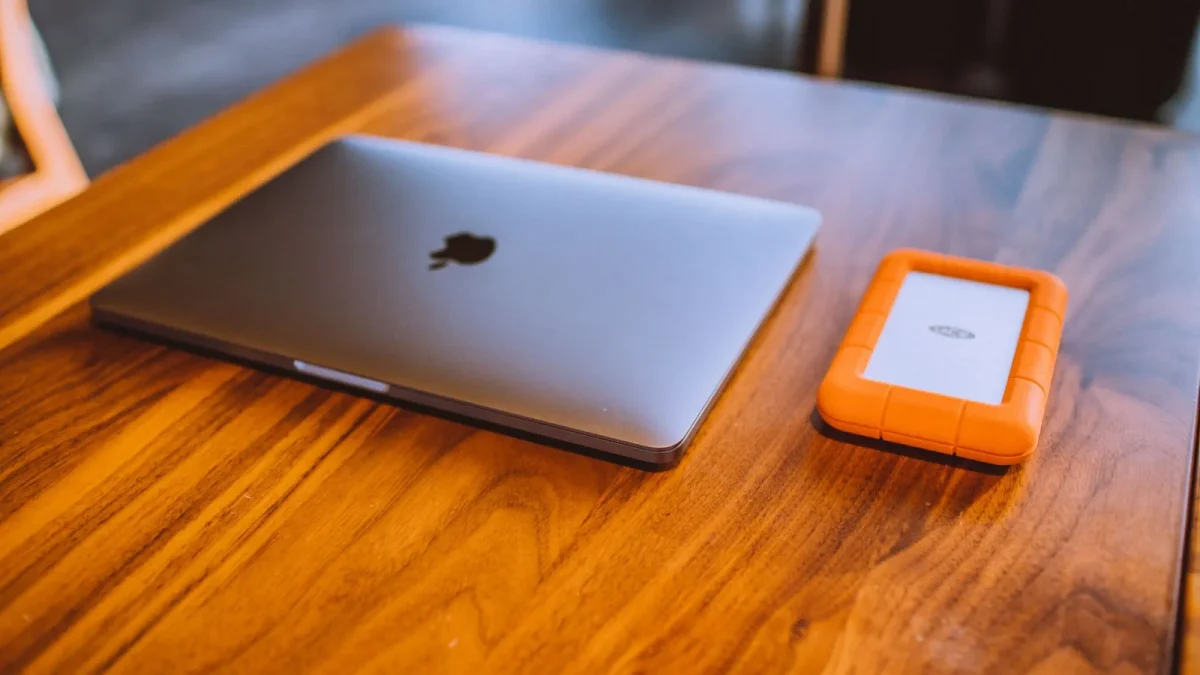
Translated to a normal home setup, that looks like this. Copy one is your live data on the NAS. Copy two is a local backup on a separate drive or a second machine. Copy three lives somewhere else entirely, in the cloud or at a relative's house.
The two-media part matters less than it used to, but the spirit holds: do not let all three copies depend on the same failure. Three drives in the same enclosure, on the same power strip, in the same room, is really one copy wearing a costume.
Layer one: local snapshots you can restore in seconds
Start here because it is free and it saves you constantly. Btrfs on Synology and ZFS on TrueNAS both do snapshots, which are frozen points in time that take almost no space until files change.
On a Synology, the tool is Snapshot Replication. You point it at a shared folder, set a schedule, and pick how many snapshots to keep. I run hourly snapshots kept for two days, daily kept for two weeks, and weekly kept for two months. The whole thing costs a few gigabytes.
The magic moment is the restore. When someone overwrites the family budget spreadsheet, you right-click the folder, browse to yesterday morning, and pull back the good version in about ten seconds. No cloud download, no waiting.
Layer two: a local backup on separate hardware
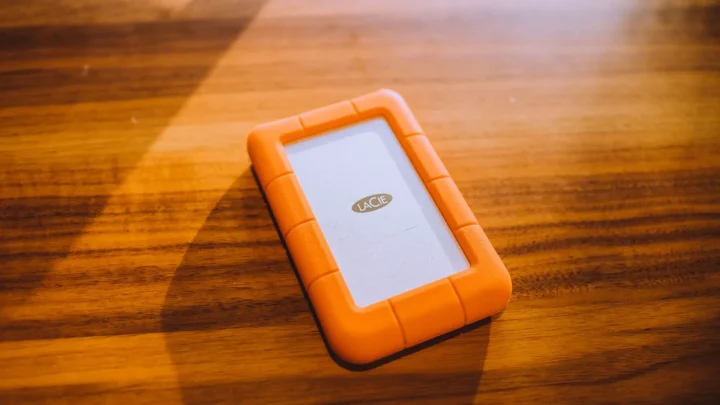
Now make a real second copy on hardware that a NAS failure cannot take down with it. The cheapest version is a single USB drive plugged into the back of the NAS, running a nightly job with Synology Hyper Backup or the TrueNAS replication tools.
A USB 8TB drive runs about 130 to 160 US dollars and covers most households. The better version is a second, older NAS in a different room that receives replicated snapshots over the network, which also protects you if the USB drive itself dies.
Whatever you choose, the job needs versioning turned on. If your local backup only holds the newest state, a corrupted file simply overwrites the good backup the next night. Keep at least 30 days of versions so you have room to notice a problem.
Layer three: the offsite copy that saves you from disasters
This is the copy that survives the events people do not like to think about: fire, flood, a burst pipe, or a thief taking the shiny box in the study. If all your copies are in one building, one bad night erases them together.
Cloud is the easy answer. Backblaze B2 and similar services run roughly 6 US dollars per terabyte per month, so backing up 2TB of genuinely irreplaceable data costs around 12 dollars a month. Most NAS backup apps can write straight to B2, Wasabi, or S3-style storage.
The cheaper answer is a rotated drive. Keep a copy on an external disk at a family member's house and swap it every month or two. It is manual and low-tech, and it has saved plenty of people who never paid a cloud bill.
Ransomware and the immutable copy
Here is the modern twist that changes the math. Ransomware does not just encrypt your PC, it hunts for network shares and backups too. If your backup drive is a plain mapped folder, the malware happily encrypts that as well.
The defense is a copy the attacker cannot modify or delete. Object storage with an immutability or object-lock setting gives you exactly that: once written, a file cannot be changed for a set number of days, even with the password.
Snapshots help here too, because a good ransomware event still cannot rewrite a read-only snapshot on the NAS. Between locked cloud objects and retained snapshots, you can roll back to the morning before the infection and lose only a few hours.
What to actually back up
Not everything deserves three copies. Sorting your data by how much it hurts to lose keeps costs sane and restores fast.
| Data type | Example | Backup level |
|---|---|---|
| Irreplaceable | Family photos, documents, scans | Full 3-2-1, versioned |
| Hard to replace | Project files, ripped media library | Local plus offsite |
| Replaceable | Downloaded movies, OS images | Local only or skip |
Do not forget the configuration itself. Export your NAS settings, your Docker compose files, and any app databases, because rebuilding a broken container stack from memory at midnight is its own special misery.
The step nobody does: test the restore
A backup you have never restored from is a rumor. The first time I actually tested one, I discovered the job had been silently skipping a folder for three months because of a permissions error, and nobody had noticed.
Once a quarter, pick a random file and restore it to a scratch location. Once a year, do a bigger drill: restore a whole folder from your offsite copy and open a few files to confirm they are intact and readable.
Write down how long the offsite restore takes, because downloading 500GB from the cloud can run many hours, and you want to know that before a real emergency, not during one.
A simple schedule that holds together
- Hourly: local snapshots on the NAS.
- Nightly: versioned backup to a separate local drive.
- Nightly or weekly: encrypted push to cloud or offsite disk.
- Quarterly: restore one file to prove it works.
- Yearly: full folder restore from offsite.
Where to point your effort first
If you do nothing else this week, turn on snapshots and get one offsite copy of your photos running. Those two moves cover the accidents you will hit most and the disaster you fear most, and they take an afternoon.
The rest is refinement you can add over the following months, one layer at a time. A backup plan is not a product you buy once, it is a small habit that quietly earns its keep the one day everything else goes wrong.
Frequently asked questions
Is a second drive in my NAS enough of a backup?
No. A second drive in the same enclosure only protects against one disk failing, which is RAID, not backup. If the whole unit is stolen, hit by a power surge, or infected by ransomware, both drives go together. You need at least one copy on separate hardware and ideally one offsite.
How much does an offsite cloud backup actually cost?
For most home users it is small. Services like Backblaze B2 run roughly 6 US dollars per terabyte per month, so backing up 2TB of truly irreplaceable data is around 12 dollars monthly. You save money by only sending the data you cannot recreate rather than your whole media library.
What is the difference between a snapshot and a backup?
A snapshot is a frozen point in time stored on the same disks as your live data, so it is fast to restore but dies with the array. A backup is a separate copy on different hardware or offsite. Snapshots are a great first layer for accidents, but you still need real backups for disasters.
How often should I run my backup jobs?
A common home schedule is hourly snapshots, a nightly versioned local backup, and a nightly or weekly offsite push. Match the frequency to how much work you would hate to lose. If you edit important files daily, nightly offsite is worth it.
How do I protect backups from ransomware?
Use a copy the malware cannot alter. Cloud object storage with an object-lock or immutability setting keeps files unchangeable for a set number of days even if the password leaks. Retained read-only snapshots on the NAS also let you roll back to before the infection.
How do I know my backup actually works?
Test a restore. Every quarter, pull a random file back from your backup, and once a year restore a whole folder from your offsite copy and open the files. Testing is the only way to catch silent failures like a job that has been skipping a folder for months.