My Synology DS920+ sat in a closet for two years serving files at what I generously called a leisurely pace. Copying a 4GB video off it took long enough to make a coffee, and I had gigabit everything. That gap between what the hardware could do and what I actually got is where almost every slow NAS lives.
The good news is that most of the fixes cost nothing. A few cost a little. None of them require replacing the unit.
Here are the nine changes that made the biggest difference, roughly in the order I would try them.
1. Test your real speed before you change anything
You cannot tune what you have not measured. The first time I hit this, I spent an evening chasing a Wi-Fi problem that turned out to be a bad cable.
Copy a single large file (10GB or more) to and from the NAS over a wired connection and watch the actual sustained rate. A single big file tells you the ceiling. Thousands of tiny files tell you something else entirely, and you should test both.
2. Fix the cable and the switch first
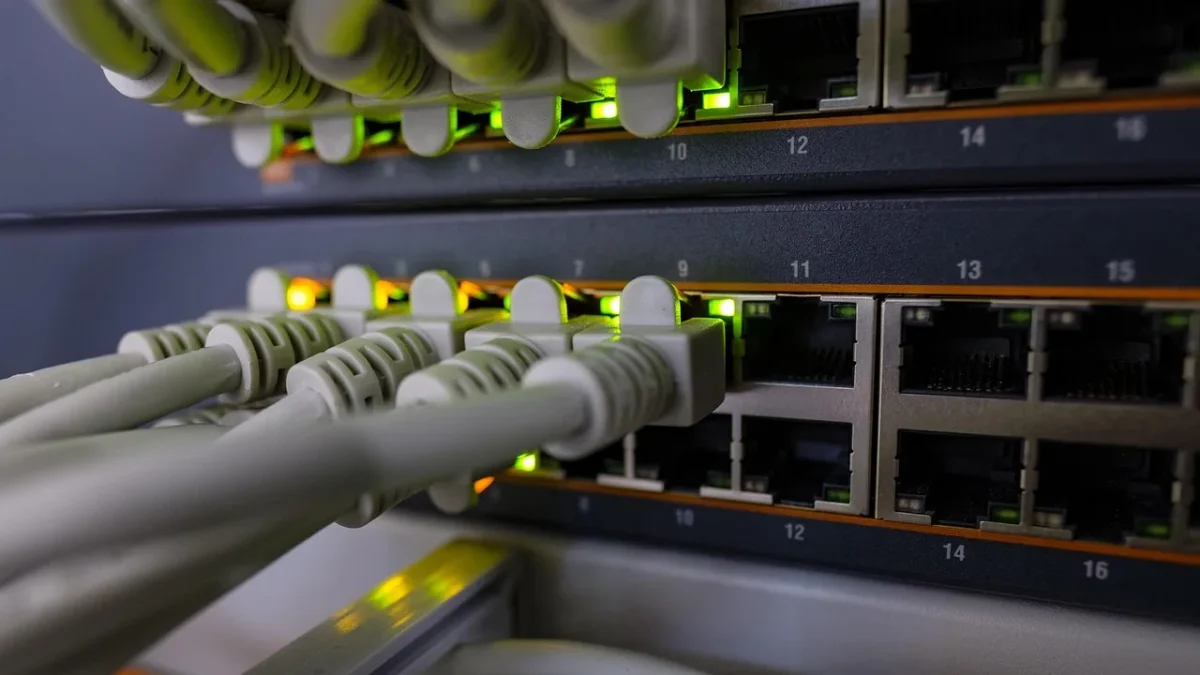
A tired Cat5 cable or a cheap unmanaged switch will cap you long before the NAS does. I have seen a $6 cable that negotiated 100 Mbit instead of gigabit and quietly halved someone's throughput for a year.
Confirm the link is running at 1000 Mbps in your router or NAS network panel. On a Synology it is under Control Panel, Network, Network Interface. If it says 100 Mbps, swap the cable for a known-good Cat5e or Cat6 and try a different switch port.
Gigabit tops out near 112 MB/s in the real world. If you are stuck at 11 MB/s, you are on a 100 Mbit link somewhere in the chain.
3. Switch from SMB1 to SMB3
Old protocol versions are slow and, frankly, a security hole. SMB1 is ancient and Microsoft has been trying to kill it for years.
In DSM, open Control Panel, File Services, SMB, Advanced Settings, and set the minimum protocol to SMB3 and the maximum to SMB3. QNAP has the same toggle under Network and File Services. This one change took a friend's NAS from 60 MB/s to 108 MB/s on identical hardware.
4. Add an SSD cache, but only if your workload fits
An SSD read or read-write cache helps enormously with random access: databases, virtual machines, photo library thumbnails, lots of small files. It does almost nothing for big sequential copies, which already run near line rate.
A single NVMe read cache is safe and cheap insurance. A read-write cache needs two drives in a mirror, because if one dies mid-write you lose data. I run a 500GB read cache that cost about $45 and it turned my Photos app from sluggish to instant.
Do not buy the cache before you have confirmed your slowness is actually random access. On pure sequential transfers it is money wasted.
5. Turn on jumbo frames (carefully)
Jumbo frames raise the network packet size from the default 1500 bytes to 9000, which cuts overhead on large transfers. On a clean wired network it can add 5 to 15 percent.
The catch: every device in the path must support and enable the same MTU, or you get bizarre, hard-to-diagnose stalls. The NAS, the switch, and the PC all need MTU 9000.
| MTU setting | Best for | Risk |
|---|---|---|
| 1500 (standard) | Mixed networks, Wi-Fi, safety | None |
| 9000 (jumbo) | Wired, all-matching gear | Stalls if one device differs |
If you cannot set 9000 on your switch, leave everything at 1500. A mismatch is worse than not bothering.
6. Bond two network ports (link aggregation)
If your NAS has two Ethernet ports and your switch supports it, you can bond them. This will not make a single transfer faster, that is the part people get wrong, but it lets two people each get full gigabit at the same time.
You need a managed switch that supports LACP (802.3ad). Set up the bond in Control Panel, Network, then create a Bond, and configure the matching ports on the switch. For a household streaming to three rooms at once, this is the difference between smooth and buffering.
7. Disable services and indexing you never use
A NAS ships with a pile of background tasks. Media indexing, antivirus scans, thumbnail generation, and cloud sync all fight for the same CPU that is trying to serve your files.
On my box, turning off the universal search indexer for a folder full of raw video freed up noticeable headroom. Go through your installed packages and stop anything you are not actively using.
8. Add RAM if you run apps or VMs
For plain file serving, more RAM buys little. But the moment you run Docker containers, a Plex server transcoding, or a virtual machine, memory becomes the bottleneck fast.
Going from 4GB to 8GB or 20GB on models that allow it is often a $30 to $60 upgrade and the single best value tweak on the list. My DS920+ went from swapping constantly with four containers to sitting comfortably at half usage after a stick of RAM.
Check your model's official compatibility, then check the community lists too, since many unofficial modules work fine at a fraction of the price.
9. Rethink your RAID and drive choice
Spinning disks have a hard ceiling. A single 5400 RPM drive struggles past 150 MB/s on a good day, and SMR drives (shingled) can crater to single digits during sustained writes.
If you bought cheap SMR drives, that is very likely your real problem. Backblaze publishes real-world reliability data worth reading before you buy your next batch, over at the Backblaze Drive Stats reports.
RAID also matters: RAID 5 and SHR give decent read speed but slower writes due to parity calculation. A RAID 10 or a pure SSD volume flies, at the cost of usable capacity. For the underlying concepts, the Wikipedia page on standard RAID levels is a solid primer.
Where to actually start tomorrow morning
Do not do all nine at once. You will never know which one helped.
Measure your baseline, check the cable and link speed, force SMB3, and re-measure. Those three free steps fix the majority of slow-NAS complaints I get. Only when the cheap wins run out should you reach for the SSD cache, the RAM, or new drives.
The closet DS920+ that started this now saturates gigabit on every big copy, and the Photos app opens before I finish blinking. Same box, same drives, just tuned properly.
Frequently asked questions
Why is my NAS so slow even though I have gigabit internet?
Internet speed and local network speed are separate. A slow NAS is almost always about your internal wiring, switch, protocol version, or drives. Test a large file copy over a wired connection first, and confirm the link negotiates at 1000 Mbps rather than 100 Mbps.
Will an SSD cache make my file transfers faster?
Only for random access work like databases, virtual machines, and photo thumbnails. Large sequential copies already run near the network limit, so a cache does almost nothing for them. Confirm your slowness is small-file or random before spending the money.
What is the maximum real speed I can expect over gigabit Ethernet?
Around 110 to 118 MB/s for a single sustained transfer. If you are seeing roughly 11 MB/s, something in the chain has dropped to a 100 Mbit link. If you want more, you need 2.5GbE or 10GbE hardware on both ends.
Are jumbo frames worth enabling on a home NAS?
Sometimes, for a wholly wired network where the NAS, switch, and PC all support MTU 9000. It can add 5 to 15 percent on big transfers. If any device stays at 1500, leave everything at 1500, because a mismatch causes stalls that are hard to diagnose.
Does adding RAM speed up file sharing?
Not much for plain file serving. RAM matters when you run Docker, Plex transcoding, or virtual machines, where it is often the real bottleneck. On models that allow upgrades, going from 4GB to 8GB is usually a cheap and high-value change.
How do I know if my drives are the problem?
Watch a long sustained write. If speed starts fine then collapses to single digits after a minute, you likely have SMR (shingled) drives, which handle sustained writes poorly. Check the model number against the manufacturer's SMR list before buying more.