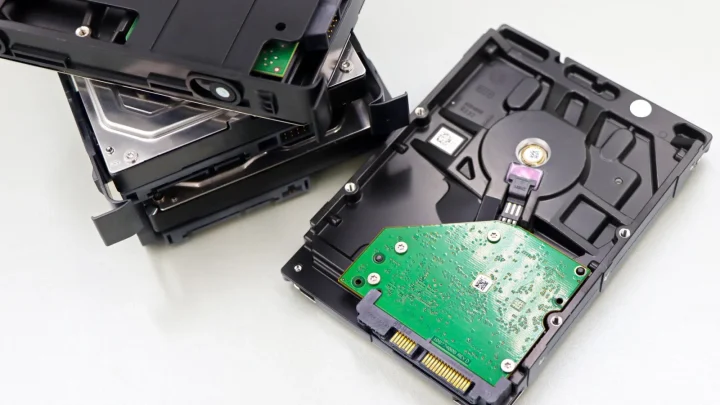
My neighbor lost a 40TB Synology array to a two-second brownout. Not a lightning strike, not a flood. Just the lights dipping while his AC kicked on, mid-write, on a Btrfs volume that never came back clean.
He had no battery backup. The NAS was fine, the drives were fine, but the file system caught a write halfway through and the whole thing dropped into a read-only panic that took a support ticket and a rebuild to sort out.
A UPS would have cost him about $120 and prevented all of it. This guide walks through wiring one up to a Synology or QNAP over USB, setting the shutdown thresholds so the box powers down gracefully, and actually testing it so you know it works before you need it.
Why a NAS specifically needs a UPS
A desktop PC that loses power just reboots and annoys you. A NAS is different because it is almost always writing something: file changes, database indexes, snapshot metadata, or a RAID parity update that assumes it will finish.
Cut power in the middle of a parity write and you can end up with the write hole problem, where the data blocks and the parity block disagree and the array cannot tell which one is correct. On top of that, modern NAS boxes cache writes in RAM for speed, so a sudden cut loses whatever had not been flushed to disk yet.
The whole job of the UPS is to bridge the gap between the power dying and the NAS finishing its writes and shutting down cleanly. It only needs to hold the load for a couple of minutes, not run your house.
Buy the right UPS first
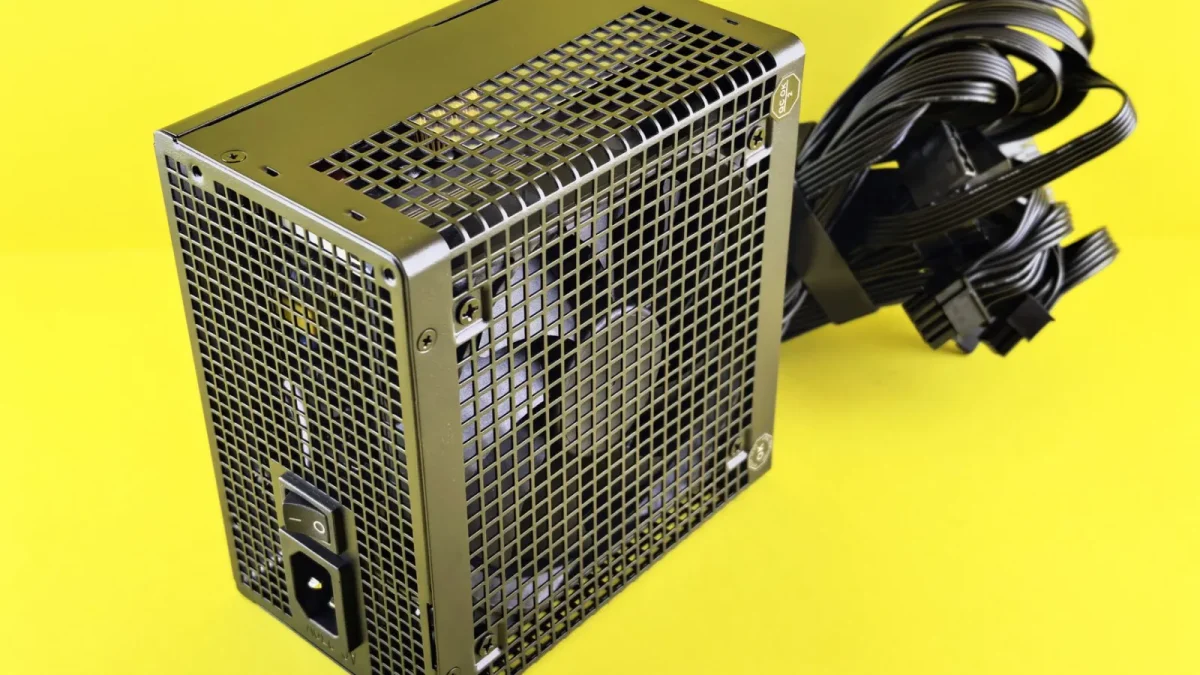
Two things matter here: the shape of the power it puts out, and whether it can talk to your NAS over USB.
Cheaper units output a stepped or simulated sine wave. Most NAS power supplies tolerate that fine, but if yours has an active PFC supply (common on 4-bay and larger units) it can shut off or buzz on a stepped wave. A pure sine wave model removes that risk entirely, and the price gap is smaller than it used to be.
Sizing it
Add up the wattage of the NAS and anything else on the battery side. A 4-bay NAS with spinning drives pulls roughly 40-70 watts under load. Do not forget the network gear: if your switch or router is on the same UPS, that counts too, and it needs to stay up so a shutdown notification can travel.
| Setup | Rough draw | UPS VA to target | Runtime you get |
|---|---|---|---|
| 2-bay NAS, no extras | 25-40 W | 600-700 VA | 15-25 min |
| 4-bay NAS + small switch | 60-90 W | 900-1000 VA | 10-20 min |
| 6-8 bay NAS + switch + router | 110-160 W | 1350-1500 VA | 8-15 min |
Popular models people actually run at home include the CyberPower CP1500PFCLCD (pure sine, around $200) and the APC Back-UPS Pro BR series. Both expose a USB data port, which is the part that matters next.
Step 1: Wire it up and let the battery charge
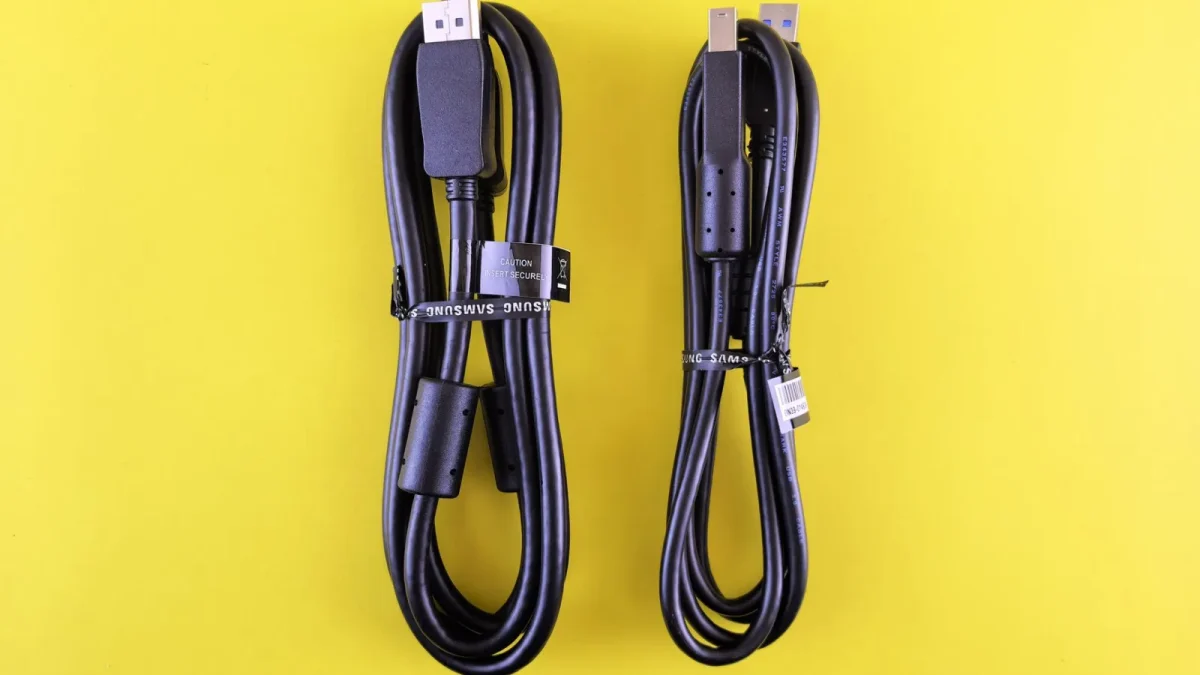
Connect the NAS power cable to a battery-backed outlet on the UPS. Then run the USB data cable from the UPS to any USB port on the NAS. That USB link is how the NAS reads battery status and gets told to shut down.
Give the UPS a few hours to charge before you trust it. A brand new unit often ships at 40-60 percent, and the runtime numbers you see in testing will be low until it tops off.
Step 2: Turn on UPS support in the NAS
On a Synology, open Control Panel, Hardware and Power, UPS. Tick "Enable UPS support" and it should detect a USB UPS automatically, showing you the current battery percentage. Synology documents the full flow in their UPS settings help page.
On a QNAP, it lives under Control Panel, System, External Device, UPS. Same idea: enable it, confirm the model is recognized, and you will see the battery reading appear.
If the NAS shows "UPS not detected," reseat the USB cable and try a different port. I have seen a flaky front-panel USB port cause this while the rear ports worked fine.
Step 3: Set the shutdown threshold
This is the setting that actually saves your data, so get it right.
You are telling the NAS when to give up and shut down. There are usually two ways to trigger it: after the battery has been on backup for a set number of minutes, or once the battery drops below a percentage. I lean toward the time-based trigger because it is predictable.
- Time mode: shut down after the NAS has been running on battery for, say, 3-5 minutes. Short outages (the lights flicker and come back) never trigger a shutdown.
- Percentage mode: shut down when the battery reaches a floor like 30-40 percent. This leaves headroom for the drives to spin down and the cache to flush.
Do not set the trigger so aggressive that a one-second flicker powers the whole system off. And do not set it so relaxed that the battery dies before the NAS reacts. A 3 minute delay with a shutdown at 40 percent is a sane middle ground for most home setups.
Step 4: Enable safe shutdown, not just alerts
A common mistake I see is people enabling UPS support, seeing the battery percentage, and assuming they are covered. They are not. The default in some firmware only sends an email and does nothing else.
Confirm the box is set to enter Safe Mode or perform a full shutdown on the trigger. On Synology, safe mode unmounts the volumes and stops services so nothing is mid-write when the lights go out. That unmount step is the actual protection.
Also turn on the notification so you get an email or push alert the moment the NAS switches to battery. Knowing an outage is happening while you are away is worth a lot.
Step 5: Test it before you rely on it
Untested backup is just a hopeful assumption. You need to see the shutdown happen once.
Pick a quiet moment when nobody is streaming or copying files. Then, with the NAS running on the UPS, pull the UPS power cord from the wall. Watch the NAS interface: it should flip to "On battery" within a few seconds and start its countdown.
You do not have to wait for a full drain. Let it confirm it is on battery, verify the notification arrived, then plug the wall cord back in and check that it returns to "Online." If you want the full dress rehearsal, let the timer run all the way to the graceful shutdown and confirm the NAS powers back up cleanly when mains returns.
What good looks like
During the test you want to see three things happen in order: the NAS reports it is on battery, you receive the alert, and (if you let it run) the volumes unmount and the box powers down on its own. If any of those is missing, fix it now while it is a drill and not a real outage.
Replace the battery before it lies to you
UPS batteries are consumable. A sealed lead-acid battery is usually good for 3-5 years, and a tired one can read 100 percent while actually delivering 30 seconds of runtime.
Mark your calendar for a runtime check once a year: pull the plug and time how long you really get. When that number falls off a cliff, order a replacement battery, which is far cheaper than a new unit. For the deeper background on how these batteries and topologies differ, the Wikipedia overview of UPS types is a solid read.
Do this once and you turn a category of scary, silent data loss into a non-event. The next time your neighborhood flickers, your NAS quietly rides it out, and you never even notice until you spot the "switched to battery" email waiting for you.
Frequently asked questions
Does my NAS really need a UPS if I already have a surge protector?
Yes, they do different jobs. A surge protector blocks voltage spikes but does nothing during an outage or brownout, which is when a mid-write NAS corrupts data. A UPS keeps the NAS powered long enough to finish writes and shut down gracefully, which a surge strip cannot do.
Can one UPS protect two NAS units at once?
Yes. Connect the UPS by USB to one NAS and set that unit as the network UPS server. Other NAS boxes or devices on the same LAN then read the battery status over the network and shut down when told. Both Synology and QNAP support this mode.
What shutdown threshold should I use for my NAS UPS setup?
A good default is to shut down after 3-5 minutes on battery, or when the battery drops to around 40 percent, whichever your firmware offers. That ignores brief flickers but still leaves plenty of headroom for the volumes to unmount before the battery dies.
Will a cheap simulated sine wave UPS damage my NAS?
Usually not for a small 2-bay unit, but NAS power supplies with active PFC (common on 4-bay and larger models) can buzz or refuse to switch to battery on a stepped wave. If your NAS has an active PFC supply, spend the extra money on a pure sine wave model to be safe.
How long does a UPS battery last before it needs replacing?
Most sealed lead-acid UPS batteries last 3-5 years. The catch is that a worn battery can still report full charge while giving you almost no real runtime, so run a plug-pull runtime test once a year and replace the battery when the time drops sharply.