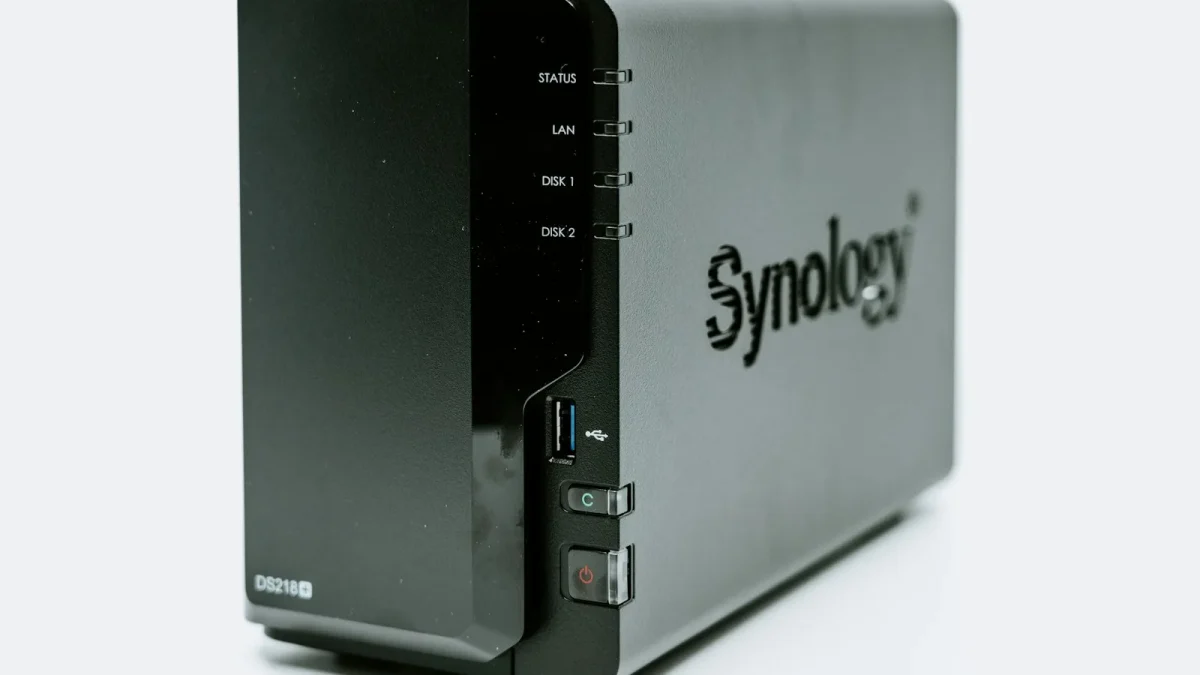
A reader named Marcus emailed me last spring with a complaint I have heard maybe fifty times. His movies played fine for about eight seconds, then the little spinning circle appeared, then a few more seconds of video, then the spinner again. His NAS was a Synology DS220j, the cheapest two-bay box Synology sells, and he had bought it specifically to run Plex because a forum post told him it would be fine.
It was not fine. But the box was not the real problem.
I asked him to send me one screenshot, and it told me everything. So I want to walk you through his exact case, because the DS220j is one of the most common budget NAS units out there, and the fix is almost always the same three or four changes.
The one screenshot that explained the buffering
The screenshot was from the Plex dashboard, the Activity page you get to from Settings. It showed one active stream, and next to it were the words Transcode (Throttled). That single label is the whole story.
The DS220j runs a Realtek RTD1296, a quad-core ARM chip clocked at 1.4 GHz. It has no hardware video decoder that Plex can use, so any time it has to transcode, the software does it on those little cores. A 1080p transcode needs a Plex "speed" score of roughly 2000. The DS220j scores around 250.
Marcus was asking a lawnmower engine to tow a caravan. It moved, briefly, then stalled.

Why the file, not the NAS, was the trigger
Here is the part people miss. The DS220j can happily stream a 4K movie if it never has to touch the video. The buffering starts the moment something forces a transcode, and there are only a handful of common triggers.
- The client cannot decode the codec (older TVs choke on HEVC or 10-bit color).
- The audio track is a format the client cannot pass through, so Plex transcodes audio and sometimes drags video along with it.
- Burned-in or image-based subtitles (PGS from Blu-ray rips) force a full video transcode to "burn" them in.
- The user set a bandwidth limit lower than the file bitrate, so Plex downscales to fit.
Marcus had two of these at once. His rips were HEVC 10-bit, and his living room TV was a 2016 model that only did 8-bit. Every play forced a color-space transcode.
Change one: fix the client so it stops asking for a transcode
The very first thing I had him check was the quality setting inside the Plex app on his TV, not on the server. In most Plex clients there is a setting buried under Settings, Video Quality or Remote Quality that says something like "Convert automatically" or caps the stream at 720p 4 Mbps.
His Android TV app was set to 8 Mbps. His files averaged 15 Mbps. That mismatch alone guaranteed a transcode on every single play.
He changed it to Maximum (or "Original"), and one of his two triggers vanished immediately. Lighter files that his TV could actually decode now went straight to Direct Play.
Change two: pre-make Optimized Versions for the tough files
The HEVC 10-bit files were still a problem, because his old TV physically could not decode them. You cannot fix hardware limits with a setting. So instead of transcoding live, we made Plex do the work once, ahead of time, while nobody was watching.
In Plex this is called an Optimized Version. You right-click a movie or a whole library, choose Optimize, and pick a preset like "Optimized for TV". Plex creates a second copy in a compatible 1080p 8-bit H.264 format and stores it next to the original.
The catch is that the DS220j is slow at this too. A two-hour movie took roughly six to seven hours to optimize on his box. That sounds terrible, and it is, but it only happens once per file and it runs overnight without anyone staring at a spinner.
We queued the twenty films he actually rewatched and let the NAS grind through them over a weekend. After that, playback on the old TV was instant.
Change three: audio and subtitles
The last trigger was subtitles. Marcus liked subtitles on, and his rips carried PGS image subtitles, which cannot be sent as text. Plex has to paint them onto the video, which means a full video transcode every time.
The fix was to add external SRT subtitle files, which are plain text. Plex sends those to the client as an overlay with zero video work. He downloaded matching SRT files, dropped them in the movie folders named to match, and the transcode-for-subtitles problem disappeared.
On audio, we set his TV app to pass through what it could and told Plex not to worry about surround downmixing, since a stereo transcode of audio alone rarely causes buffering on this chip.
The before-and-after, measured
I like numbers, so here is what actually changed on Marcus's setup, watching the Plex dashboard during a normal evening of playback.
| Situation | Stream type | Buffering events per movie |
|---|---|---|
| Original setup | Transcode (Throttled) | 20 to 40 |
| After client quality fix | Mixed, some Direct Play | 5 to 10 |
| After optimized versions and SRT | Direct Play | 0 |
Zero. Same NAS, same drives, same network. The hardware never needed replacing.
When the DS220j genuinely is not enough
I will be honest, because plenty of guides oversell these boxes. If your household has three people watching three different 4K HDR remuxes at once, and half the clients need transcoding, no amount of tuning saves the DS220j. That is a real workload for a machine with a proper Intel chip and Quick Sync.
But that was not Marcus, and it is not most home users. One or two streams of files the clients can actually play is well within reach. Synology publishes the supported apps and rough specs on the official DS220j product page, and it is worth reading before you buy so you go in with correct expectations.
The short version I gave Marcus
Stop the transcode and the buffering stops. On a DS220j that means three habits: force clients to request Original quality, pre-build Optimized Versions for files your TVs cannot natively decode, and use text SRT subtitles instead of image ones.
Marcus replied a week later. Three words: "No more spinner." His caravan finally had the right engine, or rather, he stopped asking the little engine to pull a load it was never built for.
If you own this NAS and Plex is stuttering, open that Activity dashboard first. The label next to your stream will tell you exactly which of these fixes you need.
Frequently asked questions
Can the Synology DS220j run Plex at all?
Yes, but only for Direct Play. It streams files your clients can decode natively without breaking a sweat. It just cannot transcode 1080p or 4K video in real time, so the trick is to avoid transcoding rather than force the CPU to do it.
How do I know if Plex is transcoding on my DS220j?
Open Plex, go to Settings, then Dashboard or Activity, and watch a stream while it plays. If the label says Transcode or Transcode (Throttled), the CPU is working too hard. If it says Direct Play or Direct Stream, you are fine.
Why does adding subtitles cause buffering on my NAS?
Image-based subtitles like PGS from Blu-ray rips have to be painted onto the video, which forces a full transcode. Replace them with plain-text SRT files placed in the same folder, and Plex sends them as a cheap overlay with no video work.
How long does it take to make an Optimized Version on a DS220j?
Expect roughly six to seven hours for a two-hour movie, because the same slow CPU does the conversion. It only happens once per file, so queue them overnight or over a weekend and let the NAS grind through your rewatch list.
Should I just buy a more powerful NAS instead?
Only if you genuinely need multiple simultaneous transcodes, for example several 4K HDR streams to incompatible clients at once. For one or two streams of compatible files, tuning the DS220j is enough and saves you a couple hundred dollars.