My first Synology lived on a shelf about four feet from my bed. For two weeks I thought I could tune it out. Then one night at 2 a.m. the fan spun up during a backup, and that thin, insistent whine turned me into someone who reads spec sheets for decibel ratings.
The good news: almost every noise a home NAS makes can be tamed. Some of it is a two-minute settings change, some of it is a ten-dollar part, and a little of it is just picking a better spot for the box.
Here is the order I work through problems, from free and instant to slightly more involved.
First, figure out what you are actually hearing
Not all NAS noise is the fan. Before you order parts, put your ear near the case and separate the sources.
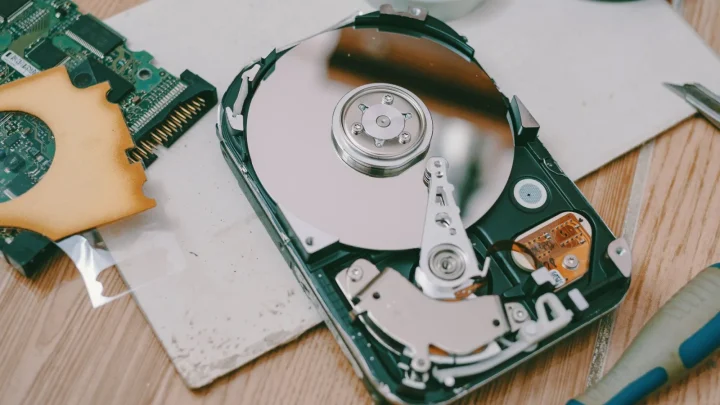
A steady, airy whoosh is the case fan. A rhythmic chatter or clicking is the mechanical hard drives seeking. A high electrical whine that changes with load is usually coil whine from the power supply or a voltage regulator.
This matters because the fixes are completely different. I once spent an afternoon swapping a fan when the real culprit was four 7200 RPM drives grinding through a nightly scrub.
Step 1: Change the fan mode in software
This is the free win, and most people never touch it. Synology, QNAP, and TrueNAS all expose some form of fan control.
On a Synology, open Control Panel > Hardware & Power > General and look for the Fan Speed Mode. The default is often "Full-Speed Mode" or "Cool Mode," which keeps the box a few degrees cooler at the cost of noise you can hear across a room.
Switch it to Quiet Mode (sometimes labeled "Low-Power"). On my DS920+ this dropped the idle noise noticeably, and drive temps only climbed about 3 to 4 degrees Celsius, still comfortably in the safe 30s.
QNAP users get finer control under Control Panel > System > Hardware > Smart Fan, where you can set custom temperature-to-speed curves. If your unit runs cool, tell the fan to stay slow until drives cross 45 degrees.
Step 2: Let the drives spin down
If the chatter is the problem, drive hibernation is your friend. When the NAS is idle, the platters stop spinning and the box goes near silent.
On Synology this lives under Control Panel > Hardware & Power > HDD Hibernation. Set a timeout of 20 or 30 minutes and the drives park themselves when nobody is using them.
The catch is that hibernation only works if nothing keeps waking the drives. Surveillance Station, an active Docker container, indexing, or even a phone app polling for photos will keep them spinning forever.
I hunt down wake-ups by checking the System > Log Center for what triggered the last spin-up. Nine times out of ten it is a package I forgot I installed, or Universal Search rebuilding its index.
Step 3: Fix the placement before you touch hardware
Where the NAS sits changes how loud it feels more than most people expect. A hard cabinet floor turns drive vibration into a drum.
Move the box off any hollow surface. A shelf inside a closed IKEA cabinet acts like a resonating chamber, and I have measured the same NAS sounding twice as loud in a cabinet versus on an open desk.
Put it on something dense and soft. A thick mouse pad, a slab of cork, or a couple of self-adhesive rubber feet under the case will absorb the low-frequency hum you feel more than hear.
Keep at least a few inches of clear air behind and above the unit. Choke the exhaust and the fan has to spin faster to move the same air, which is the exact opposite of quiet.
Distance is the cheapest fix of all
Noise drops off fast with distance. Moving the NAS from a bedside shelf to a hallway closet, or into a nearby cabinet with a vent gap, can take it from "I hear that" to "where is it again."
A long Cat6 cable and a powerline or mesh setup lets you park the box a room away without losing speed for streaming and backups.
Step 4: Swap the stock fan
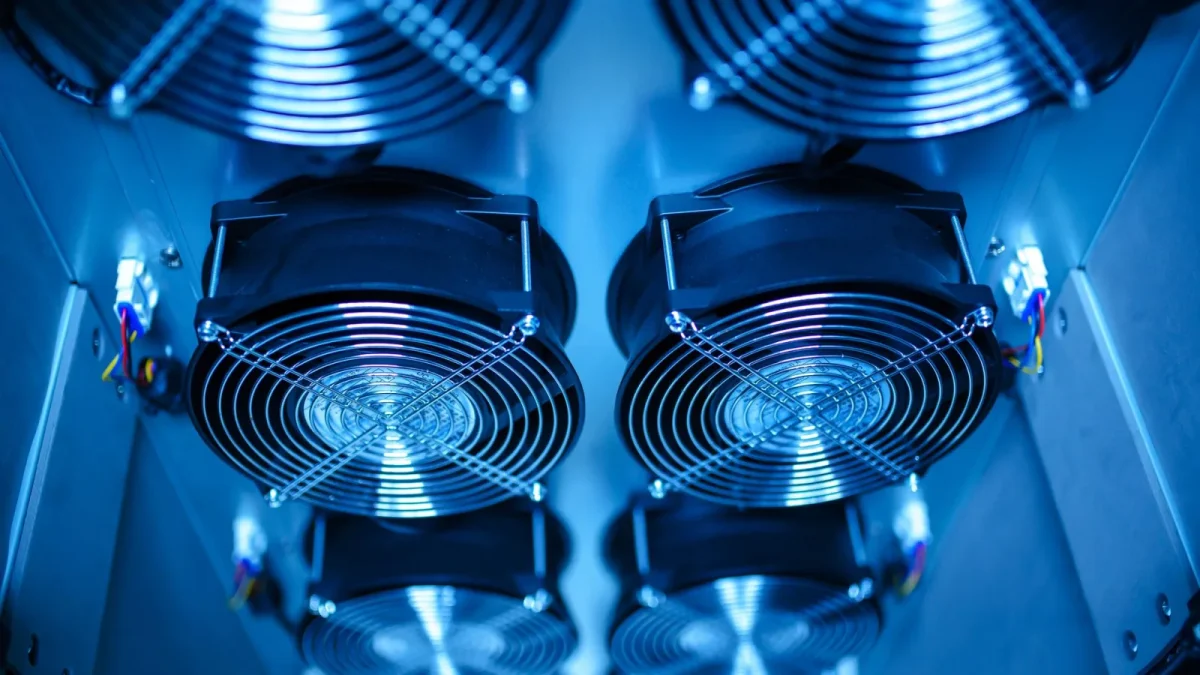
If software and placement are not enough, the fan itself is often the weak link. Stock fans in budget enclosures are frequently sleeve-bearing units chosen for cost, not silence.
Check your fan size first. Most two and four-bay units use a single 92mm or 120mm fan, printed right on the fan hub. Swapping to a quality fluid-dynamic-bearing fan from a brand like Noctua or be quiet! is usually a straight drop-in.
Here is roughly what the options look like for a typical home unit.
| Fix | Cost | Effort | Noise drop |
|---|---|---|---|
| Quiet fan mode | Free | 2 minutes | Small to moderate |
| Drive hibernation | Free | 5 minutes | Large when idle |
| Better placement | Free to $15 | 10 minutes | Moderate |
| Aftermarket fan swap | $15 to $30 | 20-30 minutes | Large |
One warning on fan swaps: some Synology and QNAP models watch the fan tachometer and throw a loud beeping alarm if the RPM signal looks wrong. Pick a fan that reports RPM through the standard third wire, or you trade a quiet fan for an angry beep.
Step 5: Consider quieter drives at the source
If you are building fresh or replacing a failed disk, the drive you pick sets your noise floor. 7200 RPM performance drives chatter noticeably more than 5400 class NAS drives.
For a home box that mostly stores photos, media, and backups, a 5400 RPM class NAS drive is quieter and cooler, and you will never notice the speed difference streaming a movie. The Synology and WD Red Plus lines are common picks here.
SSDs, of course, make no mechanical noise at all. An all-flash NAS for a bedroom is now genuinely affordable at smaller capacities, and it removes drive chatter from the equation entirely. If you want the manufacturer's own view on choosing drives, Synology keeps a clear compatibility guide worth skimming before you buy.
What I would do first
If you only have five minutes, switch the fan to quiet mode and turn on drive hibernation. That combination silences the majority of complaints I hear, and it costs nothing.
If it still bothers you, move the box off any hollow surface and add a few inches of breathing room. Save the fan swap for last, because by then you may find you no longer need it.
A NAS earns its keep by being ignorable. Get these steps done and yours will fade into the background where it belongs, backing up your life without narrating it at 2 a.m.
Frequently asked questions
Is it safe to run my NAS in quiet fan mode?
For typical home use, yes. Quiet mode usually raises drive temperatures only a few degrees, well within the safe operating range. Watch the temperatures in Storage Manager for the first week, and if any drive regularly sits above 50 degrees Celsius, move the fan back up a notch.
Why does my NAS get loud in the middle of the night?
Scheduled tasks are the usual cause. Overnight backups, RAID scrubs, antivirus scans, and index rebuilds all wake the drives and spin the fan up. Check your task scheduler and package settings, and move heavy jobs to a time you are awake if the noise wakes you.
Will drive hibernation wear out my hard drives?
Occasional spin-down is fine and saves power and noise. The wear concern comes from constant cycling, where the drives wake and sleep every few minutes because something keeps polling them. If you cannot stop the wake-ups, it is gentler to leave hibernation off and let the drives run steadily.
Can I replace the fan without voiding my warranty?
It depends on the manufacturer and whether opening the case leaves evidence. Some vendors treat a fan swap as a warranty risk, so check your terms first. If you go ahead, photograph the wiring, keep the original fan, and choose a replacement that reports RPM so the NAS does not trigger a fan-failure alarm.
Are SSDs worth it just to make a NAS quieter?
If silence is your top priority and your capacity needs are modest, yes. SSDs remove drive chatter entirely and cut heat, which lets the fan stay slow. For large media libraries the cost per terabyte still favors hard drives, so many people run SSD for active data and a quiet 5400 RPM drive for bulk storage.
How far away can I put the NAS to make it quieter?
As far as a network cable and your setup allow. A long Cat6 run into a closet or a nearby cabinet with a vent gap is the simplest way to remove the noise from your living space. Distance drops perceived loudness quickly, and a wired link keeps streaming and backup speeds intact.