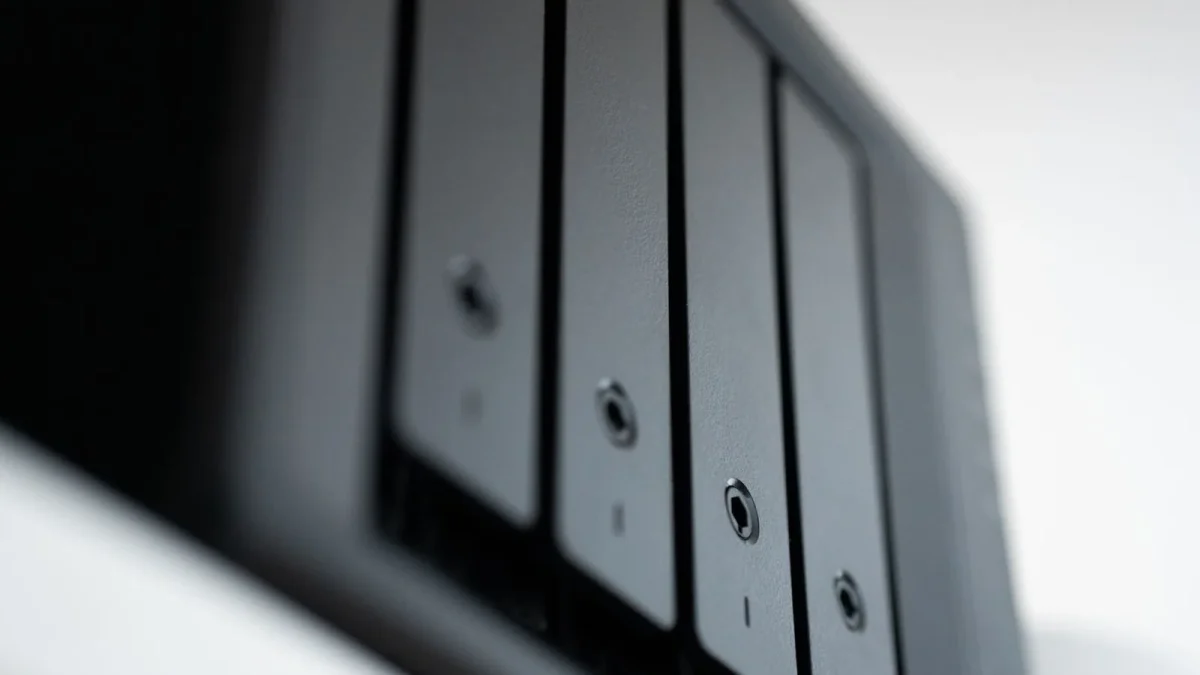
My AS5304T sat on my desk one Tuesday morning with a solid blue power light and absolutely nothing else. No web login, no beep, no network activity. I had four drives of family photos inside it and about ninety minutes before I had to leave for a client site.
That panic is exactly why I want to walk you through this the calm way.
ASUSTOR and TerraMaster units fail to boot for a surprisingly small list of reasons, and almost none of them mean your data is gone. The trick is reading what the box is trying to tell you before you start yanking things out. So let's go through it in the order I actually use when a friend calls me in a mild sweat.
Read the LEDs before you touch anything
The status lights are the first diagnostic tool you have, and most people ignore them. On ASUSTOR ADM units, a steady green power LED with a blinking green status LED means the system is still initializing, which can legitimately take two to three minutes on older Realtek-based models like the AS1004T.
A red or amber status LED is a different story. That usually points at a failed system partition or a drive that the controller cannot read.
TerraMaster TOS boxes are a little blunter about it. On an F2-423 or F4-423, a power light that comes on but never progresses to the network activity blink almost always means TOS itself did not load from the drives.
Step 1: Power-cycle properly, not just a quick tap
A real power cycle clears more stuck states than people expect. Press and hold the power button for a full ten seconds until the unit is completely dark, then unplug the power brick from the wall.
Wait a genuine sixty seconds. I count it out, because the capacitors on these small boards hold charge longer than you would think and a rushed restart just reloads the same jammed state.
Plug back in, press power once, and watch the LEDs from the very first second. If you see a normal green initialization sequence this time, you may have just fixed a one-off firmware hang and you are done.
Step 2: Isolate the drives from the enclosure
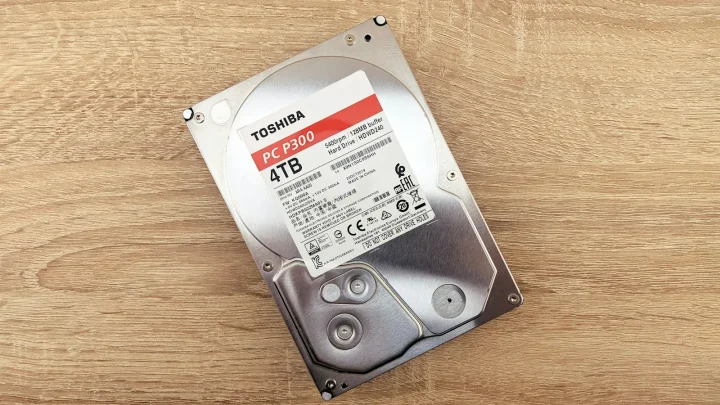
This is the single most useful test, and it splits the problem cleanly in half. Power down, then pull every drive out and label each one with its slot number using a bit of masking tape. Slot order matters for the RAID metadata, so do not skip the labeling.
Now power the empty NAS on.
If the empty enclosure boots to a beep or an ADM "initialize" web page at its IP address, the hardware is fine and one of your drives is stalling the boot. If the empty box still hangs with the same dead LED, the fault is in the NAS itself, not the disks.
Step 3: Find the unit on your network
Sometimes the NAS actually is booting fine and the real problem is that you cannot reach the login page. Both brands ship a discovery tool for this exact situation.
ASUSTOR Control Center and TerraMaster's TNAS PC utility both scan the local subnet and report the unit's status, IP, and firmware state. If the tool sees the box but lists it as "uninitialized" when it should have data, stop immediately and do not click initialize.
An uninitialized status on a unit that previously worked is almost always a drive or partition read failure, not a genuine blank NAS. Clicking through the setup wizard at that point is how people accidentally format their own photos.
Step 4: Boot recovery mode and reinstall the OS only
When the enclosure hardware is healthy but the operating system will not load, both brands offer a recovery path that reinstalls the OS while leaving your data volume intact.
On ASUSTOR, the discovery tool can push a fresh copy of ADM to the unit. On TerraMaster, TOS 5 introduced a similar reinstall that specifically preserves the storage pool.
Here is the part that matters: choose the option worded like reinstall system or repair, never the option worded like initialize or format volume. The wording is your safety line.
What the reinstall actually does
It rewrites the small system partitions on your drives and rebuilds the ADM or TOS software layer. Your RAID array and its data partition are a separate region, so a clean reinstall leaves them untouched when you pick the right option.
I have done this on a stuck F4-423 that would not get past its power LED. Fifteen minutes later it booted into a fresh TOS login with the storage pool, shares, and every file exactly where I left them.
When it is the hardware, not the software
If the empty enclosure from Step 2 still refused to boot, you are looking at a hardware fault. The two most common culprits on these compact units are the power supply and the boot flash.
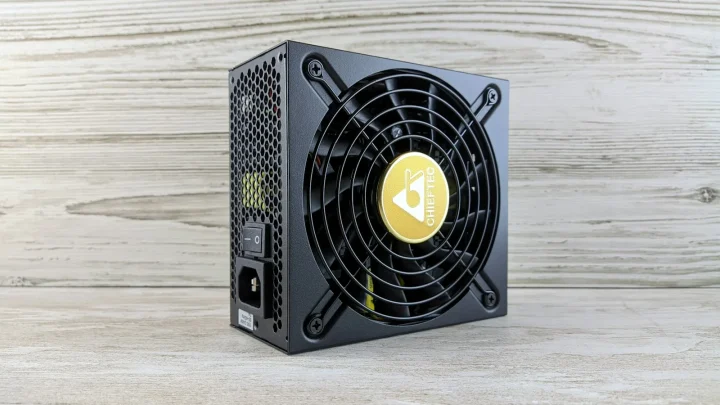
The external power brick fails more often than the NAS itself. A brick that outputs the wrong voltage, or drops out under load, produces exactly the "lights come on then nothing" symptom, and a known-good replacement of the correct wattage is a cheap thing to test first.
Here is how the usual suspects compare when the box will not come up.
| Symptom | Most likely cause | First fix to try |
|---|---|---|
| No lights at all | Failed power brick | Swap in a matching-voltage adapter |
| Power LED on, no boot, empty box too | Corrupt boot flash or board fault | Recovery flash via discovery tool |
| Power LED on, boots only when empty | A single failing drive | Add drives back one at a time |
| Reaches uninitialized page unexpectedly | Partition or array read error | Do NOT initialize; recover the volume |
The recovery escape hatch worth knowing
Because both platforms use ordinary Linux RAID, a completely dead enclosure is not the end of your data. You can move the labeled drives, in their original slot order, into a Linux machine or a USB dock and assemble the array read-only.
This is the same underlying technology described in the general write-up on Linux mdadm software RAID, and it is why I stay relatively relaxed even when a chassis is toast.
If your files matter, the real lesson under all of this is backup, not boot recovery. A NAS is one copy, and RAID is availability, not a backup, as the folks at Backblaze explain in their RAID versus backup breakdown.
Getting back to a working login
Nine times out of ten, an ASUSTOR or TerraMaster that will not boot comes back with a proper power cycle, a drive isolation test, and an OS reinstall that spares the volume. The hardware failures are the minority, and even those usually cost you a twenty dollar power brick rather than your data.
Work the steps in order, resist every wizard button that says initialize, and label your drives before they leave the box.
Do that, and the worst Tuesday morning your NAS can throw at you turns into a coffee-length repair.
Frequently asked questions
My ASUSTOR shows a red status LED on boot. What does it mean?
A red or amber status LED on an ADM unit points at a system partition or drive read failure, not a normal startup. Power down, isolate the drives, and boot the empty enclosure to see whether the box itself is healthy. If it is, use ASUSTOR Control Center to reinstall ADM using the repair option that keeps your volume.
Will reinstalling TOS or ADM erase my files?
Not if you choose the reinstall or repair option rather than initialize or format. The operating system lives in small system partitions that are separate from your data partition. A clean OS reinstall rewrites only the system area and leaves the RAID array and its files intact.
My TerraMaster powers on but never reaches the login page. Why?
On F2-423 and F4-423 units, a power light that never progresses to network activity usually means TOS failed to load from the drives. Start with a full ten-second power cycle and a sixty-second unplug. If that fails, isolate the drives to check whether a single failing disk is stalling the mount.
The discovery tool says my NAS is uninitialized, but it had data. What now?
Stop and do not click initialize. An unexpectedly uninitialized status on a working unit almost always means the array or a partition cannot be read, not that the box is blank. Clicking the setup wizard from there can format your data, so investigate the drives first.
Can I recover my data if the enclosure is completely dead?
Yes, in most cases. Both brands use standard Linux mdadm software RAID, so you can move the drives, in their original slot order, into a Linux machine or USB dock and assemble the array read-only. Label every drive with its slot number before removing them.
How long should a normal ASUSTOR or TerraMaster boot take?
Give it two to three full minutes, especially on older Realtek-based models like the AS1004T. A blinking green status LED means the system is still initializing and is not stuck. Only treat it as a failure once the LEDs settle into a steady error state or nothing progresses past that window.