A blinking blue light that never turns solid. That was my introduction to how little I understood about what a NAS does in the thirty seconds after you press the power button.
I had a Synology DS220+ that would power on, sit there flashing, and refuse to appear on the network. No web interface, no shared folders, nothing. I assumed the drives had died. They had not. The box simply could not finish booting, and once I understood why, the fix took ten minutes.
This primer walks through what happens inside a home NAS from power-on to login screen, where the firmware actually lives, and how recovery modes pull the thing back from the edge. Once you can picture the sequence, troubleshooting stops being guesswork.
Your NAS is a small computer that hides its own operating system
People think of a NAS as a box of hard drives. It is closer to a tiny purpose-built PC, with a CPU, RAM, a network chip, and an operating system that has to load before any of your files become reachable.
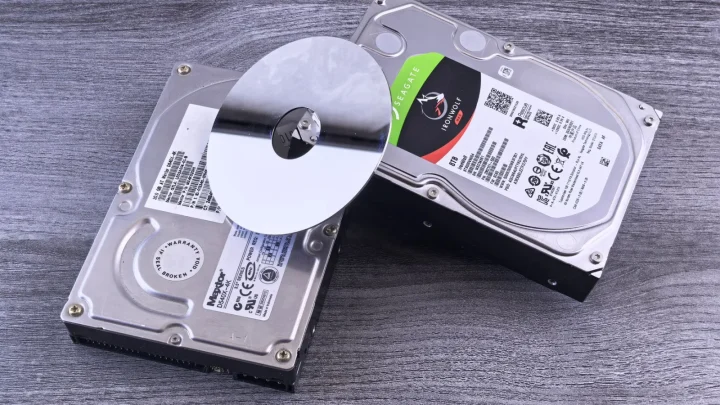
The key thing most owners miss is where that operating system lives. On the majority of consumer NAS units, the firmware is not stored on your big data drives at all. It lives on a separate small flash chip soldered to the board, and a copy is also written to a hidden partition on each hard drive.
Synology, for example, keeps a small partition on every drive called the DSM system partition. Your 8TB drive is not entirely yours, a slice near the front holds the operating system.
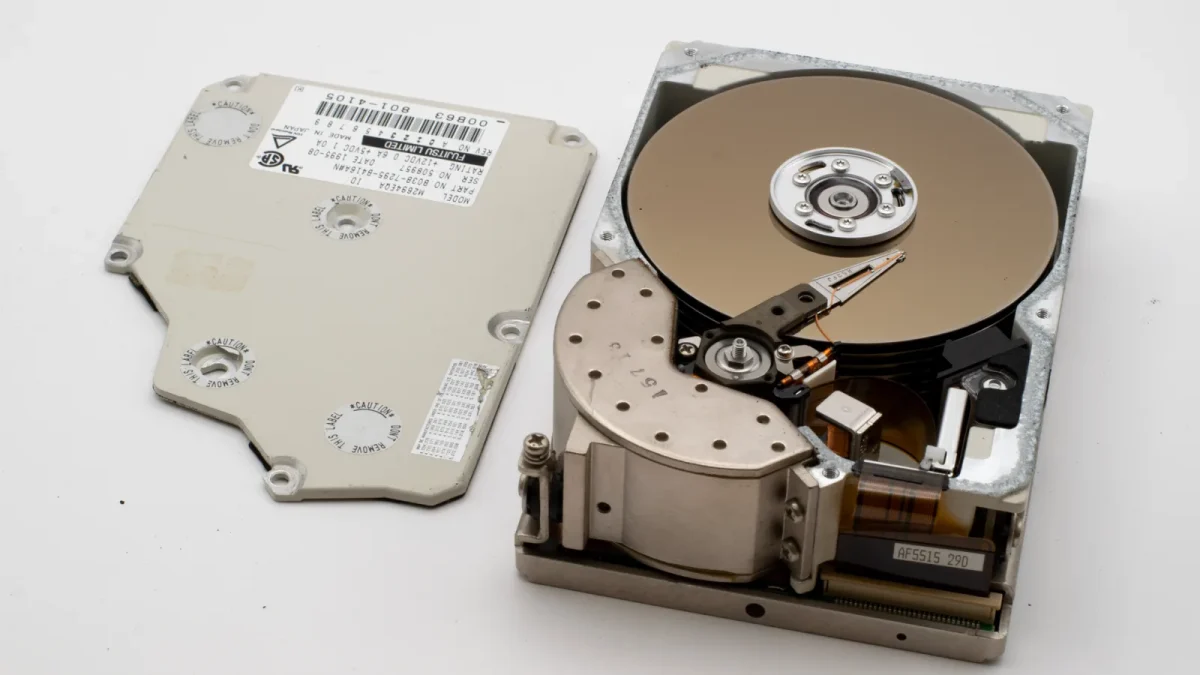
The boot sequence, step by step
When you press power, the NAS runs through a fairly predictable chain. Knowing the order tells you where things stalled when a light gets stuck.
- Power and POST. The board powers up and runs a quick self-test on the CPU and RAM, the same idea as a PC POST. This is the first second or two.
- Bootloader from flash. A small bootloader on the internal flash chip (often U-Boot on ARM models) initialises the hardware and looks for a kernel to load.
- Kernel and initial system. The bootloader loads a Linux kernel and a minimal early system into RAM. On many units this minimal system is enough to bring the network up.
- Reading the drives. The system now spins up your hard drives and reads the full operating system from that hidden partition, then assembles your storage volumes.
- Services start. The web interface, file sharing (SMB), and any apps you installed come online. Now the box answers on the network and the status light goes solid.
Most stuck-boot problems happen at step four or five. The bootloader and kernel are fine, but something on the drives, a corrupt system partition, a degraded array, a half-finished update, stops the full operating system from mounting.
Why firmware updates are the usual troublemaker
The single most common way I see a NAS refuse to boot is a firmware update that got interrupted. A power blip, an accidental reboot, or a flaky drive during the write, and the system partition ends up half old, half new.
On a Synology this often shows as the box booting into a page that says the DSM version is not correct and offers to reinstall. That prompt is not a disaster. It usually means the system partition is damaged but your data partition is untouched.
The reason a reinstall is usually safe is that separation I described earlier. The operating system and your data sit on different partitions, so rewriting the OS does not touch the volume where your photos live, as long as you pick the repair option and not the wipe.
Where recovery mode fits
Recovery mode is a stripped-down state the NAS drops into when the normal boot fails or when you force it. Instead of loading the full operating system, it runs a minimal environment whose only job is to let you reinstall firmware or reset settings.
Different brands trigger it differently. Here is a rough comparison of how the common home brands handle a failed boot.
| Brand | Recovery entry | What it typically offers |
|---|---|---|
| Synology | Auto-detected via Synology Assistant or find.synology.com when DSM is corrupt | Reinstall DSM, keep or wipe data |
| QNAP | Qfinder Pro detects a "firmware not complete" state | Recover firmware, cloud reinstall on newer models |
| TrueNAS | Boot menu, boot from a previous boot environment | Roll back to an earlier working system snapshot |
TrueNAS deserves a special mention because it does this the most gracefully. It keeps multiple boot environments, so if an update breaks things you pick the previous one from the boot menu and you are running again in a minute. You can read more about that design on the TrueNAS documentation site.
Reading the status lights like a paramedic
The front lights are your fastest diagnostic and most people ignore them. A solid light and a blinking light mean very different things, and the pattern tells you which boot step failed.
- Blinking power or status light that never goes solid: the box is stuck partway through boot, usually at the read-the-drives stage. This is the classic corrupt-system-partition or migration case.
- Solid power but a drive light off or red: the system booted but a specific disk is missing or failing. Your OS is fine, a drive is not.
- Rapid beeping with lights: most units beep on a fan failure, overheat, or a degraded array. The manual maps the exact pattern.
- No lights at all: power supply or the board itself, not a firmware problem. Test the power brick first, they fail more than anything else.
A realistic recovery, start to finish
Back to that flashing DS220+. I ran Synology Assistant on my laptop and there it was, listed with a status of "Recoverable". The web interface was dead, but the finder tool saw it.
I right-clicked, chose the reinstall option, pointed it at the correct DSM version, and let it write. About eight minutes later the light went solid, the login page appeared, and every shared folder was exactly where I left it. Total data lost: zero.
The lesson I took away was simple. A NAS that will not boot is very rarely a dead NAS. Nine times out of ten the firmware layer got scrambled and the data layer underneath is sitting there perfectly intact, waiting for a working operating system to mount it.
Keep a boot log in your head
You do not need to memorise partition tables to fix a NAS. You need a mental model: power, bootloader, kernel, read the drives, start the services. When it stops, figure out which of those five did not happen, and the fix usually names itself.
Write down your model number, your current firmware version, and your admin password somewhere outside the NAS. The day you actually need recovery mode is the worst possible day to be hunting for the version number the reinstaller is asking you to confirm. For a good primer on the underlying RAID concepts that keep your data safe during all of this, Backblaze has a clear explainer worth ten minutes of your time.
Frequently asked questions
Does reinstalling NAS firmware delete my files?
Not if you pick the repair or reinstall option rather than a full reset. On Synology and QNAP the operating system sits on a separate partition from your data volume, so rewriting the firmware leaves your shared folders untouched. Read the exact button wording, since a reset or reinitialise choice will wipe everything.
Why does my NAS power light keep blinking and never go solid?
A status light stuck blinking almost always means the box got partway through boot and stalled at the stage where it reads the full operating system from the drives. This is usually a corrupt system partition or an interrupted firmware update. Run the vendor finder tool from a laptop, it will often show the NAS as recoverable.
Can I move my drives to a new NAS if the old one dies?
Often yes, if the new unit is the same brand and a compatible model. Because the operating system is stored on the drives themselves, moving all disks in the same order into an identical or newer compatible unit usually boots straight into your data. Always check the vendor migration guide for your exact models first.
What is the difference between recovery mode and a factory reset?
Recovery mode is a minimal boot state that lets you reinstall firmware while keeping your data. A factory reset erases settings and can erase data, returning the box to how it shipped. They can look similar on screen, so read the wording carefully before confirming any action.
Where is the firmware actually stored on a NAS?
On most consumer NAS units the bootloader lives on a small internal flash chip on the mainboard, and the full operating system is written to a hidden partition on each hard drive. That is why an empty NAS with no disks often cannot fully boot, it needs the drives to load the complete system.