A dead-silent NAS is a special kind of scary. No fan spin, no beep, no blinking blue LED, just a black box sitting there with your family photos trapped inside. My gut used to jump straight to "the drives are gone," but after handling a few hundred of these, the truth is almost always more boring and far cheaper to fix.
The good news: in maybe eight out of ten completely-dead cases I see, the actual NAS unit is fine. Something upstream of it failed.
So before you box it up for a return, spend fifteen minutes going through this list in order. Each step rules out a common culprit, and the whole point is to catch the cheap problems before you assume the expensive one.
Step 1: Confirm the outlet is actually live
This sounds insulting until it happens to you. The first time I chased a "dead" Synology DS920+ for a friend, the fix was a wall switch that also controlled that outlet, flipped off by a cleaner three days earlier.
Plug a phone charger or a lamp into the exact same socket. If that dies too, you found it. Check for a wall switch, a tripped breaker in your panel, and any surge strip with its own power button or reset switch.
Roughly one in six "my NAS is dead" messages I get ends right here.
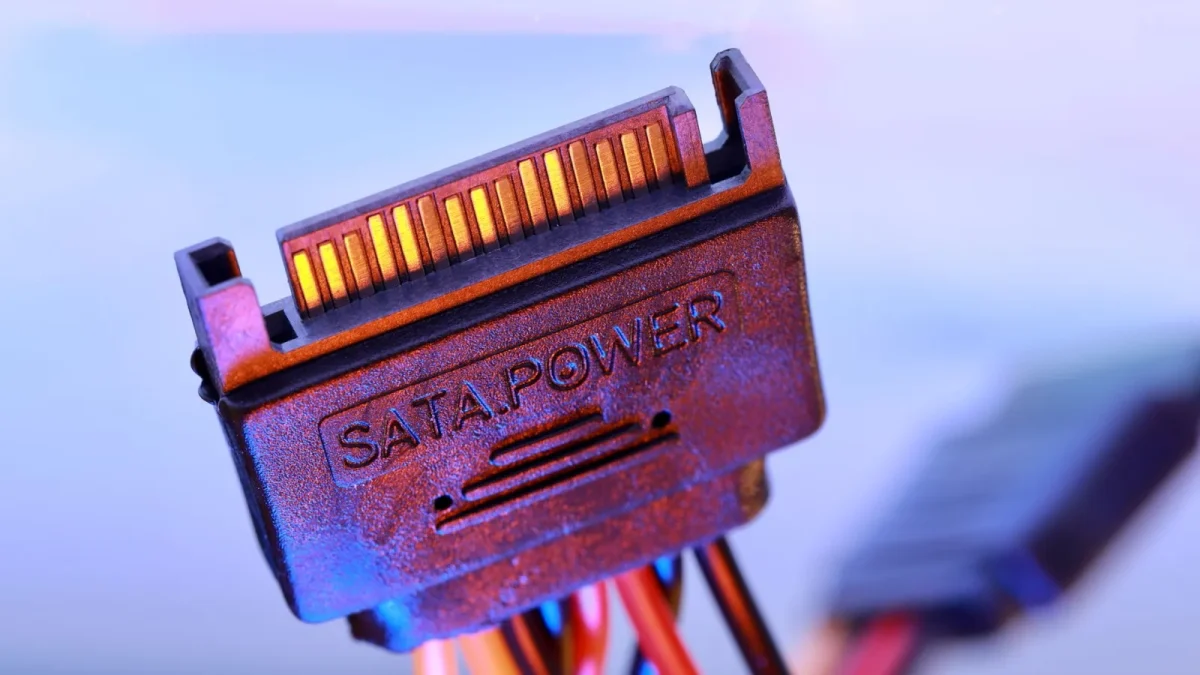
Step 2: Inspect and test the power adapter
Most home NAS units (Synology DS220+, DS224+, QNAP TS-233, TS-464) run off an external power brick, not an internal supply. That brick is the single most common failure point, full stop.
Look at it closely first. Sniff it, honestly. A burnt-electronics smell or a slightly bulged casing tells you a lot.
- Check the barrel connector tip for bent pins, corrosion, or a loose center pin that wiggles.
- Flex the cable near both ends. Internal breaks in the thin cable are common and intermittent.
- Feel the brick after it has been plugged in for a minute. Stone cold usually means it is not drawing power at all.
- Read the label. Note the output voltage and amperage, for example 12V 5A or 12V 7A.
Step 3: Try a known-good adapter (carefully)
Adapters are the cheapest part to swap, which makes them the best test. A replacement Synology or QNAP brick runs about 25 to 40 dollars, far less than a whole new unit.
The catch: voltage and polarity must match exactly. A 12V NAS fed 19V from a random laptop brick can fry the mainboard, turning a 30 dollar fix into a real RMA.
Match the voltage, the amperage rating (equal or higher is fine), and the barrel size. If you have a second identical NAS or a spare from the same vendor, borrow that brick for the test. If not, ordering the correct replacement is a low-risk gamble.
What about internal-PSU models?
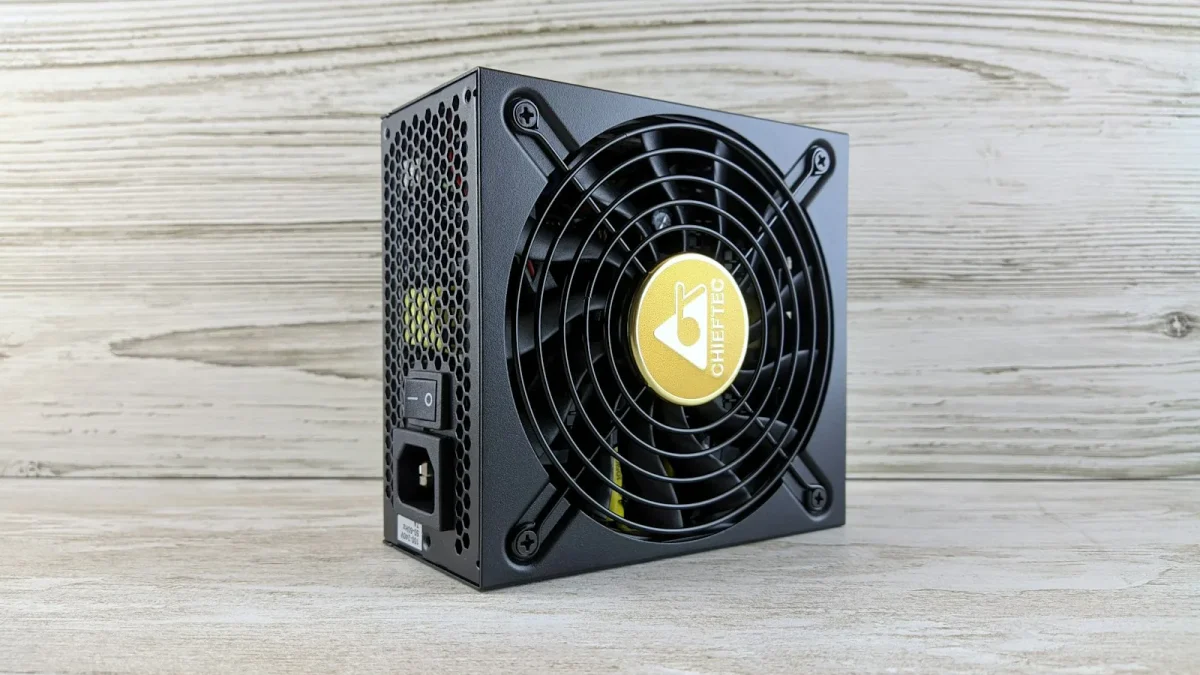
Larger boxes like the Synology DS1821+ or a QNAP TS-873A have an internal power supply and a normal IEC "kettle" cord. For these, swap the cheap IEC cable first (they fail more than you would think), then listen for a very faint fan tick when you press power.
Step 4: Force a hard reset of the unit
Sometimes the NAS has power but is stuck in a hung state that looks identical to no power at all. A residual charge in the capacitors can hold it there.
Do this: unplug the adapter completely. Hold the power button down for a full 30 seconds with no power connected. Then plug the adapter back in and press power once, normally.
This drains stored charge and clears a surprising number of "totally dead" boxes. Give it a genuine half minute, not a quick tap.
Step 5: Remove drives and peripherals
A single shorted drive or a bad USB device can drag the whole power rail down and prevent boot. I have seen one dying 8TB drive keep an entire four-bay unit from lighting up.
- Power off and unplug everything.
- Remove every drive, plus any USB devices, expansion cards, or memory upgrades you added.
- Power on with an empty chassis and watch for fans and LEDs.
If it springs to life empty, add drives back one at a time until it dies again. The last drive you added is your short.
Step 6: Check the button and internal connections
On units a few years old, the physical power button can wear out or the tiny ribbon cable behind it can work loose, especially if the NAS lives somewhere warm and dusty.
Gently press the button and feel for a clean, distinct click. A mushy or silent button is suspect. If you are comfortable opening the case (and past warranty), reseat the front-panel connector and any loose internal power leads.
Do not force anything. If it feels like surgery, it probably is, and that is a fine point to stop.
The quick-reference table
| Symptom | Most likely cause | First fix to try |
|---|---|---|
| Nothing at all, brick stone cold | Dead outlet or dead adapter | Test outlet, then swap adapter |
| Fan twitches then stops | Shorted drive or weak PSU | Remove all drives, retry empty |
| Powers, then dies in seconds | Failing drive on the rail | Add drives back one by one |
| One beep, no boot | Board alive, boot media issue | Hard reset, then reseat drives |
| Faint smell, warm brick | Adapter on its way out | Replace adapter immediately |
When it really is time to RMA
If you have live power at the outlet, a known-good adapter reading correct voltage, an empty chassis, and still get absolutely nothing after a 30 second hard reset, then the fault is inside the unit. Now the return is justified.
Before you ship it, grab your serial number and check the coverage window. Synology and QNAP both offer online warranty lookups, and it is worth reading Synology's warranty status guide so you know what you are entitled to. For general drive health peace of mind, Backblaze's drive failure data is a reassuring reminder that a power fault rarely means dead disks.
A calmer way to think about a dead box
A NAS that will not turn on feels like a data emergency, but it almost never is. The power problem and the data problem are two separate things, and the first one is usually a 30 dollar part sitting in a drawer or a wall switch someone flipped.
Work the list top to bottom, resist the urge to yank drives, and keep the return as your last move rather than your first. Nine times out of ten you will have it humming again before the replacement adapter you nearly did not need would have even shipped.
Frequently asked questions
How do I know if my NAS power adapter is dead?
Feel the brick after it has been plugged in for a minute; a completely cold adapter usually is not drawing power. If you have a multimeter, set it to DC volts and probe the barrel tip. A 12V adapter should read near 12 volts unplugged from the NAS, and anything close to 0V means the adapter has failed.
Can I use any 12V adapter with my NAS?
Only if the voltage, polarity, and barrel size all match, and the amperage rating equals or exceeds the original. A 12V NAS fed a 19V laptop brick can permanently damage the mainboard, so never guess. Buying the correct branded replacement for 25 to 40 dollars is the safe route.
Will my data be lost if the NAS won't power on?
Almost never. A unit that receives no power was not writing to the drives when it died, so the platters are untouched. Fix the power problem first, and in the vast majority of cases the drives boot normally once the NAS is running again.
Why does my NAS fan spin for a second and then stop?
That pattern usually means a shorted drive or a weak power supply is pulling the rail down during boot. Power off, remove every drive, and try booting the empty chassis. If it stays on, add drives back one at a time until it dies to find the bad disk.
What does one beep with no boot mean on a Synology or QNAP?
A single short beep at power-on generally means the board is alive and the power-on self test began. If it then fails to fully boot, the issue is more likely boot media or a drive than the power chain. Try a hard reset and reseat the drives before doing anything drastic.