The scariest moment in home storage is not a failed drive. It is walking up to the box, pressing the power button, and getting nothing back. No fan spin, no LED, no reassuring click. Just silence.
I have talked hundreds of home users through this exact panic, and the good news is that a truly dead NAS is rare. Most of the time the unit is fine and something around it has quietly failed. A power brick, a wall socket, a corrupted boot drive, a stick of RAM that wandered loose during a house move.
This guide is a top-to-bottom diagnostic path. Work through it in order, because each step rules out a whole category of causes. Do not skip ahead to opening the case.
Step 1: Confirm the unit is getting real power
Start dumber than feels necessary. The first time I hit a totally dead Synology, the culprit was a switched wall socket someone had flipped off with a light switch. Ten minutes gone.
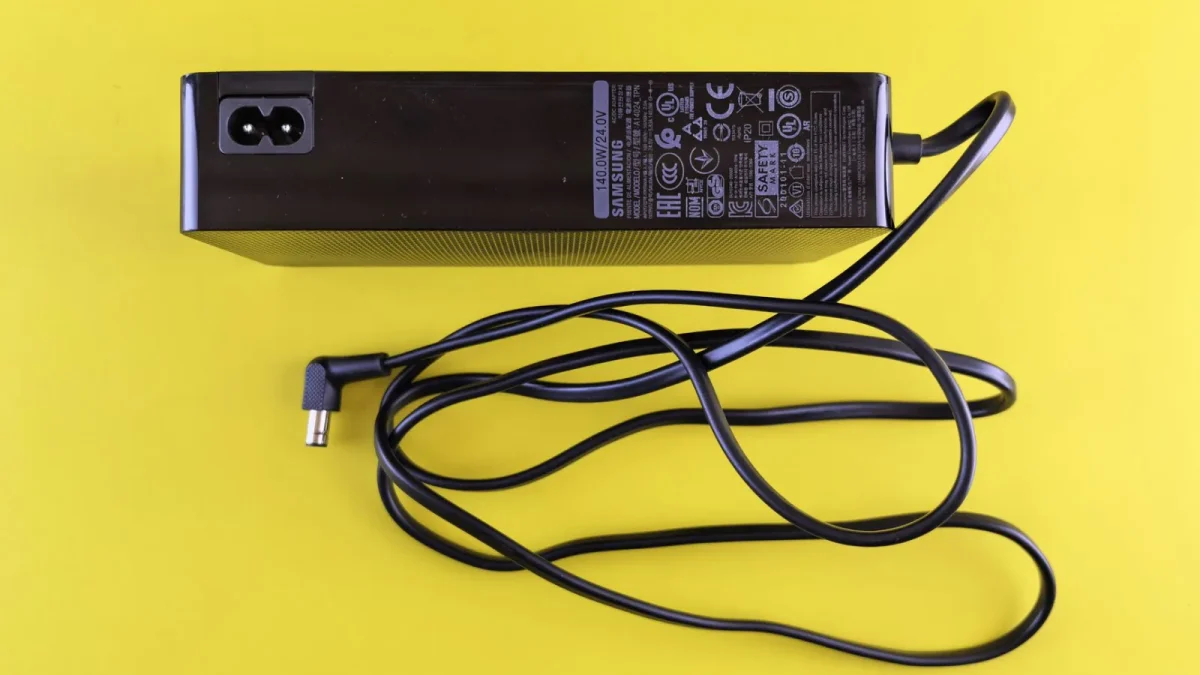
Plug a phone charger or a lamp into the exact same socket to confirm it is live. Then check the power brick itself, because external adapters are the single most common failure point on home NAS units.
- Feel the brick after a minute. A working adapter is slightly warm, a dead one is stone cold.
- Look for a tiny green or blue LED on the brick. No light usually means a dead adapter.
- Wiggle the barrel connector where it enters the NAS. Intermittent power here is common on 4-bay Synology and TerraMaster units.
- If you own a multimeter, check the DC output matches the label (often 12V or 19V).
Replacement adapters run about 15 to 30 dollars and are the cheapest fix in this whole guide. Match the voltage and amperage exactly, and the barrel size.
Step 2: Read the LEDs and listen for beeps
If the unit shows any sign of life, it is talking to you. Every major brand uses status LEDs and beep codes to report where boot stalled, and learning to read them saves hours.
A power LED that is solid but drives that never spin usually points at the boot device, not the disks. A blinking power LED that never goes solid often means the unit is stuck mid-boot. Rapid beeping on a Synology or QNAP frequently signals a fan or thermal fault rather than a boot failure.
| Symptom | Likely cause | First move |
|---|---|---|
| No LED at all | Power adapter or PSU | Swap the brick or cable |
| Power LED blinks forever | Corrupt boot partition or firmware | Reinstall or recover the OS |
| Solid power, no drive activity | Failed boot USB or RAM | Reseat RAM, check boot drive |
| Continuous beeping | Fan, thermal, or degraded array | Check fan, then read the manual |
Brand documentation lists the exact patterns. Synology publishes a clear status indicator reference that maps every LED colour and blink rate to a meaning, and it is worth bookmarking.
Step 3: Force a hard power cycle
NAS units run 24/7, and their internal controllers can hang in a way a normal reboot will not clear. A proper cold reset fixes a surprising number of no-boot cases.
Hold the power button for a full 10 seconds until any LED activity stops. Then unplug the adapter from the back of the unit, not just the wall. Wait 60 seconds so the capacitors fully drain.
Plug back in and power up. On a QNAP or ASUSTOR, this alone clears many stuck-at-logo states caused by a bad shutdown after a power cut.
Step 4: Check the boot device, not the storage drives
Many people do not realise their NAS boots from a separate device. TrueNAS and Unraid boot from a USB stick or small SATA SSD. Synology and QNAP keep the OS on a partition mirrored across the data drives, so a wider array problem can block boot.
If you run TrueNAS or Unraid, the USB boot key is a classic failure. These cheap flash drives wear out after a year or two of constant reads. A stuck boot on Unraid very often means a dead or corrupted USB stick, and rebuilding it from your config backup is straightforward.
For Synology, a boot loop with a blinking blue light usually means the DSM system partition is damaged. You can often recover without data loss by reinstalling DSM over the network. The web assistant detects the unit and offers a repair that keeps your volumes intact, though I always tell people to have a backup before touching anything.
When the drives themselves block boot
Occasionally one failing drive drags the whole unit down, hanging the boot before the OS loads. To test this, power off, remove all drives, label their slot order carefully, and boot the empty chassis.
If the empty NAS boots to its setup screen, you have confirmed the hardware is healthy and one drive is the problem. Reinsert them one at a time to find the culprit.
Step 5: Reseat RAM and inspect the inside
This is the last resort, and only for units where the OS never appears to start. A stick of RAM that has crept loose is a genuine cause, especially after the unit has been moved or shipped.
Power down fully, unplug, and open the case per the manual. Press each RAM module firmly back into its slot until the clips click. While you are in there, look for bulging capacitors on the mainboard, a brown scorch mark, or the smell of burnt electronics.
Visible physical damage means the mainboard has failed. At that point the smart move is to extract your drives and move them to a compatible replacement unit of the same brand, which usually imports the array intact.
If nothing here brings it back
By this point you have separated a hardware fault from a software one. A unit that stays completely dark through every power test almost certainly has a failed adapter or power supply, and that is a cheap, hopeful outcome. A unit that lights up but will not finish booting has a recoverable OS problem in the vast majority of cases.
Your drives are the priority, not the box. If the chassis is truly dead, a matching replacement of the same brand will nearly always read your existing array once you transfer the disks in their original order. Keeping a current backup, ideally following the 3-2-1 backup approach, is what turns a scary no-boot morning into a minor inconvenience.
Take it one step at a time, and resist the urge to open the case first. Nine times out of ten, the fix was waiting back at step one.
Frequently asked questions
My Synology powers on but the blue light keeps blinking and never goes solid. What does that mean?
A continuously blinking blue power light usually means DSM is stuck mid-boot, often from a corrupted system partition after a bad shutdown. Try a full cold reset first (hold power 10 seconds, unplug for a minute). If it persists, use the Synology web assistant to reinstall or repair DSM, which normally keeps your data volumes intact.
Can a single failed hard drive stop the whole NAS from booting?
Yes, occasionally. A drive that fails in a certain way can hang the boot process before the OS loads. Power off, remove all drives while noting their slot order, and boot the empty chassis. If it reaches the setup screen, reinsert the drives one at a time to find the bad one.
How do I know if it is the power adapter or the NAS itself that died?
Check the adapter for a status LED and warmth after a minute of being plugged in; a cold, unlit brick is usually dead. If you have a multimeter, confirm the DC output matches the label. A replacement adapter is cheap, so swapping it is the fastest way to rule the NAS out.
Will reinstalling the operating system erase my files?
On Synology and QNAP, a repair or reinstall of the OS is designed to keep your data volumes intact because the system partition is separate from your storage. It is not guaranteed, though, so always have a current backup before you start. For TrueNAS and Unraid, the OS lives on a USB stick entirely separate from your pools.
My NAS beeps continuously and will not boot. Is it broken?
Continuous beeping is usually a fan or thermal alarm, or a warning about a degraded array, rather than a boot failure. Check that the fan is spinning and not clogged with dust. Then look up your brand's beep code chart, since the pattern tells you exactly what the unit is complaining about.
I have a TrueNAS or Unraid box that will not boot. Where do I start?
Both boot from a USB flash drive, and that stick is the most common failure. These cheap drives wear out after a year or two of constant use. Rebuild the boot key from your saved config backup, which restores the system without touching the data on your storage drives.