It usually happens at the worst possible moment. Mine went off at 2am on a Sunday, a flat electronic shriek from the closet that woke the whole house before I even understood what a Synology was doing to me.
The instinct is to yank the power cord. Please do not do that.
A continuous beep is your NAS telling you something is wrong right now, and pulling power on a box that might be mid-write or already running on one failed drive is how a minor scare turns into actual data loss. So we do this in order. Silence it safely first, then work out what it was screaming about.
First, understand what the beep is actually saying
Almost every consumer NAS uses a tiny piezo buzzer on the motherboard, and it has a small vocabulary. Learning the pattern before you mute it saves you a lot of guessing later.
A single short beep at boot is normal. That is just the unit saying it powered on.
A long continuous tone, or a beep that repeats every second and will not stop, means an active fault: a failed or failing drive, a fan that has stopped spinning, an internal temperature over threshold, or a power event reported by an attached UPS. On Synology and QNAP boxes the same buzzer covers all of these, which is exactly why the noise alone never tells you the cause.
Step 1: Silence the alarm without hiding the problem
Muting the buzzer does not fix anything, and it does not clear the underlying fault. It just stops the noise so you can think. That distinction matters, because a lot of people mute the beep and then forget the drive is still dying.
Here is how to quiet the common brands.
- Synology DSM: log into DiskStation Manager in a browser, and a red notification banner will usually be sitting at the top. Go to Control Panel, then Hardware & Power, then the Beep Control tab, and click the button to mute the beep. You can also often tap the small physical button on the back near the fan on many models.
- QNAP QTS: open the web interface, go to Control Panel, then System, then Hardware, and turn off the buzzer, or hold the reset-adjacent buzzer button on the chassis for a couple of seconds on units that have one.
- TrueNAS and DIY builds: the beep is coming from the motherboard, so it is controlled in the BIOS or by the specific alert that fired. Mute the specific alert in the web UI rather than disabling the speaker outright.
- No login available: most NAS chassis have a recessed buzzer or reset button. A short press mutes the current alarm on the majority of models. Consult your model's quick-start sheet for the exact button.
Muted? Good. Now the important part.
Step 2: Read the actual alert before you touch hardware
The web dashboard is where the real message lives. On Synology, open the Log Center and the main dashboard widget for System Health. On QNAP, check the Notification Center and the Storage & Snapshots panel. The buzzer is deliberately vague, but the log is specific.
You are looking for one of four culprits, and they need very different responses.
| What the log says | Likely cause | Urgency |
|---|---|---|
| Volume degraded, drive crashed, or bad sectors | A drive has failed or is failing | High: act today |
| System fan failed, or fan speed 0 RPM | Dead or clogged cooling fan | High: heat builds fast |
| System temperature too high | Airflow, ambient heat, or fan | Medium to high |
| UPS entered battery mode or low battery | Power event, not the NAS itself | Depends on outage |
If it is a drive
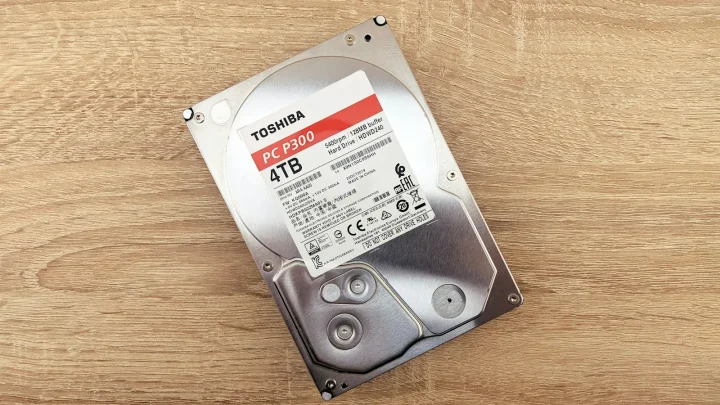
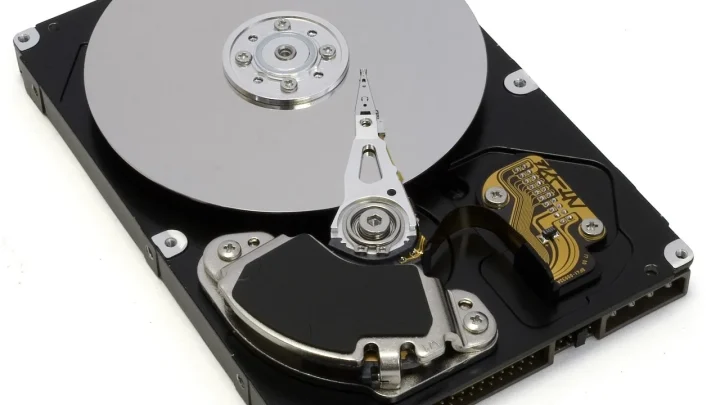
This is the most common trigger I see. The log will name the slot, something like "Drive 2" or a serial number, and the volume will show as degraded rather than failed if you are in a redundant setup like SHR, RAID 1, RAID 5, or RAID 6.
Do not pull the drive yet. First open the S.M.A.R.T. details for that disk. A drive showing thousands of reallocated sectors or a failed extended test is genuinely done, and you should order a replacement of the same capacity or larger. A single pending sector, by contrast, might just need a scrub. If you want to understand what those attributes mean, Backblaze publishes readable, real-world notes on which S.M.A.R.T. stats actually predict failure.
If it is a fan
A fan alarm is more urgent than it sounds. A four-bay NAS packed with drives can climb from a comfortable 40C to a drive-shortening 55C in fifteen or twenty minutes with no airflow.
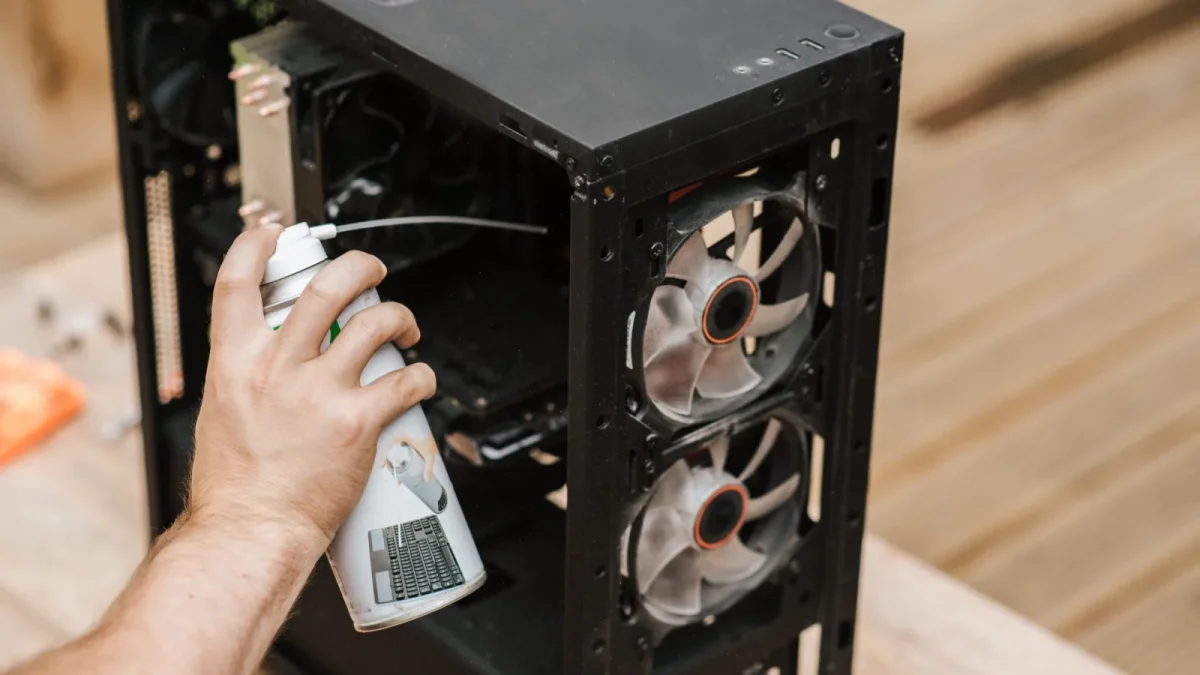
Nine times out of ten it is dust. Power down cleanly through the software menu, open the case, and look at the fan. If it is caked in a grey felt of dust, clean it with compressed air and it will often spin freely again. If it does not spin up on the next boot, the bearing is dead and the fan needs replacing, usually a 92mm or 120mm unit costing 8 to 20 dollars.
If it is temperature
Sometimes the fan is fine and the room is the problem. A NAS crammed into a closed cabinet, sat on carpet, or baking in a summer loft will trip its thermal alarm even with a healthy fan.
Give it 5cm of clearance on every side, get it off soft surfaces that block the base vents, and check the ambient temperature. Most consumer drives are rated to operate up to around 55C to 60C, so you want the drive temps sitting comfortably below that.
If it is the UPS
If you have a battery backup connected over USB, the NAS listens to it. A beep here often means the power flickered and the UPS switched to battery, or the battery itself is old and reporting low. Check the Power settings in DSM or QTS, and if the UPS battery is more than three or four years old, that is your answer.
Step 3: Clear the alert and confirm it is genuinely resolved
Once you have dealt with the cause, the fault state needs clearing. Replacing a drive kicks off a rebuild automatically on most systems; you can watch progress in Storage Manager, and a large array can take anywhere from a few hours to over a day.
For fan or temperature faults, reboot after cleaning and watch the dashboard for a full cycle to be sure the reading has come back into normal range. If the log stays clean and the buzzer stays quiet, you are done.
Do not leave the buzzer permanently disabled just because the noise annoyed you. That alarm is the only warning you get before the next problem, and a silent NAS that has quietly lost a drive is a genuine risk. Synology's own documentation on drive crashes is worth a read so you know what a degraded volume actually means for your files.
When the beeping comes back the next day
A recurring alarm that returns after you cleared it almost always means the root cause was not fixed, only muted. A drive you decided was "probably fine" is not fine. A fan you cleaned but that still reads 0 RPM has a dead bearing.
The other repeat offender is a marginal drive that passes a quick test but fails under load. Run a full extended S.M.A.R.T. test and a data scrub, and if the errors keep climbing, replace the disk even if it technically still mounts.
Treat the beep as information, not an annoyance to be switched off. Silence it so you can concentrate, read the log to learn what broke, fix the hardware, and let the alarm go back to doing its job. A NAS that beeps once and then goes quiet after a real fix is a NAS you can trust again.
Frequently asked questions
Why is my NAS beeping continuously when all the drives look fine?
A continuous beep is not always a drive. Check the log for a fan failure, a high temperature warning, or a UPS power event, since the same buzzer covers all of them. If the dashboard shows a fan at 0 RPM or a temperature over threshold, that is your cause even though the volume reads healthy.
Is it safe to just mute the beep and leave it?
Muting is safe and does not clear the underlying fault, but leaving it unaddressed is risky. The alarm fired for a reason, and a muted NAS running on a failed drive can lose data if a second drive goes. Mute it to stop the noise, then diagnose and fix the cause the same day.
How do I turn off the Synology beep?
In DSM, go to Control Panel, then Hardware and Power, then the Beep Control tab, and mute the beep there. Many models also have a small physical button on the back near the fan that mutes the current alarm with a short press.
My NAS beeped once and then stopped, should I worry?
A single short beep at power-on is normal and just confirms the unit booted. A one-off beep with no repeating alarm and a clean log is nothing to worry about. It only becomes a fault when the beep is continuous or repeats every second and the log shows an active alert.
The beeping came back a day after I fixed it, why?
A returning alarm almost always means the root cause was only muted, not fixed. A drive you judged as probably fine is failing under load, or a cleaned fan still has a dead bearing reading 0 RPM. Run a full extended S.M.A.R.T. test and replace any drive whose errors keep climbing.