A friend called me at 11pm because his Plex library had gone dark mid-movie. The Synology sitting in his closet was still humming, lights blinking, fans spinning, yet nothing on the network could reach it. He rebooted it, everything came back, and two days later it happened again.
That pattern is the whole problem. The box is alive but invisible, and a power cycle papers over it until the next time.
I have chased this exact ghost on a dozen setups, from a two-bay Synology DS220+ to an eight-bay QNAP, and the cause is almost never the drives. It is the network path, the NIC, or a power-saving setting quietly pulling the plug. Here is how I work through it in order, from the fastest wins to the annoying ones.
Confirm it is really the network, not the NAS itself
Before you touch anything, figure out whether the unit is truly online but unreachable, or whether it has actually crashed. These need different fixes.
Next time it drops, walk over to the NAS and look at the screen or the front panel. On a Synology, press the physical power button once (do not hold it) and see if the status LED reacts. If the beep or LED responds but the network is dead, the box is fine and the network stack froze.
Now try to ping it from a laptop on the same switch.
Start with the physical layer: cable and port
The first time I hit this, I spent an entire evening in the DSM settings before swapping a $4 cable fixed it in thirty seconds. Learn from my wasted evening.
A marginal Ethernet cable is the single most common cause of a NAS that drops off intermittently. It works fine at idle, then a big file transfer or a bit of heat pushes it over the edge and the link resets.
Do this in order:
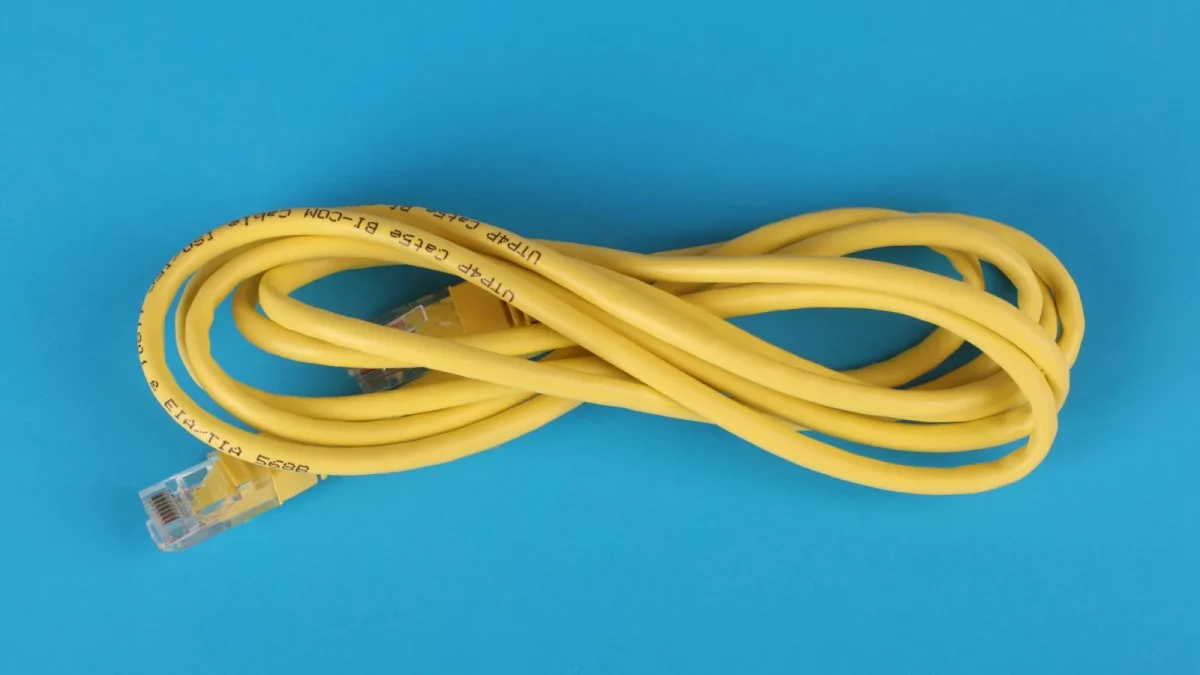
- Swap the patch cable for a known-good Cat6. Not the one that came in the box five years ago, a fresh one.
- Move the NAS to a different port on your switch or router. Ports die, and a dying port looks exactly like a dying NAS.
- Reseat both ends firmly until you hear the clip click. A half-seated RJ45 is a classic intermittent fault.
- Check the link light on the switch. If it flickers off and on with no traffic, the physical link itself is unstable.
If you have a managed switch, look at the port error counters. Rising CRC errors or a port that keeps renegotiating between 1000 and 100 Mbps points straight at the cable or connector.
Rule out DHCP and IP conflicts
A NAS that "disappears" sometimes just changed its address. If your router hands out DHCP leases and the NAS grabbed a new IP, every bookmark and mapped drive pointing at the old one breaks instantly.
Worse is an IP conflict, where two devices claim the same address and the network throws one of them off unpredictably.
The clean fix is a DHCP reservation. In your router, find the DHCP client list, locate the NAS by its MAC address (it is printed on a sticker on the unit), and bind that MAC to a fixed IP. Now the NAS always gets the same address and nothing else can take it.
While you are in there, glance at the lease time. A very short lease of a few minutes combined with a flaky NIC can produce drops every time renewal fails.
The quiet culprit: NIC power saving and green Ethernet
This is the one that fools people, because everything above checks out and it still drops. Modern NAS network chips support power-saving features that can put the link to sleep when idle, and some implementations do it badly.
On Synology DSM, go to Control Panel, then Network, then Network Interface, edit your LAN, and look for Energy Efficient Ethernet. Turn it off.
On QNAP, the equivalent lives under Control Panel, Network and Virtual Switch, and you want to disable EEE there too. It is often on by default.
Green Ethernet on the switch side does the same thing from the other direction. If your router or switch has an "EEE" or "Green Ethernet" toggle per port, disable it for the NAS port. I have seen a link that dropped hourly go completely stable after flipping this single setting.
Jumbo frames: turn them off unless everything supports them
Jumbo frames raise the network packet size (the MTU) from the standard 1500 up to 9000 for faster large transfers. They are great when every device in the path agrees, and a nightmare when one does not.
If your NAS is set to an MTU of 9000 but your switch or router only handles 1500, large packets get dropped silently. Small packets like a ping still work, so the NAS looks reachable right up until a real transfer kills the link.
Set the NAS MTU back to 1500 and see if the stability returns. Only re-enable jumbo frames once you have confirmed the switch and the client both support 9000 end to end.
| Setting | Safe default | When to change it |
|---|---|---|
| MTU / Jumbo frames | 1500 | Only if switch and client both support 9000 |
| Energy Efficient Ethernet | Off | Leave off for a NAS you rely on |
| Link speed | Auto | Force to 1000 full only to test a bad cable |
| IP assignment | DHCP reservation | Static outside pool if router lacks reservations |
Firmware, drivers and the occasional bad update
A mistake I see constantly is people ignoring firmware because "it was working fine." NIC behaviour changes with DSM and QTS updates, and a network driver regression can absolutely introduce random drops on hardware that was rock solid before.
Check your current version against the vendor release notes. Synology publishes DSM changelogs, and if a recent update lists network fixes, install it. If a drop started right after an update, that update is your prime suspect.
For deeper background on how these Ethernet power features actually behave, the Energy Efficient Ethernet overview is worth a read, and Synology's own network troubleshooting guide covers ping-based diagnosis in more detail.
SMB timeouts that look like a full disconnect
Sometimes the NAS never actually leaves the network. The SMB session between your computer and the shares times out and drops, so the mapped drive shows a red X while the box itself pings fine the whole time.
If ping stays alive but shares vanish, this is your lane. On Windows, an idle SMB connection can be dropped by the client after inactivity, and reconnecting usually just means clicking the share again.
What to do when it still drops
Work the list top to bottom and note what you changed and when. If it survives a week after disabling EEE and setting MTU to 1500, you found it. If it dies again, the next drop with a live ping running tells you whether it is the link or the SMB layer.
The stubborn cases almost always come down to one failing part: a NIC on its way out, a switch port that is cooking, or a power supply that browns out under load. At that point, testing the NAS on a completely different switch and cable isolates the hardware for good.
Chase it methodically and the ghost stops being a ghost. It becomes a $4 cable, a checkbox, or a reservation, and your movies stop cutting out at 11pm.
Frequently asked questions
Why does my NAS come back only after a reboot?
A reboot resets the network stack and the NIC, which clears a frozen link or a stuck driver state. That is why the box appears to fix itself. The underlying cause (a bad cable, EEE power saving, or a jumbo frame mismatch) is still there and will trigger again, so the reboot is a symptom, not a solution.
Could a bad hard drive make my NAS drop off the network?
It is uncommon. A failing drive usually shows up as slow transfers, volume errors, or SMART warnings rather than a total network disappearance. If the NAS still responds to a power button press or its screen is active while the network is dead, the drives are not your problem. Focus on the cable, NIC, and DHCP first.
Should I use a static IP or a DHCP reservation for my NAS?
A DHCP reservation is safer for most home users. It binds the NAS MAC address to a fixed IP inside the router, so the address never changes and nothing else can grab it. A manual static IP works too, but only if you set it outside the router's DHCP pool, otherwise you risk an IP conflict that causes the very drops you are chasing.
How do I catch the exact moment the NAS drops?
Run a continuous ping to the NAS IP from a laptop and leave it open. On Windows use ping with the -t flag, and on Mac or Linux ping runs continuously by default. When you see request timeouts line up with a share vanishing, you have caught the drop live and can tell whether the whole box or just SMB went down.
Will disabling jumbo frames slow my NAS down?
For most home networks the real-world difference is small, often a few percent on large sequential transfers. Jumbo frames only help when every device in the path supports MTU 9000, and a single mismatch causes silent packet drops. Running at the standard 1500 is the reliable default and worth it to stop random disconnects.