A reader emailed me last spring in a full panic because his Synology dashboard showed a drive sitting at 44C. He was ready to shut the whole box down and order replacement disks that afternoon. I told him to make a coffee and relax, because that number was completely normal.
Heat is probably the most misunderstood thing in home storage. People either treat a warm drive like a house fire or they ignore a genuinely cooked NAS crammed into a closet with no airflow. Both reactions come from the same place: bad information passed around forums for a decade.
So let me walk through the beliefs I hear most often, what the actual data says, and where the real risks hide.
Myth: A drive at 45C is about to fail
This is the big one, and it is wrong. Most 3.5 inch NAS drives are rated by the manufacturer for continuous operation up to 60C. A WD Red or Seagate IronWolf sitting at 40C to 45C under load is nowhere near its limit.
Backblaze, which runs hundreds of thousands of drives, published years of data showing almost no correlation between operating temperature and failure rate across the normal range. You can read their temperature study yourself, and it is worth ten minutes.
The short version: warm is fine. It is the extremes that matter, and 45C is not an extreme.
Where does 45C even come from? Drives idle a few degrees above room temperature, and under a busy rebuild or a large media transfer they warm further still. A summer room at 26C plus an active four-bay array lands you right there. That is physics doing its job, not a fault in your hardware.
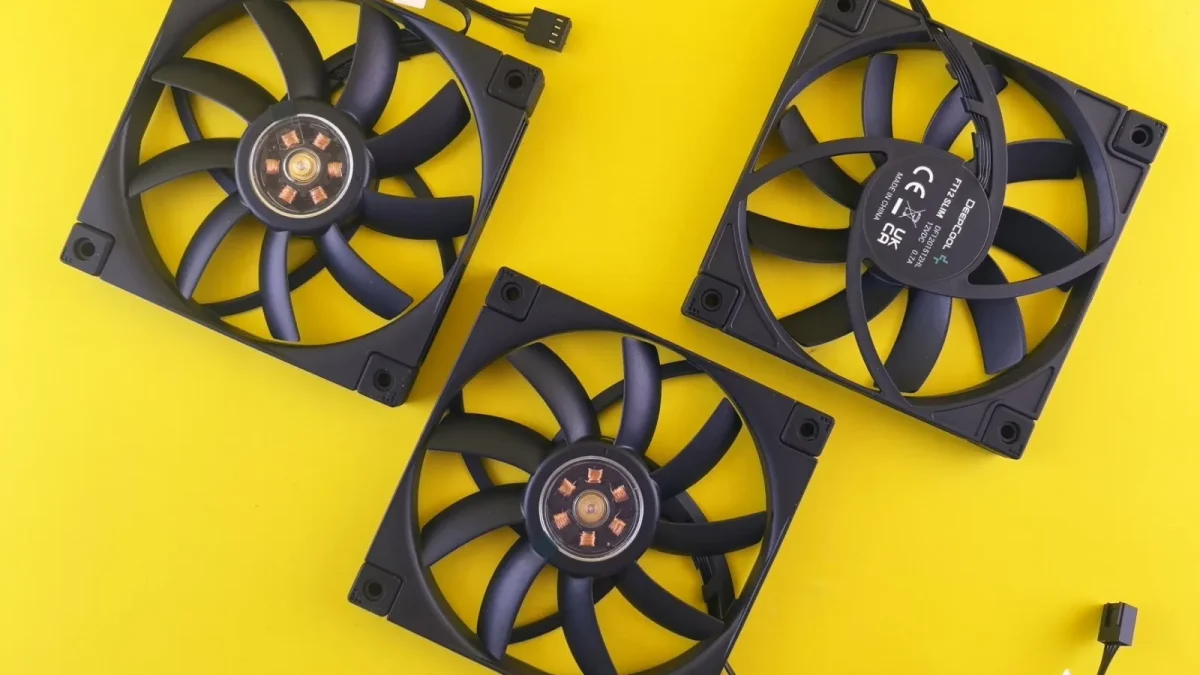
Myth: Louder fans mean a dangerous problem
The first time my DS920+ ramped its fan up on a hot July afternoon, it sounded like a small hairdryer and I assumed something was wrong. Nothing was wrong. The fan was doing exactly its job, spinning faster to move more air because the ambient room temperature had climbed.
Fan noise is a response, not a symptom. A NAS that gets louder when the room warms up is behaving correctly.
What should actually worry you is the opposite: a fan that never changes speed, or one that has gone silent. A dead fan on a sealed enclosure is a real problem because heat has nowhere to go.
How to tell a healthy fan from a failing one
Listen for a steady whir that changes with load. Grinding, clicking, or a rattling buzz usually means a worn bearing. On most Synology and QNAP units you can set the fan to full-speed mode for a minute in the control panel and confirm it actually spins up.
Myth: SMART temperature warnings mean imminent failure
SMART is genuinely useful, but the temperature attribute gets misread constantly. When your NAS flags a drive at, say, 50C, that is an advisory threshold the manufacturer picked to be conservative. It is not a death sentence.
The SMART values that actually predict failure are different ones. Pay attention to Reallocated Sectors Count, Current Pending Sector Count, and Uncorrectable Errors. Those climbing over time is your real early warning.
A drive can run warm for five years and be perfectly healthy. A drive that suddenly reallocates forty sectors in a week is telling you something urgent, even if it is running at a cool 32C.
| SMART attribute | What people think | What it means |
|---|---|---|
| Temperature | Drive is dying | Advisory only, usually fine under 55C |
| Reallocated Sectors | Often ignored | Real failure predictor, watch closely |
| Pending Sectors | Often ignored | Serious, back up now if rising |
| Power-On Hours | Age equals doom | Just runtime, not a failure signal |
Myth: You must keep the room freezing cold
I have seen people run air conditioning around the clock aimed at a four-bay NAS, convinced they are extending drive life. They are mostly just running up an electricity bill.
A normal room, somewhere between 18C and 26C ambient, is completely adequate. The drives will settle a handful of degrees above ambient, which lands them right in that healthy zone.
Sudden temperature swings are worse for hardware than a steady warm temperature. Condensation from moving a cold NAS into a warm room, or cycling AC on and off hard, stresses components more than sitting at a constant 40C ever would.
Think of it like a car engine. Running warm and steady is easy on the parts. It is the repeated cold starts and hard temperature cycles that wear things out, and your drives feel the same way about their environment.
The heat problems that are actually real
None of this means heat never matters. It means you should aim your worry at the right targets.
Here is where I actually see trouble in home setups:
- Dust-clogged fans and vents. A year of pet hair on the intake grille can raise temps 10C or more. Blow it out with compressed air every six months.
- Enclosed cabinets with no ventilation. Sealing a NAS in a furniture cabinet traps heat and cooks everything slowly.
- Stacking gear on top. A router or external drive sitting on the NAS lid blocks passive heat dissipation.
- Failed fans on fanless or single-fan units. One dead fan on a compact 2-bay unit and drive temps can spike past 60C fast.
- M.2 NVMe cache drives. These genuinely run hot, sometimes 70C plus, and unlike spinning disks they will throttle or fail sooner. A small heatsink helps a lot.
How to actually check if you have a problem
Skip the guesswork. Open your NAS dashboard, Synology calls it Storage Manager and QNAP puts it under Storage & Snapshots, and look at each drive temperature under sustained load, not idle.
Run a scrub or a big file copy for twenty minutes, then read the temps. If everything sits below 50C, you are fine. If a drive climbs past 55C, investigate airflow.
Then check the SMART attributes I listed above. Healthy numbers plus reasonable temps means your NAS is doing great, no matter how warm the case feels to your hand.
A quick monthly habit
Once a month, glance at drive temps and the reallocated sector count. Write down the sector count if you want. A number that never moves is a happy drive. A number that ticks up is your cue to make sure backups are current.
Where this leaves you
Warm is normal. Loud fans are usually good news. A 44C drive, the one that started this whole thing, is a drive doing its job in a well-designed enclosure.
Save your energy for the things that genuinely shorten drive life: dust, dead fans, trapped heat, and rising sector counts. Those are worth acting on today. The temperature reading that made you nervous almost certainly is not.
My reader kept his drives, cleaned the vent behind his cabinet, and that box is still running three years later without a single failure.
Frequently asked questions
What temperature is too hot for a NAS hard drive?
Sustained readings above 55C to 60C are where you should take action, since that approaches the manufacturer's rated ceiling. Anything in the 25C to 50C range under load is normal and healthy. If a drive parks above 55C and stays there, check airflow, dust, and fan operation before blaming the drive itself.
Should I worry if my NAS fan gets loud?
Usually not. A fan speeding up is simply responding to a warmer room or heavier workload, which is exactly what it should do. Be more concerned about a fan that never changes speed, makes grinding or clicking noises, or has stopped spinning entirely, since a dead fan traps heat with nowhere to escape.
Does a warm hard drive fail faster?
Not within the normal operating range. Backblaze studied hundreds of thousands of drives and found little correlation between temperature and failure across typical temperatures. Extreme heat above the rated limit matters, and so do rising SMART sector counts, but a steady 40C to 45C drive is not at higher risk.
How do I lower my NAS temperature if I want to?
Start with airflow, not air conditioning. Clean dust from the intake vents and fan with compressed air, move the unit out of any sealed cabinet, and remove anything stacked on top that blocks heat dissipation. These fixes drop temperatures far more effectively than chilling the whole room.
Do NVMe cache drives in a NAS overheat?
They can, and unlike spinning disks this is worth watching. M.2 NVMe drives routinely hit 70C or higher and will throttle performance or degrade faster when they run hot for long stretches. A small stick-on heatsink usually keeps them in a safe range and costs only a few dollars.
Which SMART values actually predict drive failure?
Reallocated Sectors Count, Current Pending Sector Count, and Uncorrectable Error counts are the ones that matter. When these numbers climb over time, the drive is developing real problems and you should confirm your backups. Temperature and power-on hours, by contrast, are poor predictors on their own.