The first time my two-bay Synology started buzzing like an angry wasp, I was three episodes into a movie and assumed the noise was coming from the ceiling fan. It wasn't. It was the little 92mm fan on the back of a DS220+, spinning at full tilt at nine in the evening for no reason I could see.
That sudden change from a quiet hum to something loud, grinding, or rattly almost always has a specific, fixable cause. Below is the exact order I work through, from the checks that take two minutes to the fan swap that takes twenty.
First, figure out what kind of loud you have
Not all fan noise is the same problem, and the sound tells you a lot before you touch anything. Put your ear near the back panel and listen for a second.
A steady, high-pitched whoosh that got louder recently usually means the fan is spinning fast on purpose, because something is hot or a setting changed. A rattle, click, or grind means the fan bearing is failing or a cable or dust bunny is catching the blades. A buzz that comes and goes is often the fan ramping up and down repeatedly, which points to a temperature reading bouncing around.
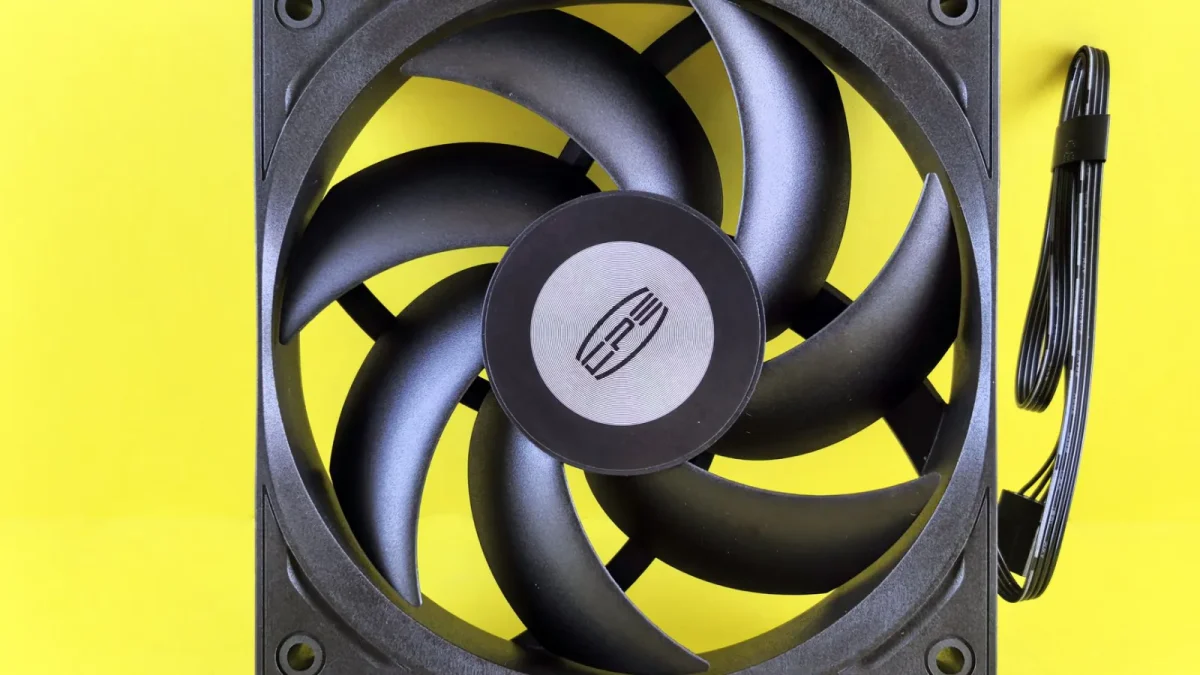
Step 1: Check the temperature before blaming the fan
A loud fan is often doing its job. Log into DSM and open Storage Manager, then hover over each drive to see its temperature. On QNAP, open the Dashboard in QTS and look at the System Health widget.
Anything under roughly 45 C for drives and 55 C for the system is fine. If a drive is sitting at 55 C or higher, the fan is loud because it has to be, and quieting it would cook your data. In that case the fix is airflow, not the fan itself.
Move the unit off carpet, pull it a few inches away from the wall, and make sure nothing is stacked on top of it. I have seen a NAS drop 8 C just from being lifted off a rug onto a hard shelf.
Step 2: Kill the dust
This is the fix roughly half the time, and it costs nothing. Dust builds up on the fan blades and the intake vents, the fan has to spin faster to move the same air, and it gets loud.
Power the NAS down fully and unplug it. Take it outside or to a garage, grab a can of compressed air, and blast the rear fan and every vent slot. Hold the fan blades still with a toothpick or a zip tie while you spray, because letting a fan free-spin backwards can generate a small voltage spike that occasionally kills the controller.
Step 3: Set a quieter fan profile in the software
If temperatures are fine and the unit is clean but still loud, the fan profile is set to be aggressive. Both major vendors let you change this in a couple of clicks.
On a Synology (DSM 7)
Go to Control Panel, then Hardware and Power, then the Fan Speed Mode section. Switch from Full-Speed Mode to Cool Mode or Quiet Mode. Quiet Mode lets the drives run a few degrees warmer in exchange for a noticeably softer fan.
On a QNAP (QTS)
Open Control Panel, then System, then Hardware, and find Smart Fan. Choose the automatic setting and, if your model allows it, drag the target temperature up slightly so the fan holds off longer before ramping. Synology explains its own thermal behavior in its official fan noise knowledge base article.
Step 4: When it is a grind or rattle, replace the fan
A whoosh you can tune away. A grind you cannot. Grinding and clicking mean the fan bearing has worn out, and no software setting will save a dying bearing. The good news is that a replacement fan is cheap and the swap is genuinely easy.
Most home NAS units use a standard 92mm or 120mm case fan, the same kind sold for PCs. A quality Noctua or be quiet! replacement runs about 15 to 25 dollars and will outlast the original by years.
| Common NAS model | Fan size | Rough replacement cost |
|---|---|---|
| Synology DS220+ / DS224+ | 92mm | $16 to $22 |
| Synology DS920+ / DS923+ | 92mm (x2) | $30 to $44 |
| QNAP TS-251D / TS-253D | 70mm to 92mm | $14 to $24 |
| QNAP TS-464 | 92mm | $16 to $22 |
Check your exact fan size and connector before ordering. Most use a small 3-pin or 4-pin header, and Noctua ships adapters in the box if the pinout differs.
The swap itself
Shut down and unplug the NAS. Remove the drives so you do not stress the connectors, back off the four screws holding the fan bracket, unclip the fan cable from its header, and reverse the process with the new fan. Fifteen to twenty minutes, no soldering, nothing exotic.
Step 5: Rule out the sneaky causes
If you have cleaned it, tuned it, and even swapped the fan but it still ramps to full speed at odd times, one of these is usually the culprit.
- A failing drive running hot and dragging the system temperature up. Check the SMART status in Storage Manager; a drive throwing reallocated sector warnings will heat up.
- A scheduled task like a backup, RAID scrub, or antivirus scan hammering the CPU at 2 a.m. Look in the task scheduler and reschedule it for daytime.
- A runaway Docker container or package pinning the CPU. Open Resource Monitor and sort by CPU usage. Backblaze has a solid primer on reading SMART drive health stats if you want to dig into whether a disk is the real problem.
What normal actually sounds like
After all this, you might wonder what a healthy NAS should sound like. In a quiet room, a well-behaved two or four-bay unit is a soft, steady rush of air you stop noticing within a minute, plus the faint tick of drives when it is writing.
What it should not do is howl for hours, grind, or cycle loudly every few seconds. If yours settled into that gentle hum after you worked through these steps, you are done. If it is still grinding, that fan bearing has given up, and step four is your answer even if you skipped it the first time.
Frequently asked questions
Why did my NAS fan suddenly get loud when nothing changed?
The most common triggers are a dust buildup that forces the fan to spin faster, a drive running hotter than usual, or a scheduled task like a RAID scrub loading the CPU. Check the temperatures in Storage Manager or the QTS Dashboard first. If temps are normal and the unit is clean, the fan profile may have reset to an aggressive mode after a firmware update.
Is it safe to slow down my NAS fan to make it quieter?
Yes, as long as your drives stay under about 45 C and the system stays under 55 C. Quiet or Cool mode in DSM lets drives run a few degrees warmer, which is fine for most home use. Just keep an eye on temperatures for a day after changing the setting, and switch back if any drive climbs past 50 C.
Can I replace a Synology or QNAP fan with a normal PC fan?
Usually yes. Most home NAS units use a standard 92mm or 120mm case fan with a 3-pin or 4-pin connector, so a Noctua or be quiet! model will fit. Confirm the exact size and connector for your model before buying, and make sure the new fan's airflow arrow points the same direction as the old one.
My NAS fan is grinding or clicking. What does that mean?
Grinding and clicking almost always mean the fan bearing has worn out and the fan is on its way to failing completely. No software setting will fix a bad bearing. Replace the fan; a quality replacement is 15 to 25 dollars and the swap takes under 20 minutes with a single screwdriver.
Why does my NAS fan ramp up and down constantly?
That cycling usually means a temperature reading is bouncing around the fan's trigger point, often from short CPU spikes. Look for a Docker container, backup job, or scan pinning the processor in Resource Monitor. Rescheduling that task or picking a smoother fan profile normally stops the surging.
How much noise is normal for a home NAS?
A healthy two or four-bay NAS produces a soft, steady rush of air plus faint drive ticking during writes. In a quiet room you should stop noticing it within a minute. Anything that howls for hours, grinds, or cycles loudly every few seconds is a sign something needs attention.