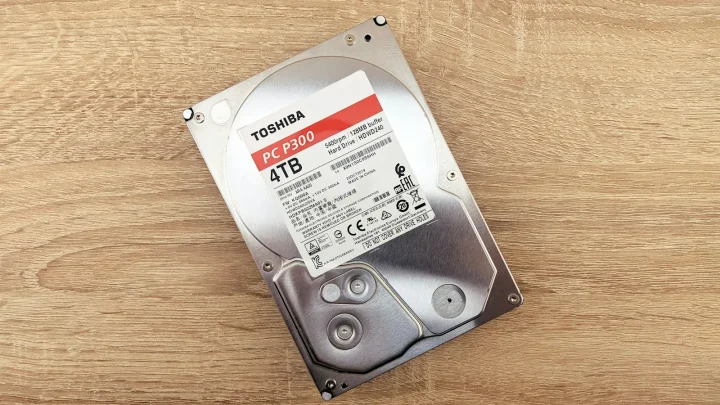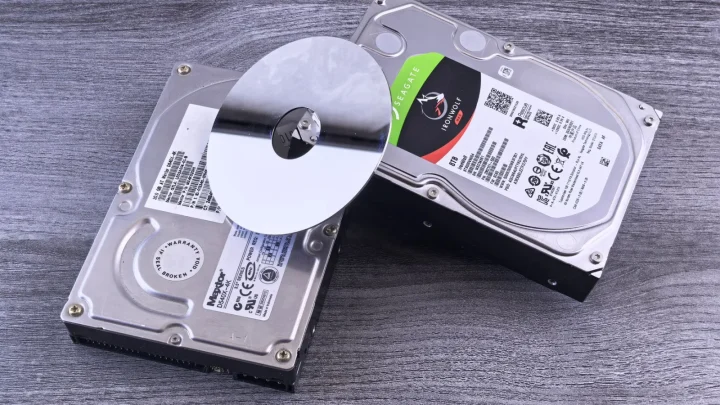
My first serious scare came on a July afternoon when my Synology DS920+ started chirping and threw a "System temperature is too high" notice in DSM. The unit was tucked inside a closed IKEA cabinet, the drives were reading 58C, and I genuinely thought I was about to lose a two-drive volume.
Turned out the fix took ten minutes and cost me nothing. But it sent me down a rabbit hole of what these numbers actually mean and when to panic.
Heat is the quiet killer of home servers. It rarely fails a drive on the spot, it just shortens its life and corrupts data slowly while you assume everything is fine.
What counts as a safe temperature
Before you start pulling the box apart, you need a target. "Hot to the touch" tells you almost nothing, because a drive at 45C already feels alarming against your palm.
For spinning hard drives, the sweet spot is roughly 25C to 40C under normal load. Backblaze ran the numbers across tens of thousands of drives and found no meaningful failure increase in that band, which lines up with what I see at home. Their write-up on hard drive temperature is worth a read if you like the raw data.
SSDs tolerate more heat than platters, but their controllers throttle when things get toasty. NVMe cache drives in particular can spike hard.
Here is the rough map I keep in my head for a home unit.
| Component | Comfortable | Watch it | Act now |
|---|---|---|---|
| HDD (SMART temp) | 25-40C | 41-50C | Over 50C |
| SSD / NVMe | Under 55C | 55-70C | Over 70C |
| NAS CPU | Under 65C | 65-80C | Over 85C |
| System / ambient | Under 50C | 50-60C | Over 60C |
Those "act now" numbers are where I stop what I am doing and cool the box. The drive itself will usually survive a brief spike, the danger is sustained heat over weeks.
Confirm the reading before you trust the alarm
A mistake I see constantly is people reacting to the wrong number. The DSM warning about "system temperature" is about the mainboard sensor, not your drives, and the two can disagree by 15 degrees.
So step one is to actually look at the per-drive temps.
- On Synology: open Storage Manager, click HDD/SSD, and read the Temperature column for each bay.
- On QNAP: open the Dashboard or Storage & Snapshots, where each drive shows its own temperature.
- On TrueNAS: check the Reporting tab under Disk, or run smartctl -a /dev/sda from the shell.
If you want the official numbers for your exact model, Synology publishes drive and system temperature guidance in its knowledge base, and it is worth confirming your unit's spec rather than trusting a generic chart.
Write down the actual numbers. If your drives are sitting at 38C but the system sensor is high, your problem is airflow around the board, not the disks themselves.
Fix the placement first, it is usually the culprit
Nine times out of ten the box is simply in a bad spot. That closed cabinet I mentioned turned my DS920+ into a small oven because the warm air had nowhere to go.
Pull the NAS out into open air as a test. Give it at least four to six inches of clearance behind and beside it, and never sit it directly on carpet, which blocks the base intake.
Then watch the temps for 30 minutes. In my case the drives dropped from 58C to 41C just from moving the unit onto an open shelf.
Common placement mistakes
- Inside a closed media cabinet with no ventilation cut.
- Stacked directly on top of a router or a set-top box that runs warm.
- Pressed against a wall so the rear exhaust fan is blowing into a gap of one centimeter.
- In direct afternoon sun through a window, which I have genuinely seen add 8C.
Room temperature matters too. A NAS in a 30C room in summer starts a full 8 to 10 degrees behind one in a 20C room, and there is no fan setting that erases that gap.
One trick that helped a friend with a hot upstairs office: he put the NAS on the floor rather than a high shelf, since the coolest air in any room sits low. It dropped his drives about 3C for free.
Clean the dust, then check the fan
Dust is the second big offender. A NAS pulls air through the drive bays continuously, and after a year that fan and the vents look like a lint trap.
Power the unit down, unplug it, and take it outside. Blast the rear fan and the intake vents with a can of compressed air, holding the fan blades still with a finger so they do not spin up and generate current.
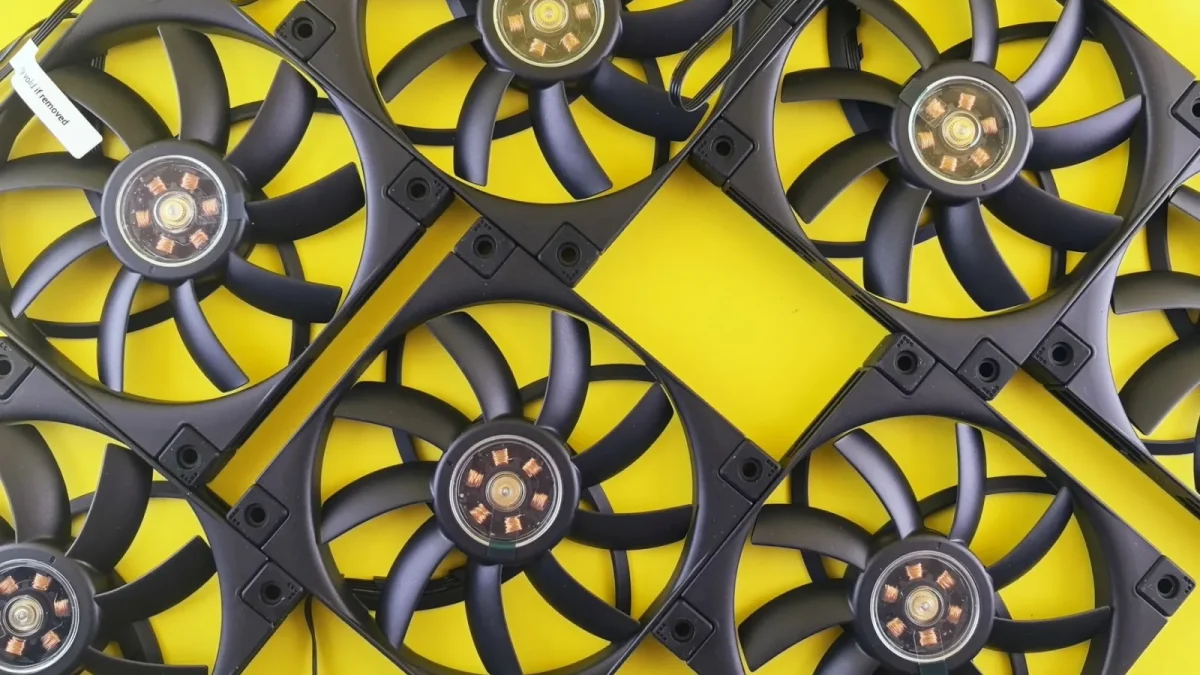
If cleaning does not help, the fan itself may be failing. A dying fan will spin slower than commanded or rattle, and you can often hear it.
Replacement fans for a Synology or QNAP two-bay run about 15 to 25 dollars and take fifteen minutes with a screwdriver. Match the size, usually 92mm or 120mm, and keep it a quiet model so you do not trade a heat problem for a noise problem.
Reduce the heat the drives make
Sometimes the cooling is fine and the drives are just working too hard. A NAS that runs 24/7 Plex transcodes, torrents, and surveillance recording generates real heat from constant spindle activity.
Look at what is actually running. I found a runaway indexing job on a client's unit that kept every drive spinning at full tilt for days.
Enabling HDD hibernation for idle periods can shave a few degrees, though it fights with any always-on service. If you run Docker containers or a media library that touches the disks constantly, hibernation will never kick in, so do not count on it.
Swapping to cooler-running drives helps at the next upgrade. WD Red Plus and Seagate IronWolf NAS drives are tuned to run several degrees cooler than desktop drives crammed into the same bay.
If you run an NVMe cache or an all-flash setup, a cheap heatsink makes a real difference. I stuck a 3 dollar aluminum heatsink on a bare NVMe cache drive that was hitting 78C and it settled at 61C, which is the difference between throttling and running clean.
Also worth checking: how full your drives are. A volume packed to 95 percent forces the drive heads to work harder finding free space, and busier heads run warmer, so keeping 15 to 20 percent free helps more than people expect.
When to worry and when to relax
Not every warm reading is an emergency. A drive touching 46C during a big backup, then settling back to 38C, is completely normal and nothing to lose sleep over.
What you want to avoid is sustained heat. A drive that lives above 50C day and night is the one that shows reallocated sectors six months early.
Set up email or push alerts in your NAS so you are told at 50C rather than discovering it during a failure. The whole point is to catch the slow creep before it costs you a drive or a volume.
Move the box, clear the dust, confirm the fan spins, and check what is keeping the disks busy. Do those four things and the overwhelming majority of home NAS heat complaints simply go away, usually within the same afternoon.
Frequently asked questions
What temperature is too hot for a NAS hard drive?
For a home NAS, aim to keep hard drives between 25C and 40C under normal use. Brief spikes into the mid-40s during heavy work are fine, but any drive sitting above 50C for extended periods is at real risk and should be cooled immediately.
Why does my Synology say the system temperature is too high but the drives look fine?
The DSM system warning reads the mainboard sensor, not your drives, so the two can differ by 10 to 15 degrees. If the drives are cool but the system sensor is hot, your airflow problem is around the board, often caused by placement in an enclosed space or a slowing fan.
Can overheating actually kill my NAS drives?
Heat rarely kills a drive on the spot, but sustained high temperatures shorten its lifespan and can trigger early reallocated sectors and data errors. A drive that lives above 50C day and night tends to fail months sooner than one kept in the 30s.
Is it safe to run my NAS in a cabinet?
Only if the cabinet has real ventilation. A closed cabinet traps the warm exhaust air and recirculates it, which can push drive temperatures up by 15C or more. Cut a vent, leave a door open, or move the unit to open shelving with several inches of clearance.
How do I lower my NAS temperature quickly?
Move it into open air with clearance on all sides, set the fan to full speed as a test, and blow the dust out of the vents with compressed air. In most homes those three steps drop drive temps by 10 to 15C within half an hour.