Everything in your library plays instantly. Then you click on a 4K remux, the spinner appears, and it stalls every ninety seconds like clockwork.
The first time I hit this on my own setup, I spent an evening blaming my TV before I realized the file was a 78 GB Blu-ray rip trying to squeeze through a link that could not carry it. The pattern is almost always the same: small files are fine, big files choke.
That single clue tells you a lot. Buffering that only shows up on large 4K files is rarely a broken Plex install. It is a bandwidth, hardware, or client problem, and the list below walks through the usual suspects in the order I actually check them.
1. Your network cannot move the bits fast enough
A true 4K remux from a UHD Blu-ray runs anywhere from 50 to 100 Mbps of sustained video bitrate, and some scenes spike higher. That is the raw throughput your connection has to deliver in real time, with headroom to spare.
Wi-Fi is the number one culprit. A phone or TV sitting two rooms from the router might negotiate a link rate of 300 Mbps but only see 40 to 60 Mbps of real throughput after interference and overhead. That is not enough for a 90 Mbps file, so the buffer drains and the video pauses.
To understand what your files actually need, it helps to know how video bitrate works. The number in Plex under playback settings that reads something like "Playing at 82 Mbps" is the figure that matters, not the file size.
What to actually check
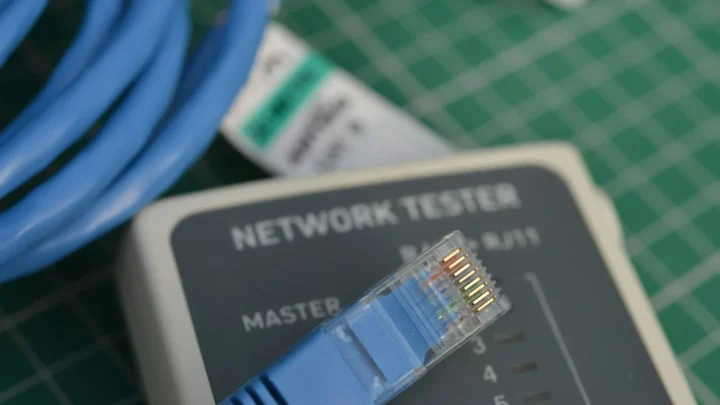
- Run a quick LAN speed test between the client and the server, not an internet speed test.
- Confirm the client, not just the server, is on a fast link. One weak leg breaks the chain.
- On Wi-Fi, prefer the 5 GHz band and get the device within line of sight of the router.

2. Plex is transcoding when you wanted Direct Play
Direct Play means the server sends the file untouched and the client decodes it. Direct Stream and transcode both mean the server is rewriting the video, the audio, or the container on the fly, and that is where things fall apart.
A mistake I see constantly: people assume 4K stutter is always network, when the server is quietly transcoding because the client cannot handle the codec. Modern 4K uses HEVC (H.265) with 10-bit color and often HDR. An older streaming stick or a browser tab simply cannot decode that, so Plex converts it.
Transcoding 4K HEVC in real time is brutal. Without hardware acceleration, even a decent CPU falls behind and the video buffers while the encoder plays catch-up.
3. Remote playback is capped by your upload speed
This one catches people who test at home, see it work, then get complaints from a family member watching remotely. Home internet is asymmetric. You might have 500 Mbps download but only 20 Mbps upload.
A 90 Mbps 4K file cannot fit through a 20 Mbps upstream pipe, full stop. So Plex transcodes it down to something that fits, which loads your server CPU, and if the CPU cannot keep up you get buffering on top of reduced quality.
Check your real upload number with a tool like the one at Cloudflare's speed guide and compare it to the file bitrate. If upload is lower than the file, remote 4K Direct Play is physically impossible, and no Plex setting changes that.
4. The client device has a hard decode limit
Not every device can Direct Play every 4K file even on a perfect network. Cheaper streaming boxes, smart TV apps, and web browsers each have their own ceiling for resolution, codec, and HDR format.
| Client | Typical 4K HEVC Direct Play | Common failure |
|---|---|---|
| NVIDIA Shield Pro | Yes, including Dolby Vision | Rarely the problem |
| Apple TV 4K | Yes | DTS audio can force transcode |
| Web browser (Chrome) | No | Forces video transcode |
| Older Fire TV Stick | Partial | Stutters on high-bitrate HDR |
The web browser row trips up a lot of people. If you test playback in the Plex web app on a laptop and it buffers, that is expected. Browsers cannot Direct Play HEVC, so Plex transcodes, and you are back to the CPU problem from item two.
5. Unsupported audio quietly forces a transcode
Here is a subtle one. Your client can Direct Play the 4K video just fine, but the file has a TrueHD or DTS-HD Master Audio track the client cannot pass through. Plex then transcodes the audio, and depending on the client that can drag the whole stream into a heavier process.
You will see this labeled in the dashboard as video Direct Play but audio transcode. On a strong server it is harmless. On a weak one, or when combined with a subtitle burn-in, it adds just enough load to cause hitches.
6. The server storage or CPU is the weak link
Less common, but real. If your media sits on a slow drive or a heavily fragmented volume, sustained reads of a 90 Mbps file can dip below what playback needs, especially if the same disk is doing something else.
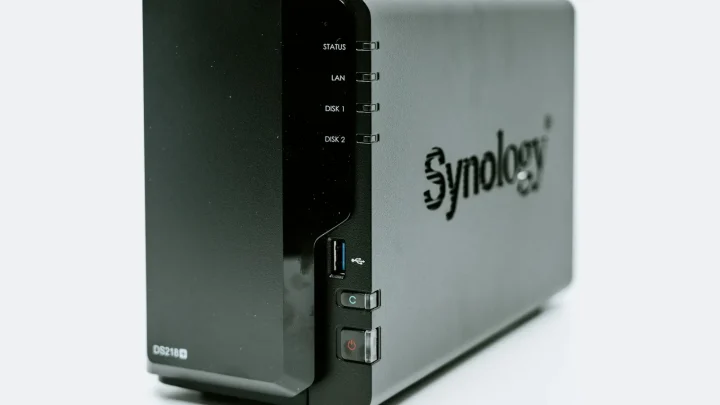
I have seen a single mechanical drive in a budget NAS struggle to serve one 4K remux while a library scan ran in the background. The fix is usually patience or scheduling scans for the middle of the night, not new hardware.
Network attached storage over a slow link matters too. If your files live on a second NAS and Plex pulls them over a 100 Mbps port instead of gigabit, that alone can cap you below a high-bitrate file. Confirm every hop between the disk and the server runs at gigabit or better.
On the CPU side, if your server has no Intel Quick Sync or comparable hardware transcoding, any forced 4K transcode will overwhelm it. A modern Intel chip with Quick Sync handles several 4K transcodes at once; an old Celeron NAS handles roughly zero.
A quick triage order
- Confirm the stream is Direct Play, not transcode, in the dashboard.
- Test the same file on a wired client to rule out Wi-Fi.
- Check whether the trigger is audio or subtitles, not video.
- For remote issues, compare upload speed to file bitrate.
How I get to the answer fast
Nine times out of ten, the fix comes from two questions. Is the server transcoding, and is the client on a link fast enough for the file bitrate? Answer those and you have named the cause.
The satisfying part is that most of these are free to fix. Wire up the client, disable a subtitle track, or store 4K files with audio your gear can pass through, and the spinner disappears for good.
Frequently asked questions
Why does my 1080p content play fine but 4K buffers?
1080p files run at roughly 8-20 Mbps, well within what Wi-Fi and most clients can handle. A 4K remux runs 50-100 Mbps, which pushes past the real throughput of many wireless links and past the decode ceiling of cheaper clients. Same library, very different demands.
How do I know if Plex is transcoding or Direct Playing?
Open the Plex dashboard on your server while the file is playing. Each active stream shows a label next to the video and audio lines. 'Direct Play' means the file is sent untouched, while 'Transcode' means the server is converting it in real time, which is the usual cause of 4K stutter.
Can I Direct Play 4K in a web browser?
No. Browsers cannot decode HEVC (H.265), which nearly all 4K content uses, so Plex always transcodes it. If you test in the Plex web app and it buffers, that is expected behavior. Use a dedicated app on a Shield, Apple TV, or similar device instead.
Why does 4K work at home but buffer for remote viewers?
Remote playback is limited by your home internet upload speed, not download. Most connections offer far less upload, often 10-40 Mbps, which is below a 4K file's bitrate. Plex then transcodes down to fit, adding CPU load and often buffering on top of lower quality.
Will a faster router fix 4K buffering?
Only if Wi-Fi is genuinely your bottleneck. A better router or moving to wired Ethernet helps when the client link cannot carry the file bitrate. It does nothing if the real cause is server transcoding, a client decode limit, or an unsupported audio track.