My first genuine NAS scare came at about 2am, when a faint but rhythmic click started drifting out of a two-bay Synology in the hallway closet. Tick. Tick-tick. Then a long pause, then again. I lay there convincing myself it was the fan, right up until the unit let out three sharp beeps and an email landed saying a volume had degraded.
That drive was gone within the hour.
Since then I have listened to a lot of storage, both healthy and dying, and the good news is that most noises are not the emergency people fear. The trick is learning to tell the boring sounds from the ones that mean your data has a deadline. Here are the causes, ranked roughly from harmless to drop-everything.
1. Normal seek clicks and head parking
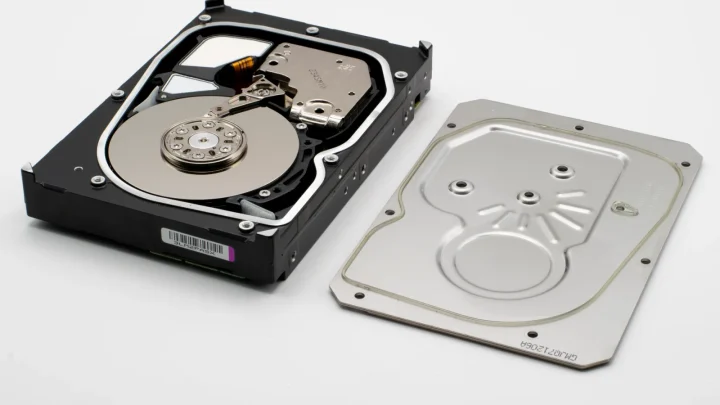
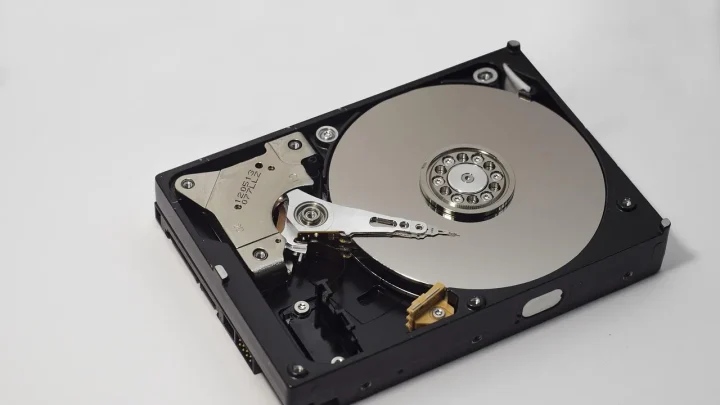
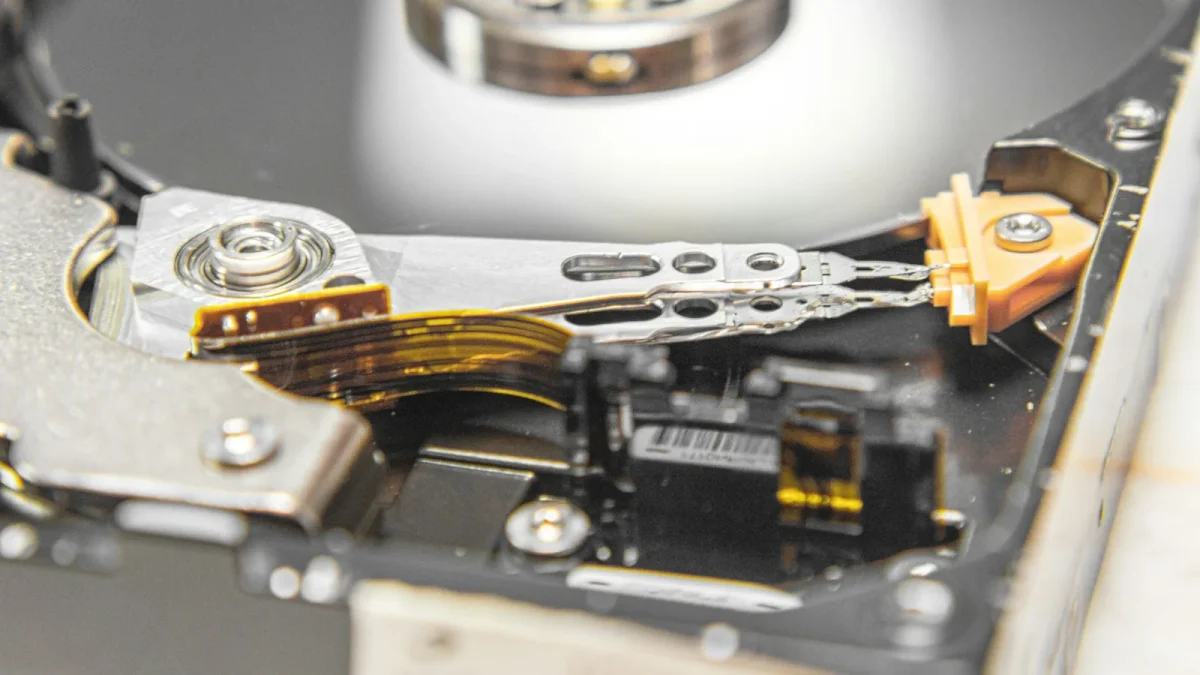
Every mechanical hard drive makes noise. The read/write heads physically move across spinning platters, and each large jump produces a soft click or chatter as the actuator settles. On a quiet night that is surprisingly loud.
A related sound is head parking, where the drive tucks its heads to a safe zone during idle. Some drives, especially WD Reds and older Green models, park aggressively and produce a distinct click every few seconds when the NAS is otherwise idle.
This is normal, if slightly annoying. It only becomes a concern when the parking count climbs into the hundreds of thousands, which you can check in the drive's SMART data under the Load_Cycle_Count attribute.

2. Grinding, scraping, or a repeated buzzy click
This is the one that ended my hallway drive. A failing head or a seized bearing produces a sound that is coarser than a clean click: think a low grind, a scrape, or a buzzy click that repeats in a tight loop.
The classic pattern people describe is the click of death: the head tries to read, fails, retracts, and tries again, over and over. You will often hear a rhythmic click-click-click followed by the drive spinning down and back up as it resets.
If you hear this, stop treating it as a maybe. Copy your important data off that volume immediately, before you do any diagnostics, reboots, or rebuilds. A drive making this noise can go from readable to completely dead in minutes.
3. The NAS itself beeping (not the drive)
Here is where a lot of people get confused. That beep you hear is almost never coming from the hard drive. It is the NAS chassis buzzer, and it is trying to tell you something specific.
Synology, QNAP, and Asustor units all use short and long beep patterns as an audible alarm. A single beep at boot is usually fine. A repeating beep after boot, especially paired with a red status light, means the system detected a problem it wants you to acknowledge.
Common triggers include:
- A degraded or crashed storage pool (a drive dropped out of the array)
- A drive that failed a SMART test or exceeded its bad-sector threshold
- A fan that has stopped spinning or a temperature reading above the safe limit
- A volume that is critically full
- UPS communication lost, or the unit running on battery
Log into the web interface and read the notification or system log before you silence anything. On a Synology you can mute the beep in Control Panel under Hardware and Power, but muting without reading the log is like taping over a smoke detector.
4. Vibration, resonance, and rattling screws
Not every ugly noise is a dying drive. Multiple disks spinning in a metal enclosure can set up a resonance, a droning hum or buzz that comes and goes as the drives drift in and out of phase with each other.
I once spent twenty minutes convinced a four-bay unit was failing, then found a single loose mounting screw on the caddy. Tightened it, and the rattle vanished.
Check these physical causes before you panic:
| Symptom | Likely cause | Fix |
|---|---|---|
| Low droning hum that pulses | Drive resonance in the chassis | Add anti-vibration grommets or foam feet |
| Rattle that changes when you touch the case | Loose caddy or mounting screw | Reseat the drive, tighten screws |
| Buzz that stops if you press the lid | Loose panel or fan cable | Secure the panel, check fan mounting |
| Whine that rises and falls | Fan bearing wearing out | Replace the fan, cheap and easy |
These fixes cost a few dollars and five minutes, and they rule out the scary explanations for free.
5. Spin-up clunk and click on a cold drive
A single soft clunk when a drive spins up from a fully powered-down state is normal. The platters start turning and the heads unpark, and that transition can produce one audible thunk.
What is not normal is a repeated clunk-clunk-clunk on spin-up where the drive never reaches full speed. That usually points to a stuck spindle motor or a power delivery problem, sometimes a failing power supply that cannot deliver clean 12V under load.
Before condemning the drive, try it in a different bay or with a known-good power adapter. I have seen a tired 60W brick cause spin-up stutter across every disk in a unit, and swapping the adapter fixed all of it.
6. Clicking that only happens under heavy load
Some drives click or chatter only when hammered, during a RAID rebuild, a full backup, or a scrub. If SMART is clean and the noise tracks perfectly with activity, this is often just an intense seek pattern.
But heavy load is also when a marginal drive shows its weakness. A disk with reallocated sectors will retry reads on the bad areas, and those retries sound like clicking. So do not dismiss it outright.
Run a SMART extended test and check three attributes: Reallocated_Sector_Ct, Current_Pending_Sector, and Reported_Uncorrect. Any non-zero and climbing value on those means the drive is quietly rotting, load noise or not. Backblaze published useful data on which SMART stats actually predict failure, and those three are near the top of the list.
7. SSDs and the noises that are never the drive
If your NAS uses SSDs and you hear clicking, it is not the SSD. Solid state drives have no moving parts and make no mechanical noise at all. The sound is coming from a fan, the power supply, or a mechanical cache drive if you have one.
A high-pitched electronic whine from an SSD-only or diskless unit is usually coil whine from the power supply or a voltage regulator. It is annoying but generally harmless.
Track it down by touch and by ear rather than assuming the storage is dying, because in an all-flash box the storage almost never is.
What each sound is really telling you
If you take one habit away from all this, make it this one: match the sound to the activity. A noise that fires during real disk work is usually the drive doing its job. A noise that appears at idle, repeats in a tight loop, or arrives alongside a red light and a beep is the machine asking for help.
And keep a current backup regardless. The quietest drive I ever owned failed without a single warning click, and the only reason I shrugged was a nightly copy sitting safely on a second box. Sound is a clue, not a guarantee, so treat your backup as the real safety net and the noises as an early tip-off.
Frequently asked questions
Is a clicking noise from my NAS drive always a sign of failure?
No. Most clicking is the read/write heads seeking across the platters or parking during idle, which is completely normal. It only signals trouble when the click is a tight, repeating loop, sounds like grinding, or happens at idle with no disk activity. Match the sound to what the drive is doing before you worry.
What does it mean when my Synology or QNAP NAS keeps beeping?
The beep is the chassis buzzer, not the drive. It means the system detected something it wants you to acknowledge, such as a degraded storage pool, a failed SMART test, a stopped fan, high temperature, or a full volume. Log into the web interface and read the notification or system log before muting the alarm.
Can I fix a hard drive that is making the click of death?
Not really, and you should not try. A drive making a repeated buzzy click with spin-down and retry cycles has a failing head or motor and can die completely within minutes. Copy your important data off immediately, before any reboot or rebuild, and if it is already unreadable, a professional recovery lab is the only real option.
My SSD-based NAS is clicking. What is wrong?
The SSD is not clicking, because solid state drives have no moving parts. The sound is coming from a case fan, the power supply, or a mechanical cache drive if your unit has one. Track it down by ear and touch. A high-pitched whine is usually harmless coil whine from the power supply.
How do I tell which drive in a multi-bay NAS is the noisy one?
Use the software to spin down or safely eject one drive at a time and listen for the noise to stop. On Synology this is in Storage Manager and on QNAP in Storage and Snapshots. When the sound disappears, you have identified the culprit without opening the case or using a stethoscope.
Should I keep using a drive that clicks only during heavy load?
Only after checking SMART. If Reallocated_Sector_Ct, Current_Pending_Sector, and Reported_Uncorrect are all zero and staying flat, load-only clicking is usually just intense seeking and fine. If any of those values are non-zero or climbing, the drive is failing quietly and should be replaced regardless of how it sounds.