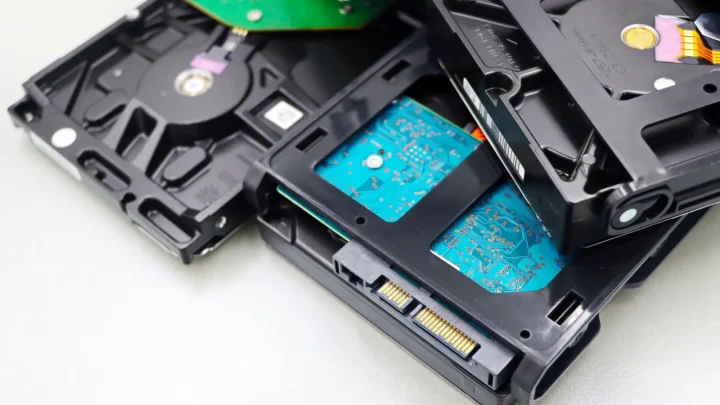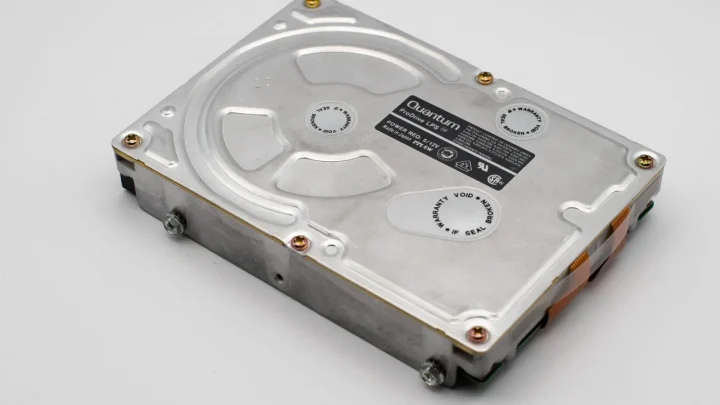
A reader named Marcus emailed me a photo of his open Synology bay last month. Four drives, three brands, capacities from 4TB to 12TB, all bought over five years as prices dropped. He was terrified he had built a ticking bomb.
He hadn't. His setup was fine, just wasteful, and one drive was the wrong kind entirely.
That situation is so common that I want to walk through it as a set of real questions, because the answer to "can I mix drives" is almost always yes, with a couple of asterisks that actually matter.
Can I mix different drive capacities in one NAS?
Yes. Every mainstream NAS from Synology, QNAP, or a TrueNAS box will happily accept a 4TB drive next to a 12TB drive in the same enclosure. The controller does not care that the numbers differ.
What you need to understand is how the array uses that space. In a traditional RAID array, the math is blunt: every drive gets treated as if it were the size of the smallest drive in the group.
So if you build a four-bay RAID 5 out of one 4TB drive and three 12TB drives, the array pretends all four are 4TB. You paid for 40TB of raw disk and the array only touches 16TB of it, minus parity. That is 24TB sitting there doing absolutely nothing.
So how do I not waste all that space?
This is where Synology's SHR and TrueNAS setups pull ahead of plain RAID. Synology Hybrid Raid (SHR) was built specifically for the person buying drives one at a time.
SHR carves each drive into chunks and layers protection across them, so a mix of 4TB, 8TB, and 12TB drives recovers a large chunk of that otherwise stranded space. In the mixed example above, SHR gives you meaningfully more usable capacity than RAID 5 would, though still not the full 40TB because you always pay a parity tax.
Synology publishes a calculator that shows the exact numbers for any drive combination, and it is worth two minutes before you buy. You can read how the technology works in Synology's own SHR explainer.
On TrueNAS, ZFS handles mixed sizes within a vdev the same blunt way as RAID: it uses the smallest disk. The trick there is grouping matched drives into separate vdevs, which is a different article, but the principle is the same.
Can I mix brands, like Seagate and Western Digital?
Yes, and I do it in my own main NAS right now. It holds two Seagate IronWolf drives, one WD Red Plus, and a Toshiba N300. Four years, zero brand-related problems.
Mixing brands is actually a mild form of insurance. Drives from the same batch of the same model can share a manufacturing flaw, so if one dies of a defect, its identical neighbor may be next in line. Spreading brands spreads that risk out.
What matters far more than the logo is that the drives are rated for NAS duty. Look for the NAS-specific lines: WD Red Plus or Red Pro, Seagate IronWolf, Toshiba N300. These handle 24/7 spinning and vibration from neighbors in a way that cheap desktop drives do not.
What is this SMR problem everyone warns about?
This is the asterisk that actually bites people, and it was the real issue in Marcus's NAS.
Hard drives write data one of two ways. CMR (Conventional Magnetic Recording) writes tracks side by side. SMR (Shingled Magnetic Recording) overlaps tracks like roof shingles to cram in more capacity, which means rewriting a region forces the drive to rewrite overlapping data too.
For a NAS, SMR is a problem during a rebuild. When a drive fails and you replace it, the array reconstructs terabytes of data at full tilt, and an SMR drive can slow to a crawl under that sustained write load. In bad cases the rebuild times out and the array drops the drive, turning one failure into a real scare.
How do I tell CMR from SMR before I buy?
You cannot tell by looking at the drive or the capacity. You have to check the specific model number against the maker's published list.
Western Digital, Seagate, and Toshiba all publish CMR versus SMR tables now. As a rough guide, WD Red Plus and Red Pro are CMR, while the plain WD Red line historically included SMR. Backblaze has written extensively on real-world drive reliability, and their breakdown of SMR versus CMR is a solid plain-English starting point.
Here is the quick comparison I give people:
| Factor | CMR | SMR |
|---|---|---|
| Sustained write speed | Consistent | Drops sharply under load |
| RAID rebuild behavior | Reliable | Can stall or fail |
| Cost per TB | Slightly higher | Slightly lower |
| Right for a NAS array | Yes | Avoid |
Can I mix one SMR drive with CMR drives?
Technically it works, and for a while nobody notices. The SMR drive sits there fine during normal reads and light writes.
The danger only shows up at the worst possible moment, during a rebuild, when you are already down a drive and stressed. That is exactly when you do not want a disk that might stall. My honest advice: keep SMR out of any redundant array entirely.
If you have one SMR drive already installed, it is not an emergency. Just plan to swap it for a CMR NAS drive at your next upgrade, and make sure it is never the drive doing the heavy lifting during a resync.
Does mixing drives affect performance or drive life?
Barely, in normal use. A slower older drive can drag sequential transfer speeds down slightly because parity spreads across all members, but for streaming media, backups, and file serving you will not feel it.
Drive lifespan is not shortened by having mixed neighbors. What shortens life is heat, constant vibration, and cheap desktop drives run 24/7. Give the enclosure airflow, use NAS-rated drives, and a mixed array lasts just as long as a matched one.
One small thing I do check: the workload rating. NAS drives are rated for a certain amount of data written per year, often around 180TB for consumer models. A busy home NAS almost never approaches that, so a mixed batch bought over five years sits comfortably inside spec.
What I told Marcus to do
Three things. Keep the mixed sizes and brands, they are genuinely fine. Switch the volume to SHR so he stops wasting 24TB. And replace the single SMR 4TB drive with a CMR NAS drive before it ever has to survive a rebuild.
That is the whole story of mixing drives. The scary-sounding parts, different sizes and different brands, are the safe parts. The one quiet gotcha, SMR hiding in a rebuild, is the thing worth ten minutes of checking model numbers before you spend a dollar.
Frequently asked questions
Will my NAS refuse to build an array with different drive sizes?
No. Synology, QNAP, and TrueNAS all accept mixed capacities in the same enclosure. The controller builds the array without complaint; it just limits usable space based on the smallest drive unless you use a flexible layout like SHR.
Is it safe to add a bigger drive to an existing array?
Yes, and it is a common upgrade path. On plain RAID the extra capacity sits unused until every drive is that size or larger. On Synology SHR, adding two larger drives lets the system expand and start using the new space after it rebuilds.
How do I check if my current drives are SMR?
Note the exact model number printed on the label, then look it up on the manufacturer's published CMR versus SMR list. You cannot tell from capacity or price alone, and two drives in the same product family can differ.
Do I need identical drives for RAID 1 mirroring?
No, but the mirror only uses space equal to the smaller drive. A 4TB drive mirrored with an 8TB drive gives you 4TB of protected storage, leaving half the larger drive unused until you replace the smaller one.
Can I mix 5400 RPM and 7200 RPM drives?
Yes. The array will run at roughly the pace of the slower members for sustained writes, but for typical home use like media streaming and backups the difference is hard to notice. Keeping every drive NAS-rated matters far more than matching spin speed.