A friend called me at 11pm about his Synology DS920+ that had stopped booting after a power cut. By the time we got on the phone he had already pulled all four drives, popped them back in a different order, and hit the little reset button twice. His photos from the last nine years were on that box.
He was one keystroke away from wiping the array.
That is the pattern I see over and over. The NAS itself is almost never the thing that loses your data. The panic troubleshooting is. A drive that won't spin up is a hardware problem. A reinitialized volume is a permanent one. Below are the specific mistakes people make in those first frantic thirty minutes, why each one is dangerous, and what the calm version looks like.
Mistake 1: Hitting the reset button because "it can't hurt"
The reset pinhole feels harmless. It is a button, buttons undo things, so surely it just puts the NAS back to a known-good state. That mental model is what gets people.
On most Synology units a short 4-second press resets network settings and the admin password, which is fine. But a second press within a few seconds, or the longer press that the beep sequence invites you to do, triggers a full reinstall of the operating system. On some models that reinstall offers to reformat the system partition, and a nervous owner clicking through the wizard can absolutely blow away volume configuration.
QNAP's reset behavior is similar but labelled differently, with a "basic" and "advanced" reset that people confuse constantly.
The correct move: do not press reset at all unless you know exactly which press length does what on your specific model. If you are locked out and just need access, a 4-second Synology reset is safe. Anything longer, check the vendor documentation for your model number first.
What reset actually protects you from
Reset is designed for a forgotten password or a bad network config, not for a non-booting box. If the NAS won't POST or the drives won't mount, reset does nothing useful and adds risk.
Mistake 2: Reinstalling the OS and accepting the reformat prompt
When a NAS boots into recovery mode it often says something like "the configuration has been lost" or offers to reinstall DSM. People read that as "my data is gone" and click through the reinstall as fast as possible to get back to normal.
Here is the part that matters. On Synology and QNAP, the operating system lives on a small partition that is mirrored across every drive, separate from your data volume. A clean reinstall of the OS usually does not touch your data. But the same wizard sometimes presents a checkbox or a warning about erasing data, and under stress people tick whatever gets them to the next screen.
The first time I hit this, I sat and read every single line of the wizard twice before clicking. That is the right speed.
Mistake 3: Reseating drives in the wrong slots
This one feels productive, which is exactly why it is dangerous. The drives won't mount, so you pull them, blow the dust off, and put them back. Except you put them back in a different order.
For a healthy modern array this is often survivable because the RAID metadata is written to each disk and the controller can reassemble by reading it. But if the array is already degraded, or if the NAS is mid-rebuild, or if one drive is quietly failing, changing slot order can confuse the assembly logic and push a recoverable array into a failed state.
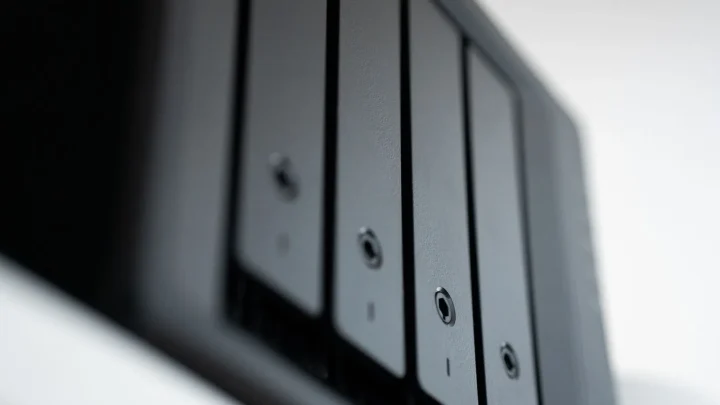
Before you pull a single drive, photograph the front of the unit with your phone so you know which serial or which slot each disk came from. It takes ten seconds and it has saved more than one array I have worked on.
Mistake 4: Pulling drives while the NAS is powered on
Hot-swap bays make people careless. Yes, the bays are hot-swap rated. No, that does not mean you should yank a drive from a struggling array while it is spun up and possibly mid-write.
If the system is confused and writing recovery data, removing a disk at the wrong moment can corrupt the parity information that lets a RAID 5 or RAID 6 rebuild itself. Power the unit down cleanly first. If it won't shut down through the interface, hold the physical power button for a clean poweroff rather than pulling the plug.
Mistake 5: Trying to "repair" or rebuild before you have a backup
A degraded array will beg you to rebuild. There is a button, it is glowing, it wants a new drive. Resist it until you understand the state you are in.
A rebuild is a heavy read across every surviving disk, and if a second drive is marginal, the stress of the rebuild is precisely what tips it over. That is the classic RAID 5 double-failure story: one drive dies, the rebuild kills a second, and now the parity math has nothing left to reconstruct from.
If the volume still mounts read-only, copy the important data off first, then rebuild. Backblaze has published years of real-world drive failure data showing that drives from the same batch tend to fail around the same time, which is exactly why rebuilds are risky. You can read their hard drive reliability data for the details.
Mistake 6: Confusing RAID with a backup
Half the panic in these calls comes from a belief that RAID means the data is safe. RAID protects against a disk failing. It does nothing against an accidental reformat, ransomware, a bad firmware update, or two disks failing at once.
The 3-2-1 backup rule exists for exactly this moment. Three copies, two different media, one offsite. If you had that, a non-booting NAS would be an annoyance, not an emergency.
A quick decision table
| Symptom | Do this | Never do this |
|---|---|---|
| Locked out, box otherwise fine | 4-second reset (Synology) | Long-press reset repeatedly |
| Boots to recovery / reinstall prompt | Read every line, choose "keep data" | Click through a wipe prompt |
| Drives won't mount | Photograph slots, power down cleanly | Reseat drives in random order |
| Array degraded | Copy data off, then rebuild | Rebuild before backing up |
The calm recovery order that actually works
When a NAS won't boot, work through it in this sequence. Do not skip ahead because a later step feels faster.
- Stop. Take a photo of the drive layout and note any beep codes or LED colors.
- Check the boring stuff: power supply, the outlet, the network cable, the specific PSU brick. A dead 12V adapter looks exactly like a dead NAS.
- If it powers on but won't finish booting, note the exact on-screen message before touching anything.
- If drives spin but the volume won't mount, try a clean OS reinstall that explicitly keeps data, nothing more.
- If the volume mounts read-only, copy your critical files off immediately, before any repair.
- Only then consider a rebuild, replacement drive, or deeper recovery.
When to walk away from the keyboard
The single best skill in a NAS emergency is knowing when to do nothing. If you are tired, it is late, and the data is irreplaceable, power the unit off and go to bed. Nothing gets worse while it is switched off.
Almost every catastrophic data loss I have seen came from a fast decision made at midnight, not from the original fault. The drives that failed were rarely the whole story. The reformat that followed usually was.
Slow down, back up what you can reach, and treat that glowing rebuild button with the suspicion it deserves.
Frequently asked questions
Will pressing the reset button on my NAS delete my files?
A short 4-second reset on a Synology only clears network settings and the admin password, so your data survives. The danger is a longer press or a second press that triggers an OS reinstall and offers to reformat. Always check what each press length does for your exact model before touching the pinhole.
Does reinstalling the NAS operating system erase my data?
Usually not, because the OS lives on a small partition separate from your data volume on Synology and QNAP units. The risk is the wizard offering an 'erase all data' checkbox that panicked owners tick to move faster. Look for a 'keep my data' option and back out if a screen only offers a full wipe.
Is it safe to reseat my NAS drives if the volume won't mount?
Reseating can help with a bad connection, but only if you put every drive back in the exact same slot. Photograph the layout first. Changing slot order on a degraded or mid-rebuild array can push a recoverable state into a failed one.
My array is degraded, should I rebuild it right away?
Not before you copy off anything important. A rebuild puts heavy read stress on every surviving disk, and drives from the same batch often fail around the same time. If the volume still mounts read-only, get your critical files off first, then start the rebuild.
Can a data recovery lab help after a NAS boot failure?
Often yes, for physically failed drives or a scrambled array, but only if you have not overwritten the data. Reformatting, reinitializing, or a full rebuild can destroy what a lab could have recovered. If the data is irreplaceable, stop and get a quote before doing anything destructive.